An org chart becomes outdated when employee changes are recorded in one system but not reflected in the chart. The solution is to build it from structured employee and manager data, maintain one shared version, and define who updates it when roles or reporting lines change.
This guide shows you how to set that up.
Steps to Create and Maintain a Dynamic Org Chart
The steps below show you how to prepare employee data, build the reporting hierarchy, choose an update method, and set up a simple process for keeping the chart accurate as people and roles change.
Step 1: Prepare Your Employee Data
Create a spreadsheet or export employee data from your HR system.
Include:
- Employee ID
- Employee name
- Manager ID
- Job title
- Department
Add fields such as location, employment status, position ID, or start date only when they are useful for the chart.
Use employee and manager IDs instead of names wherever possible. IDs are more reliable when employees have similar names or when a name changes.
Before importing the file into Creately, check that:
- Every employee has a unique ID.
- Every manager ID matches an existing employee.
- The top-level leader has no manager ID.
- There are no duplicate records.
- Department names are consistent.
- Departed employees are clearly marked.
- There are no circular reporting relationships.
Example
| Employee ID | Name | Manager ID | Title |
| E001 | Maya Chen | — | CEO |
| E002 | Alex Rivera | E001 | Head of Product |
| E003 | Noah Kim | E002 | Product Designer |
When you import the file, Creately uses the employee and manager IDs to place each person in the correct reporting hierarchy.
Step 2: Import the Data and Check the Hierarchy
In Creately, select Import from CSV and upload your employee data file.
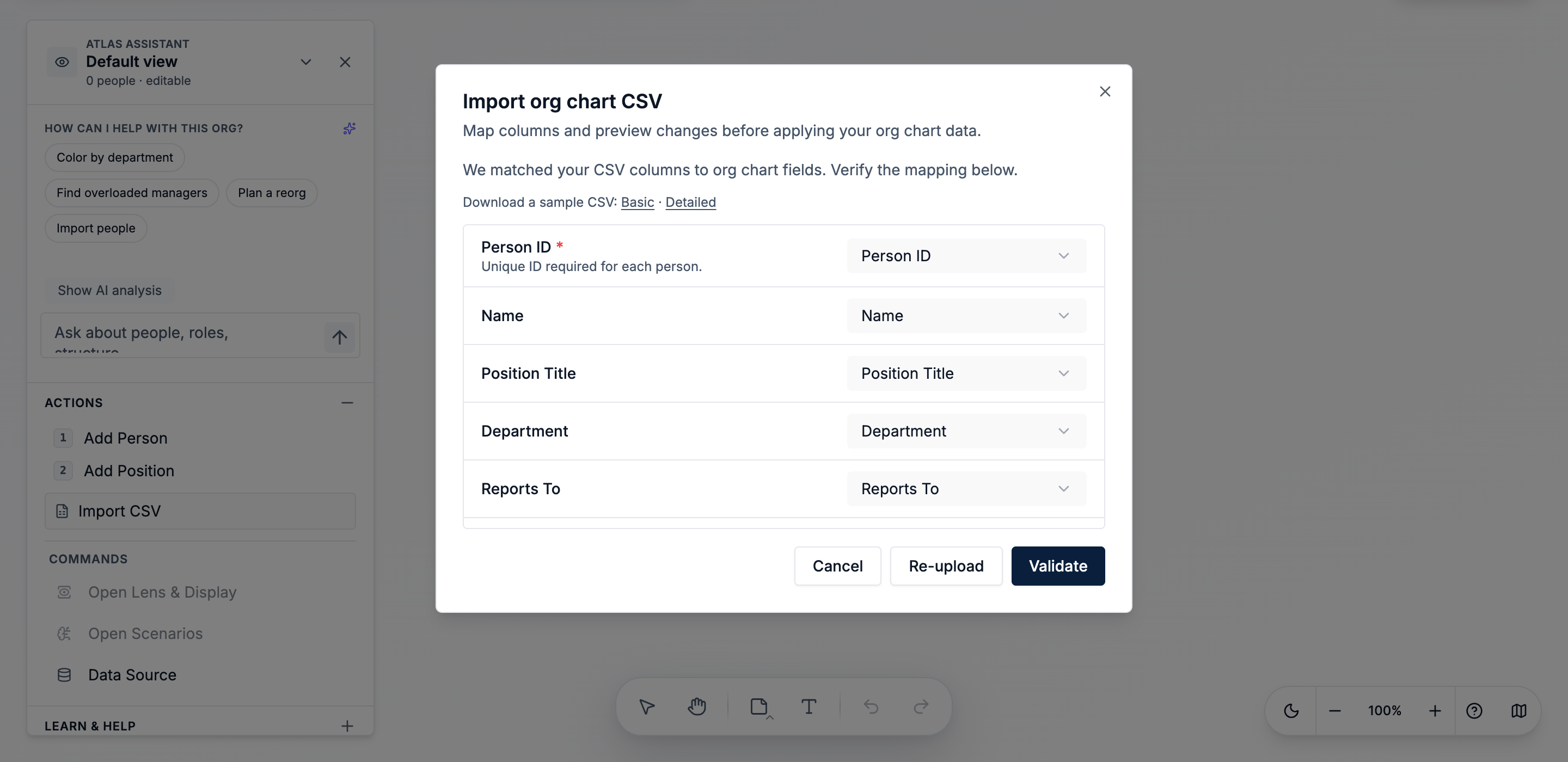
During the import:
- Map Employee ID, Manager ID, Name, Title, and Department.
- Review any warnings for missing IDs, unknown managers, or reporting loops.
- Preview the hierarchy.
- Correct any errors in the source file or field mapping.
- Complete the import and apply auto-layout.
Creately uses the Employee ID and Manager ID fields to build the reporting structure and automatically arrange the chart. If the import is incorrect, you can undo the entire import and try again.
Tip: Import the essential fields first. Confirm that the reporting structure is correct before adding more employee data.
Step 3: Choose What to Show on Each Card
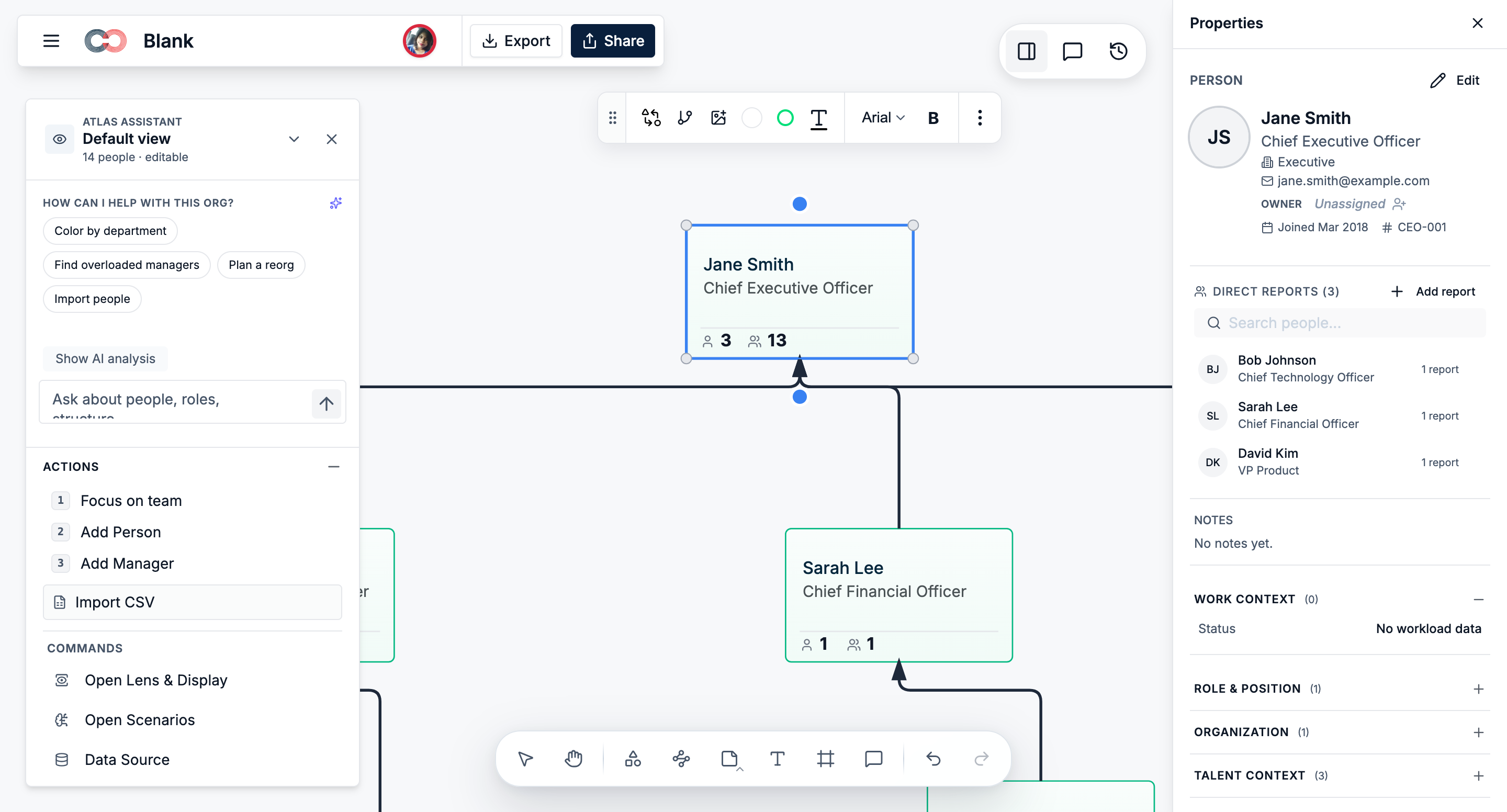
Keep each person card easy to scan.
Show only the details most viewers need, such as:
- Name
- Job title
- Department
- Photo or initials
Store additional information, such as email, employee ID, location, start date, or cost center, in the person’s properties.
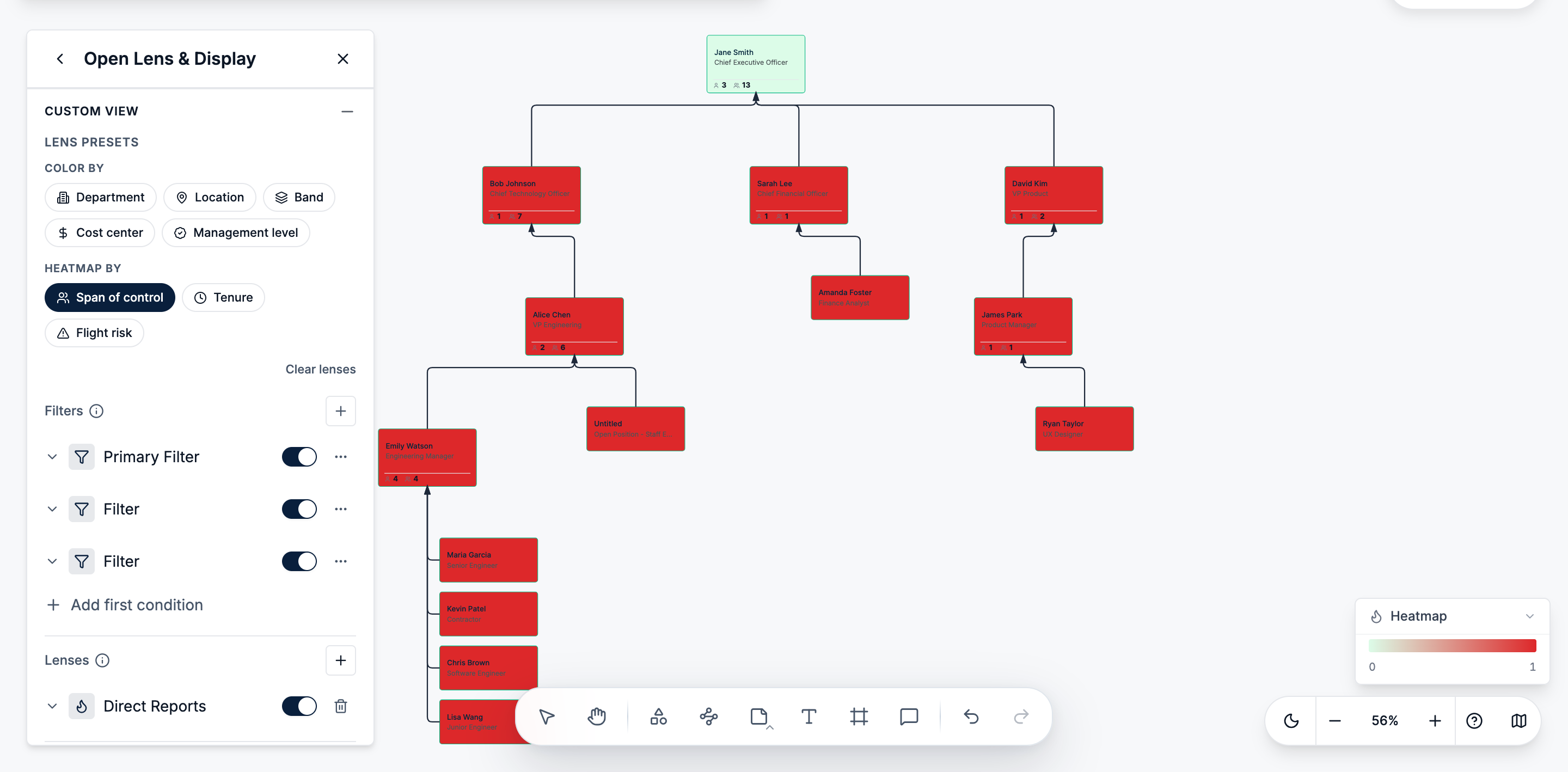
In Creately, you can choose which fields appear on the card and switch between full and compact card views. Use compact cards for large org charts and open the properties panel when you need more detail.
Step 4: Add the Correct Roles and Reporting Lines
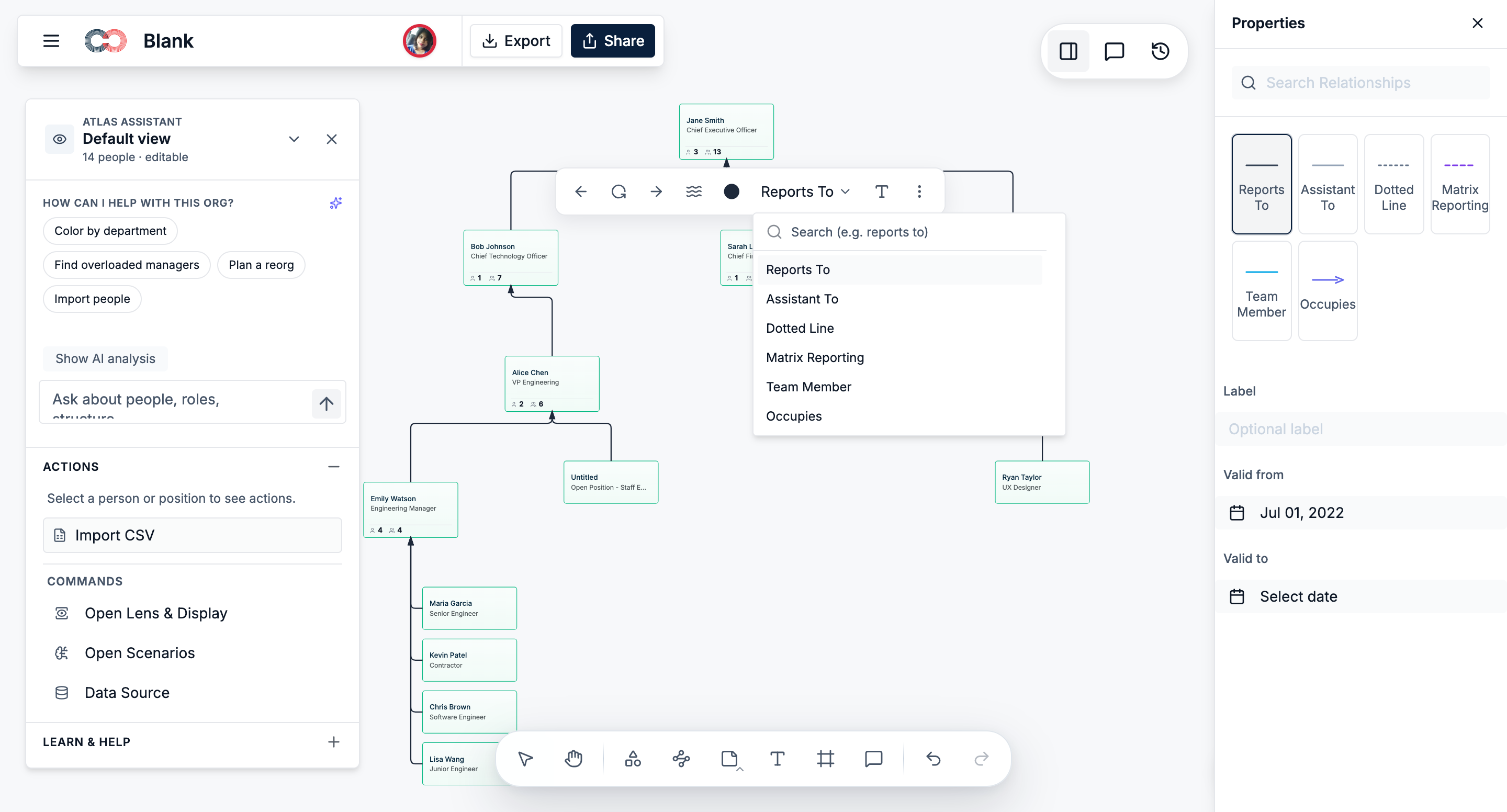
Use the relationship that matches how the organization actually works:
- Use a direct reporting line for the official manager.
- Use a dotted line for a secondary or functional manager.
- Use a matrix relationship for cross-functional reporting.
- Add a position separately when the role should remain in the structure even if the employee leaves.
- Mark the position as vacant when it is approved but unfilled.
In Creately, people and positions can be managed separately. This lets you keep the role, reporting line, and position details visible when an employee leaves.
Tip: Keep the primary reporting line visually clear and use secondary connectors only where they add useful context.
Step 5: Decide How You Will Keep the Chart Updated
Choose one update process and make it clear to everyone responsible for the chart.
Update Directly in Creately
Use direct editing when changes are occasional.
You can:
- Edit a person’s name, title, department, or other fields.
- Move someone to a new manager.
- Add new employees or positions.
- Mark positions as vacant.
- Remove or update departed employees.
Changes are automatically saved and appear to other collaborators working in the same chart.
Update Through CSV Imports
Use CSV imports when HR already maintains the employee data in another system or spreadsheet.
Decide:
- Who prepares the file.
- How often it will be imported.
- Which fields must remain consistent.
- Who reviews validation errors.
- Who confirms the updated hierarchy.
For example, you might re-import the latest HR export every Friday or after a monthly payroll update.
Do not describe the chart as automatically synchronized when someone still needs to upload a new file.
Step 6: Use a Consistent Process for Organizational Changes
Follow the same process each time someone joins, moves, or leaves.
When Someone Joins
- Add the employee directly or include them in the next CSV import.
- Enter their Employee ID and Manager ID.
- Add their title and department.
- Confirm that they appear under the correct manager.
When Someone Changes Roles
- Update their title or position.
- Change their manager where required.
- Review their department and direct reports.
- Decide whether the previous position should remain vacant.
When Someone Leaves
- Record the departure date or update their status.
- Reassign their direct reports.
- Keep the position visible if the role still exists.
- Check that no employees have been left without a manager.
During a Reorganization
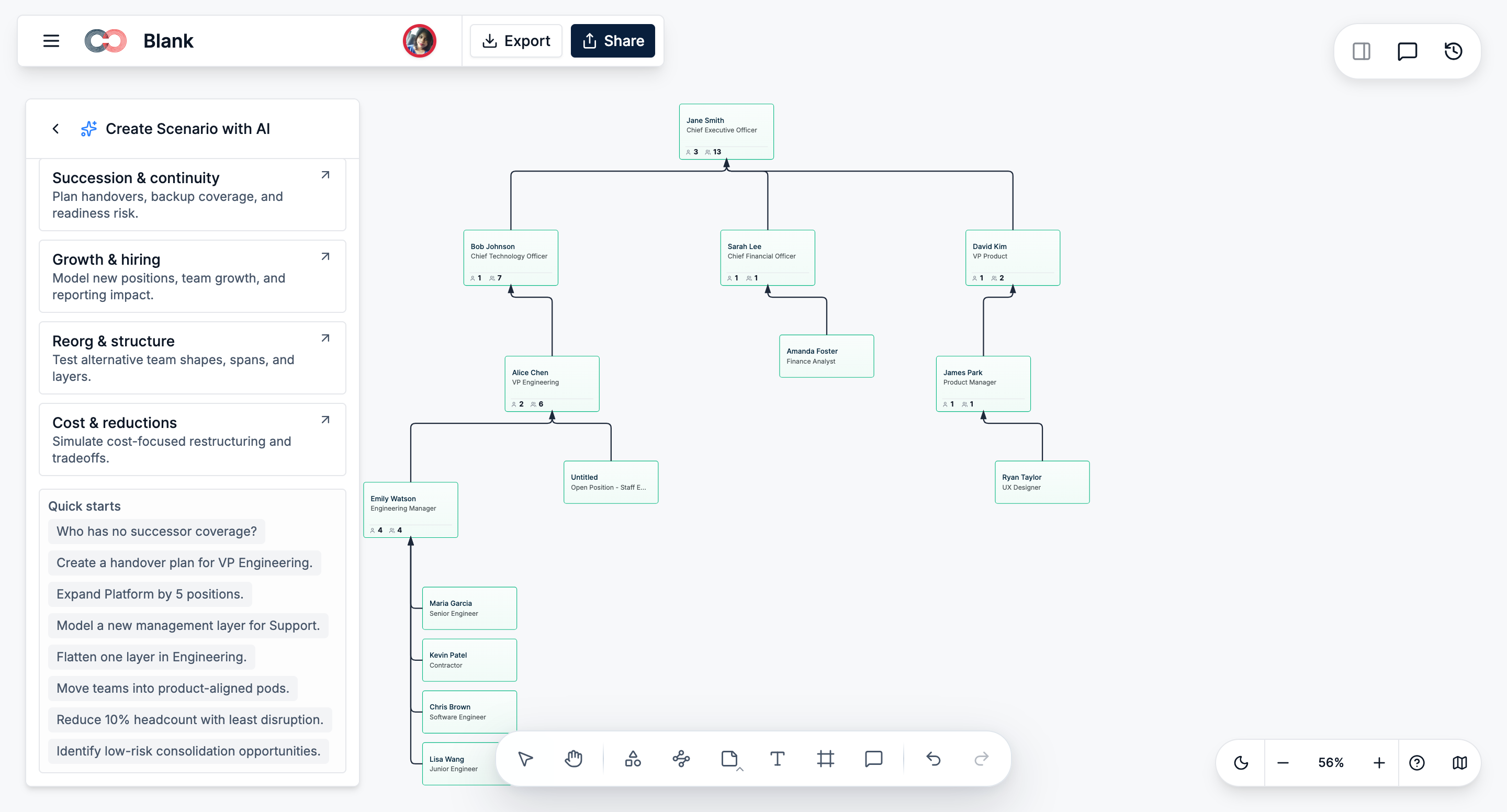
- Create a separate scenario.
- Move people or positions into the proposed structure.
- Review reporting lines, vacancies, and manager spans.
- Share the scenario with decision-makers.
- Apply the changes only after approval.
Creately scenarios let you test reporting-line, position, and structural changes without altering the current chart.
Step 7: Assign One Owner
Choose one person or team to maintain the published org chart.
| Role | Responsibility |
| HR or People Ops | Owns and updates the company-wide chart |
| Department managers | Confirm changes within their teams |
| HRIS or IT administrator | Maintains the source employee data |
| Employees | Report incorrect personal details |
Managers can review their own branches, but HR or People Ops should approve and publish company-wide changes.
In Creately, use permissions to control who can edit the chart and who can only review it.
Step 8: Share One Live Version
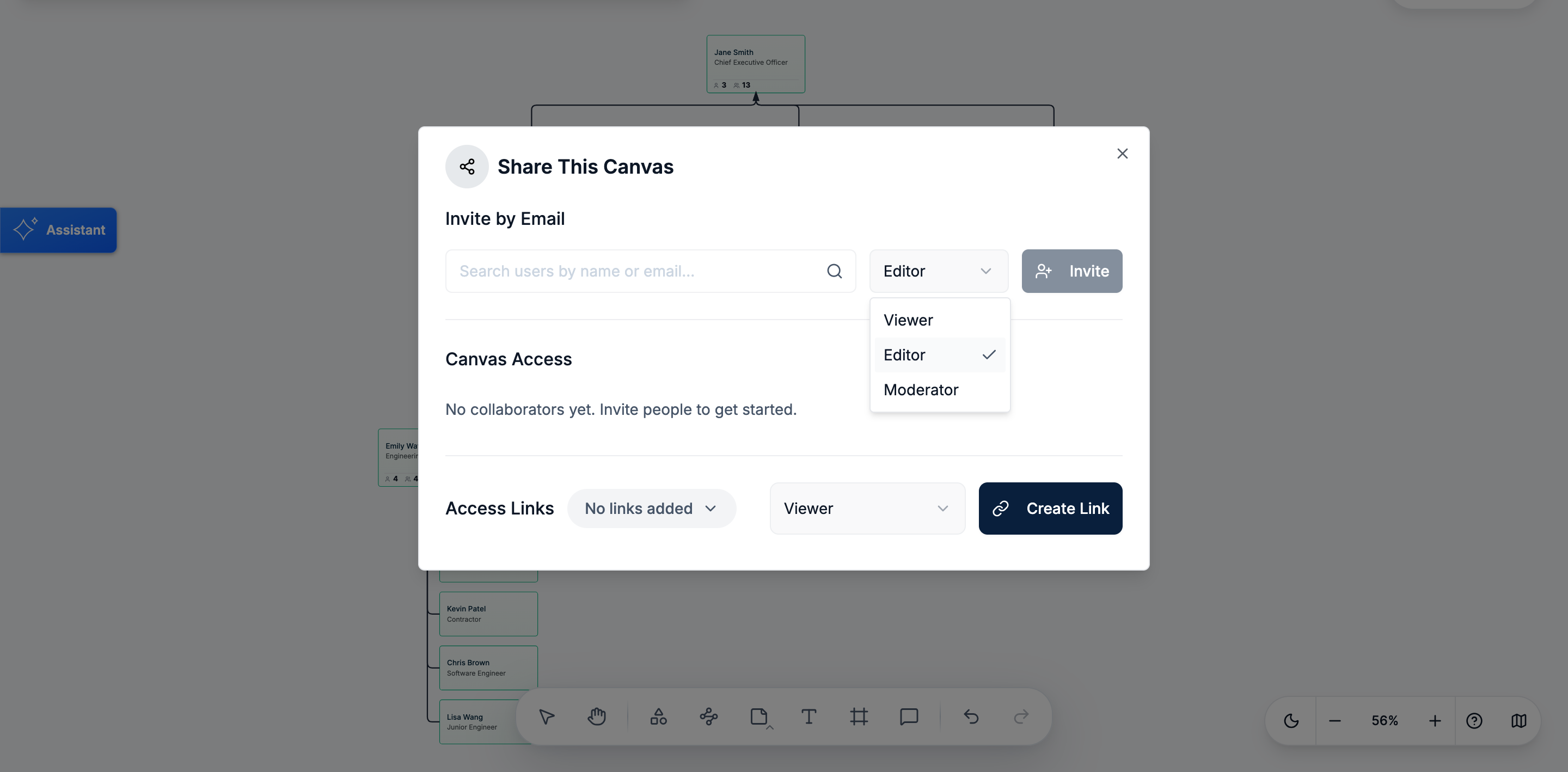
Share the Creately workspace instead of circulating separate editable files.
- Give most employees Viewer access.
- Give editing access only to approved owners.
- Use comments and @mentions to request corrections.
- Export PDF, PNG, or SVG only when a fixed version is needed.
- Add an “as of” date to exported copies.
- Remove or archive outdated files and links.
Creately supports Viewer, Editor, Moderator, and Owner permissions, along with automatic saving and real-time collaboration.
Step 9: Review the Chart Regularly
Update new hires, departures, role changes, and manager changes as soon as they are approved.
Then follow a simple review schedule.
Monthly
- Ask managers to check their teams.
- Look for missing or incorrect managers.
- Review vacant positions.
- Check for duplicate or inactive employee records.
- Confirm recent role and department changes.
Quarterly
- Audit the full hierarchy.
- Compare the chart with the approved employee-data source.
- Review Viewer and Editor permissions.
- Check that the CSV mapping still works.
- Confirm that the update process is being followed.
Use Creately’s search, filters, and chart views to focus on specific departments or identify records that need attention.
FAQs About Dynamic Org Charts
Can I include contractors, interns, or temporary workers?
Yes. Add them when they are part of the working structure, but label their worker type clearly so they are not mistaken for permanent employees.
Can one employee report to more than one manager?
Yes. Use one primary reporting line for the official manager and a dotted-line or matrix relationship for secondary reporting.
How should I handle co-heads or shared leadership roles?
Show both leaders separately and label the shared responsibility clearly. Avoid forcing one person beneath the other when neither is the primary manager.
What should I do when an employee’s manager is not yet confirmed?
Leave the reporting relationship unresolved temporarily or place the employee under a clearly labeled interim manager. Do not guess.
Can I show teams that do not follow the formal hierarchy?
Yes. Keep the official reporting structure as the main hierarchy, then use team or project relationships to show cross-functional work separately.
Should the chart include sensitive employee information?
Only include information needed for the chart’s purpose. Limit access to fields such as compensation, performance, succession, or personal data.