User Management

User Roles and Permissions
Owners or an admin of a plan can add or remove users, edit their roles, and suspend a user to or from the plan. You can learn more about user roles and permissions in this support article: User roles and permissions inside Creately Team Plans.
Adding a New User
To add a new user:
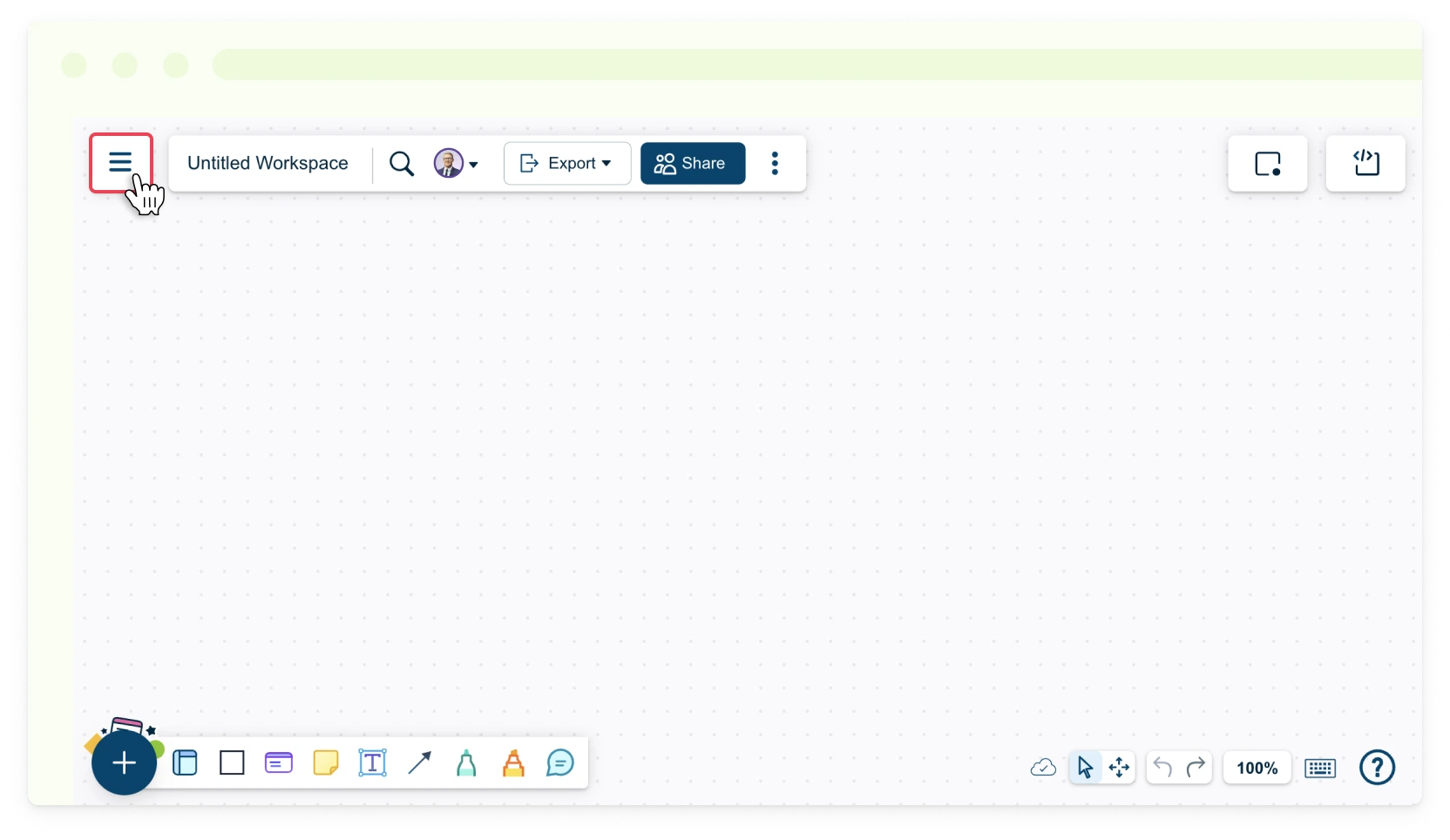
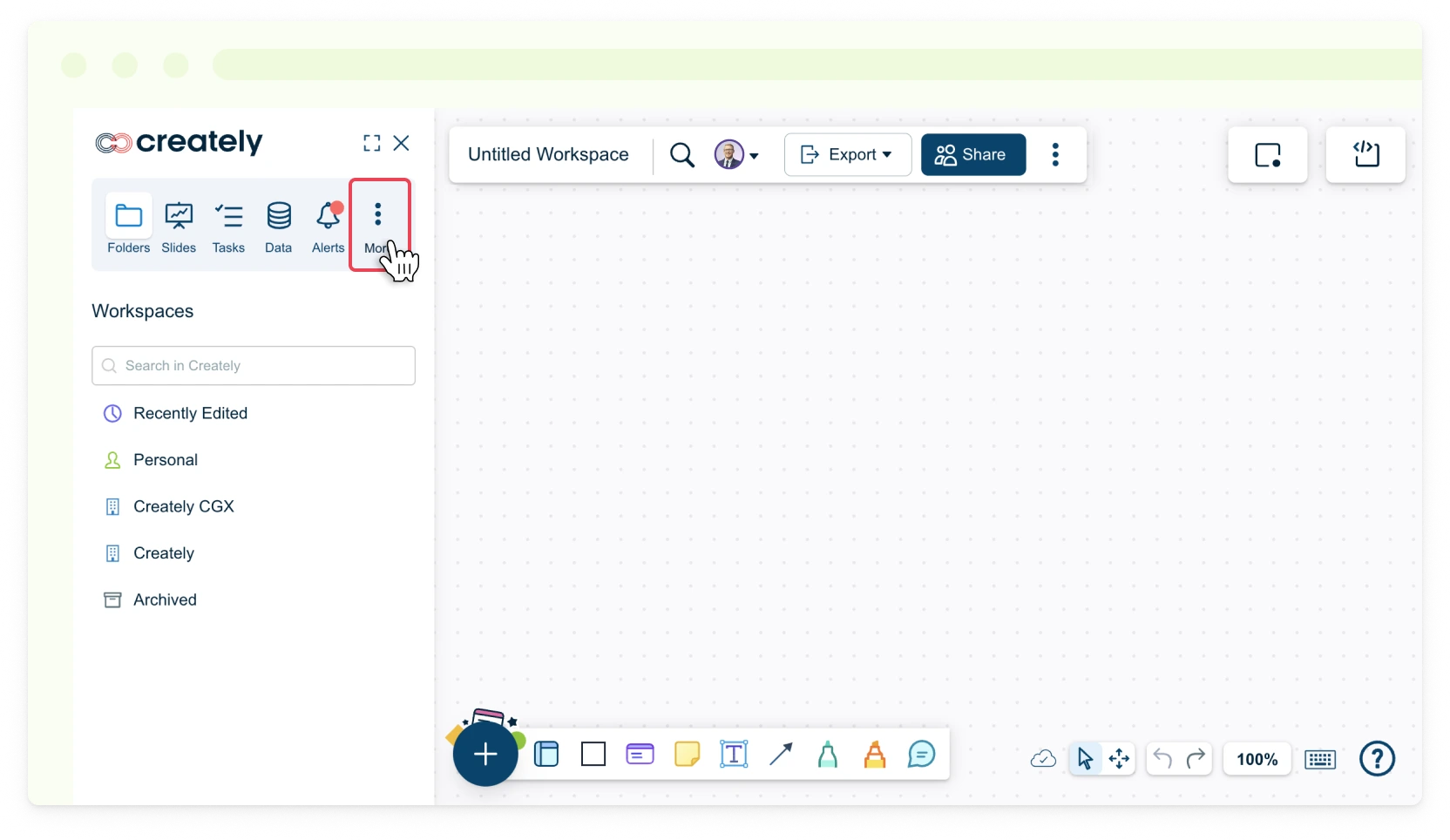
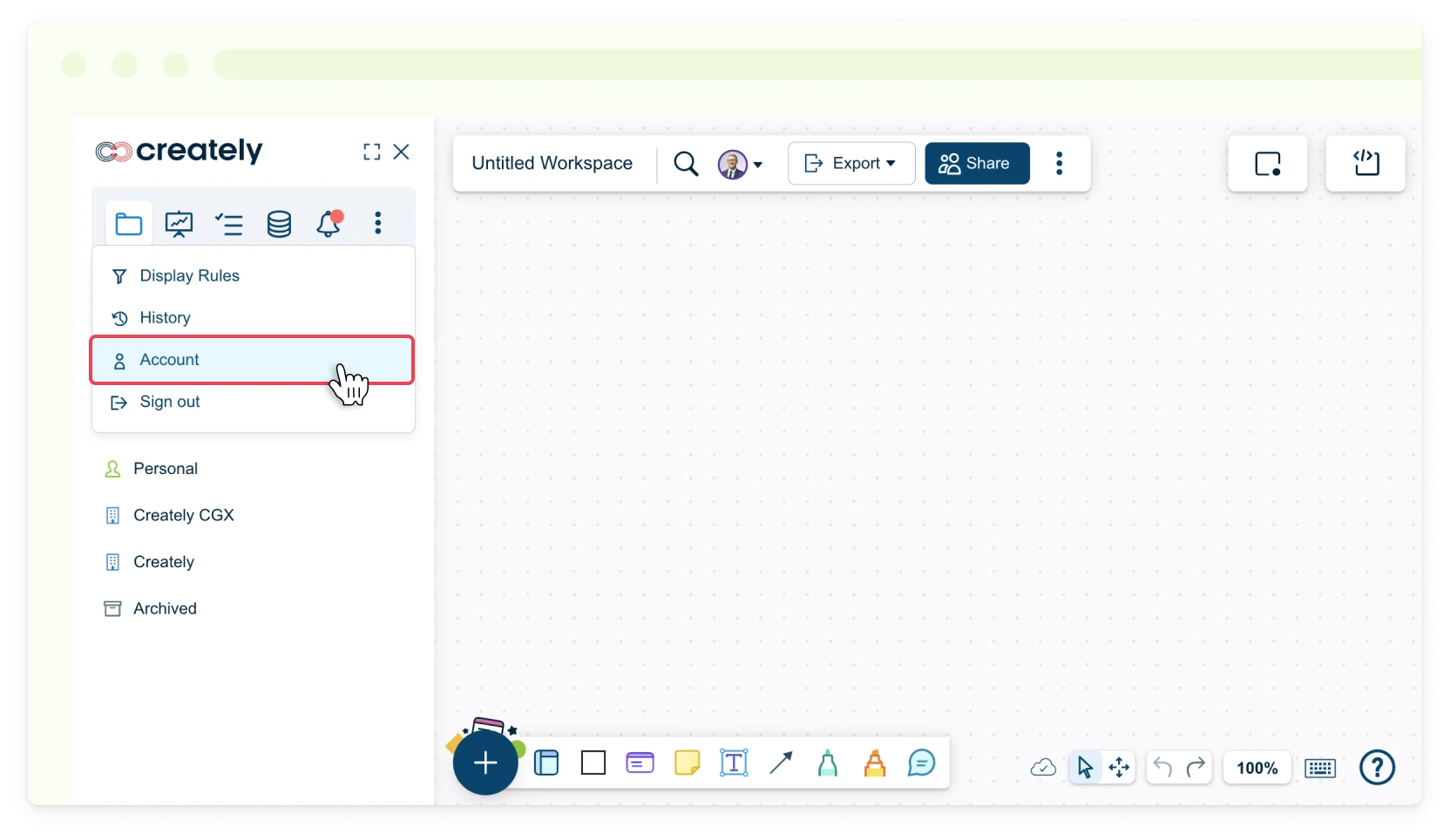
- Toggle the sidebar on the left-hand side of the canvas and select More → Account or in the dashboard view, click Settings → Account next to your username.
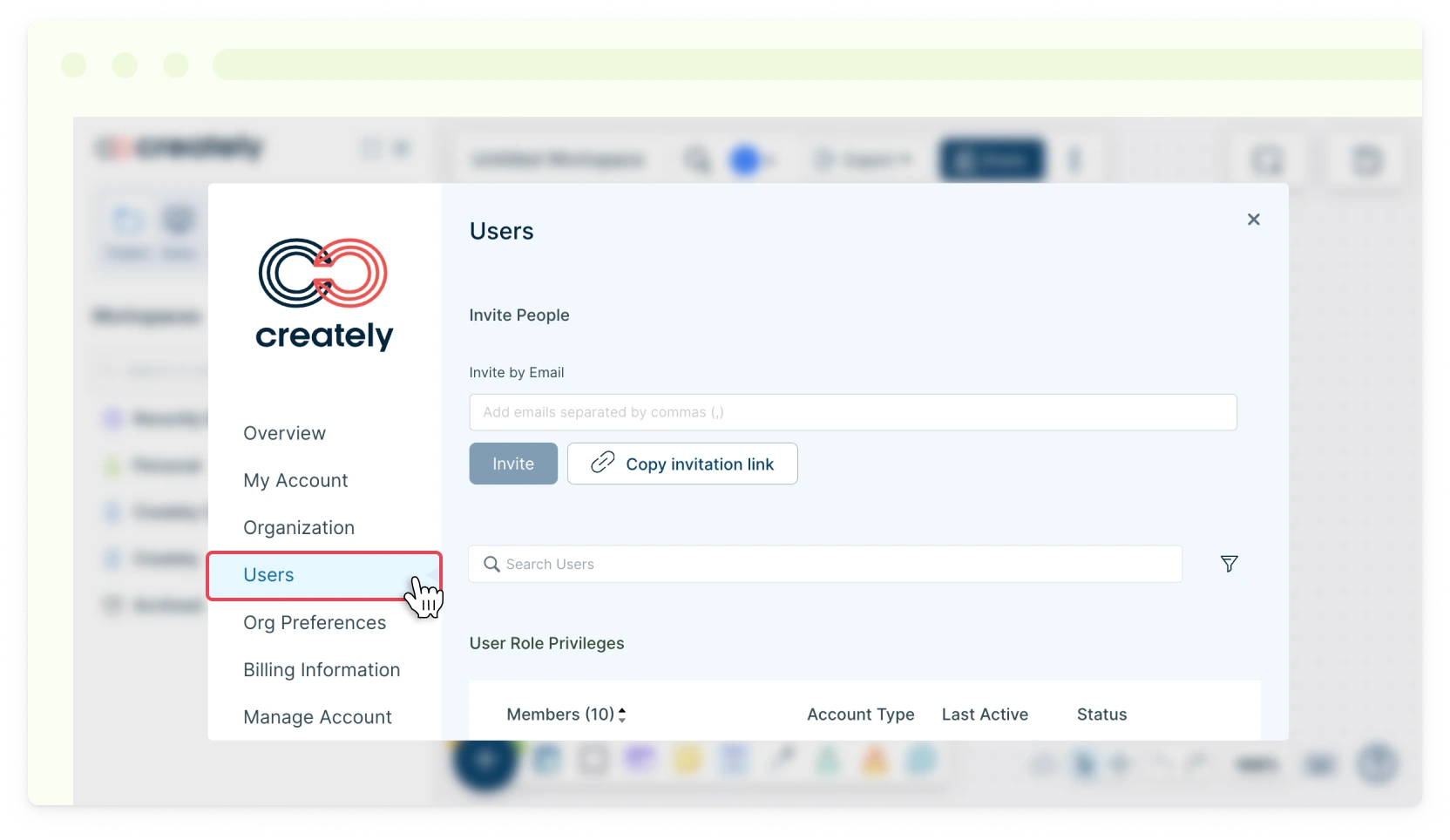
- Select the Users tab.
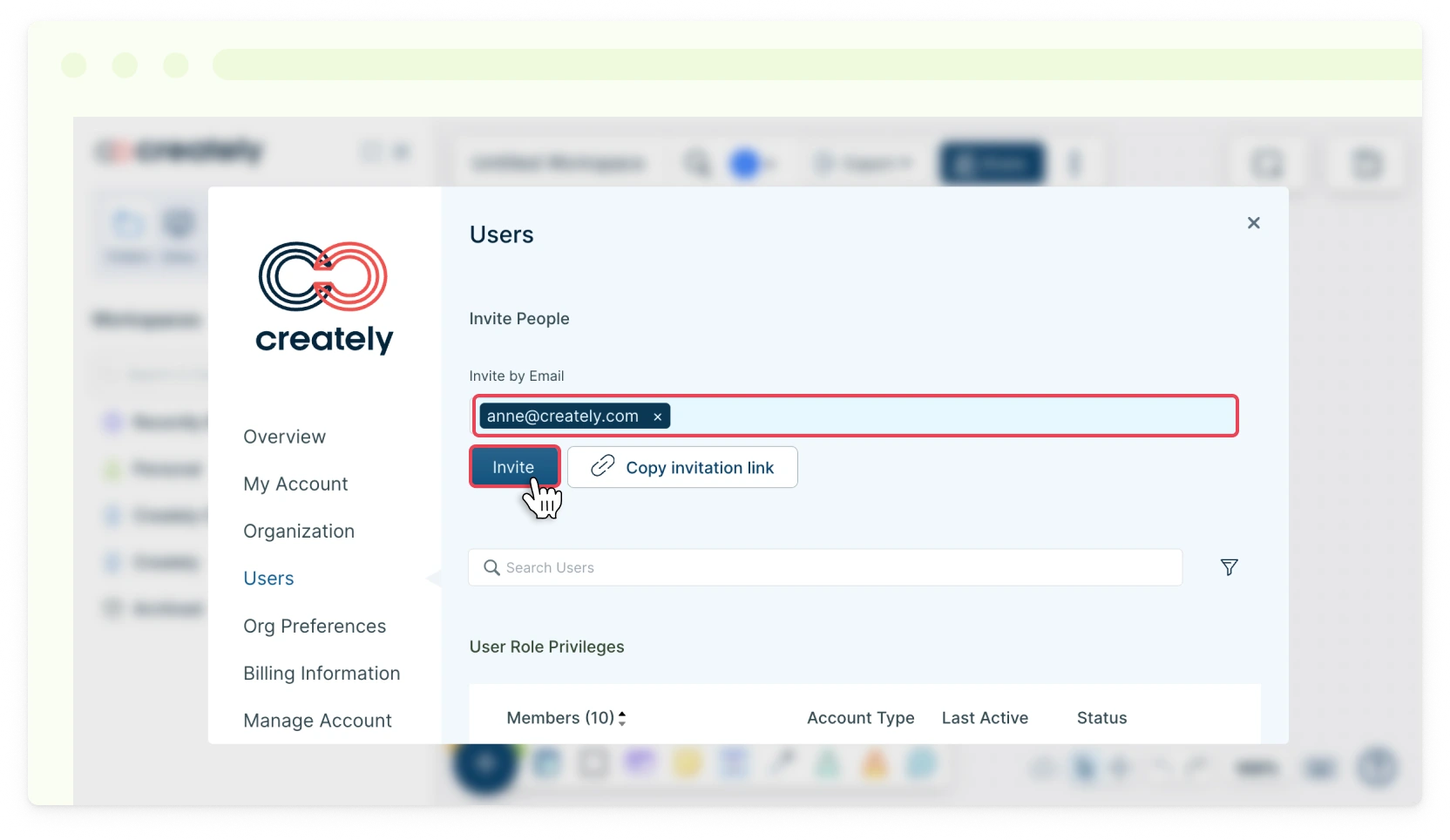
- Enter the email address of the user you would like to invite under Invite People and select Invite or Copy invitation link.
- Send the invitation link to your user.
You can also add a previously-removed member back to your plan the same way you would add a new member to the plan.
Suspending an Existing User
Here is how you could suspend an existing user from a Team plan:
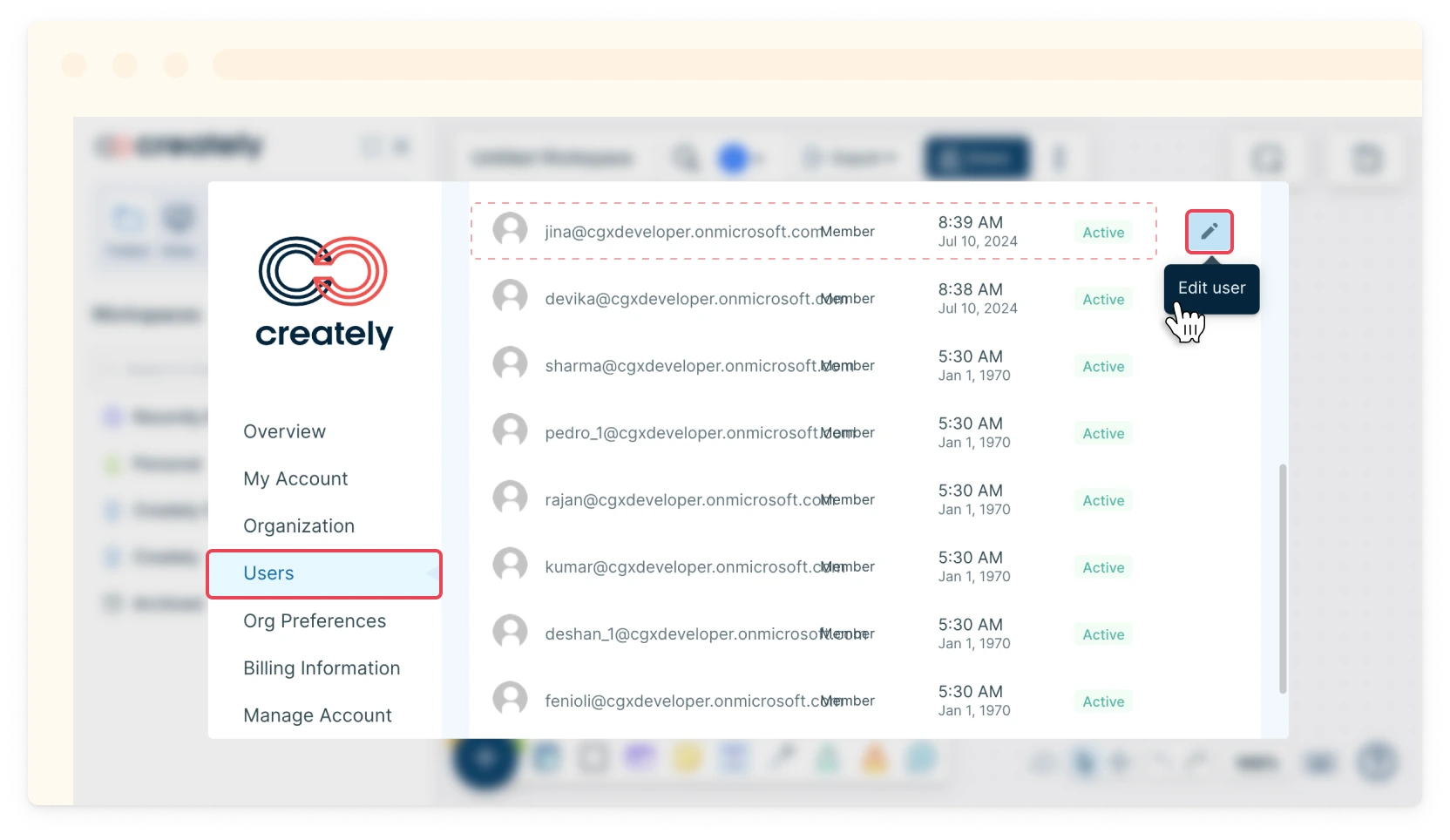
- In the Users tab, hover over the member you wish to suspend from the plan.
- Click the Edit User icon next to the Status.
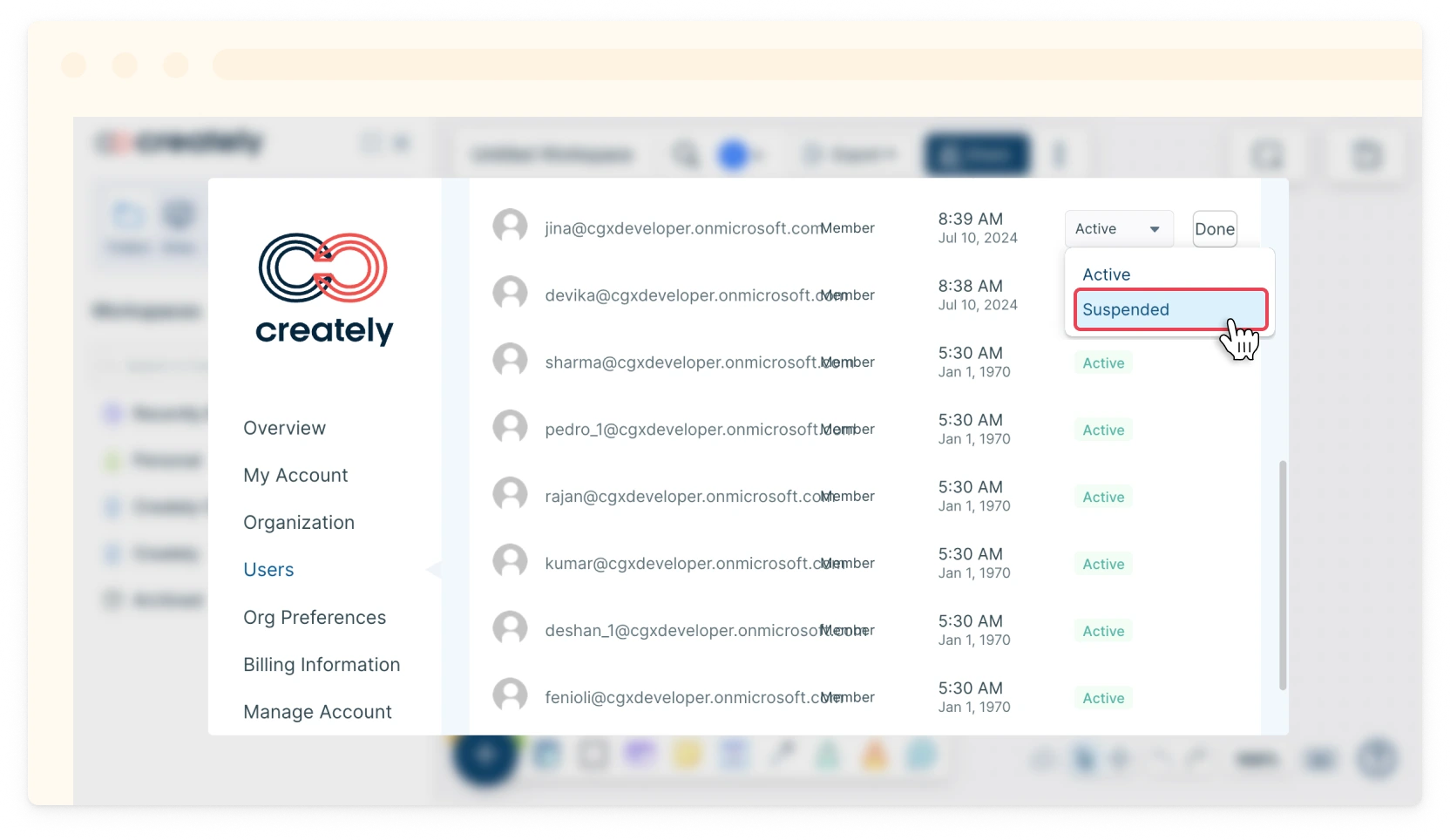
- Select Suspended from the Status dropdown.
- Click Yes when prompted to suspend the user.
This will suspend the member from your plan and revoke all permissions that the member originally had with the workspaces associated while on your plan.
Reactivating a Suspended User
To reactivate a suspended user:
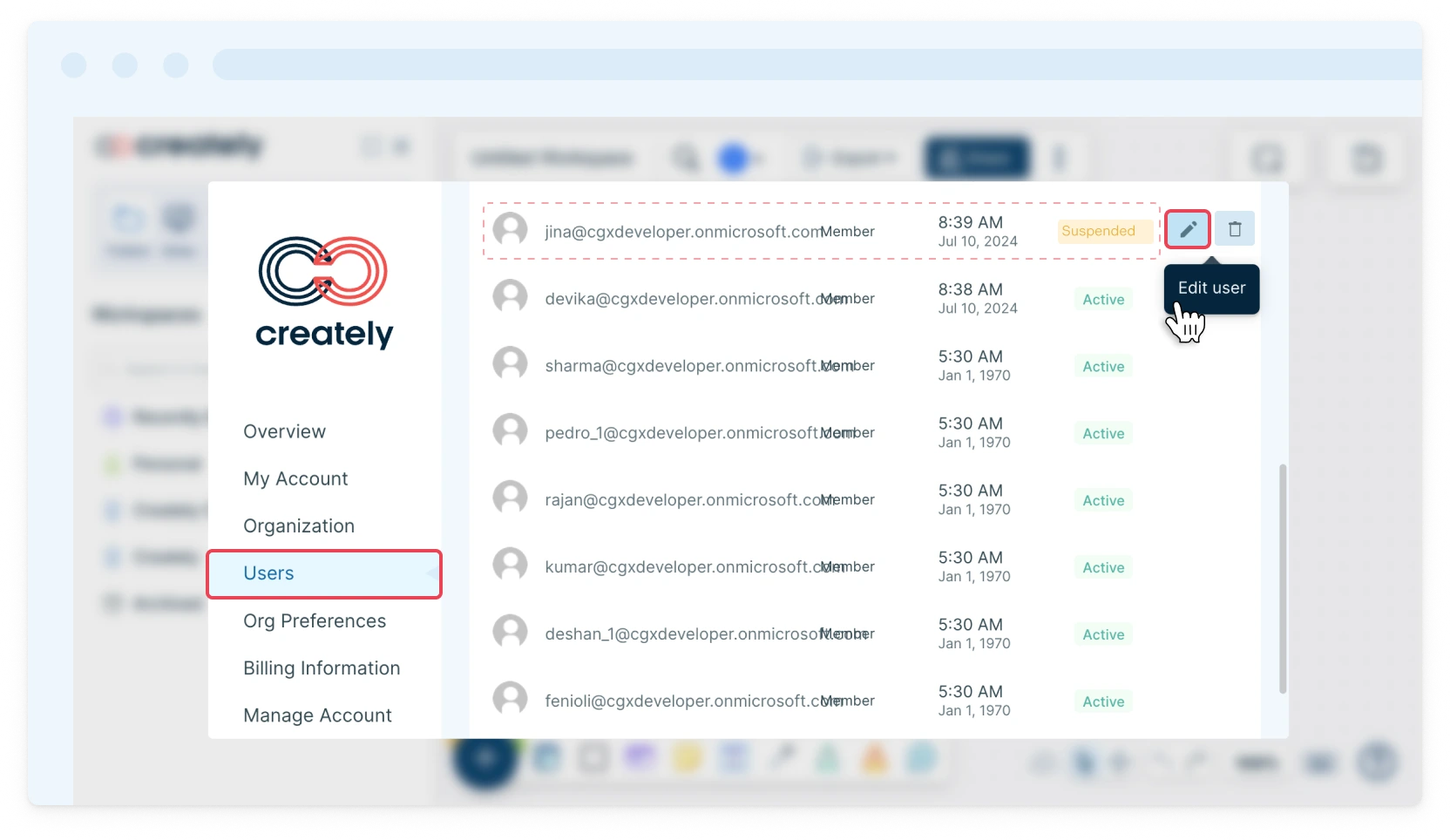
- In the Users tab, hover over the suspended member you wish to activate.
- Click the Edit User icon next to the Status..
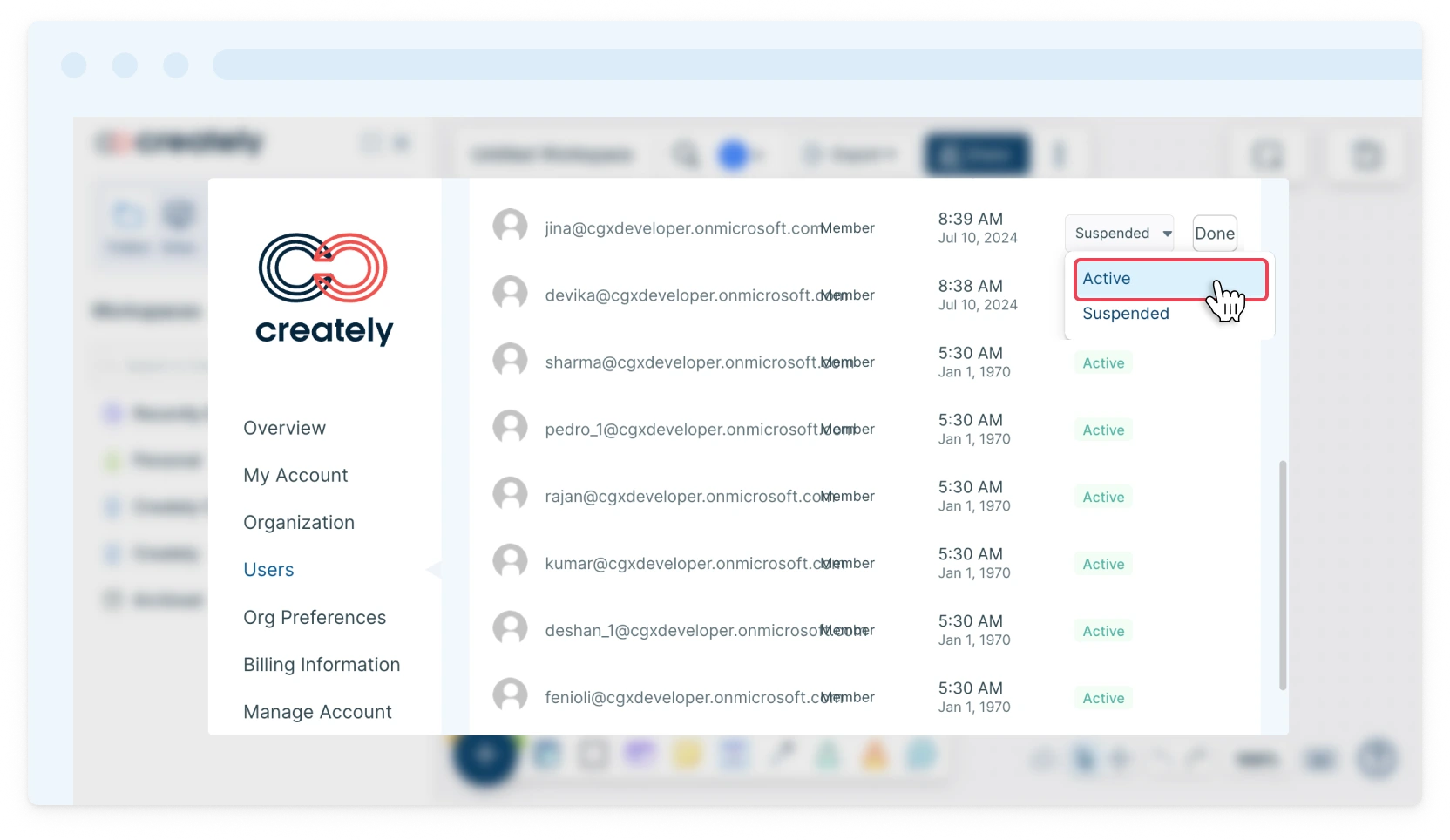
- Select Active from the Status dropdown.
- Click Yes when prompted to reactivate the user.
Removing a User from the Plan
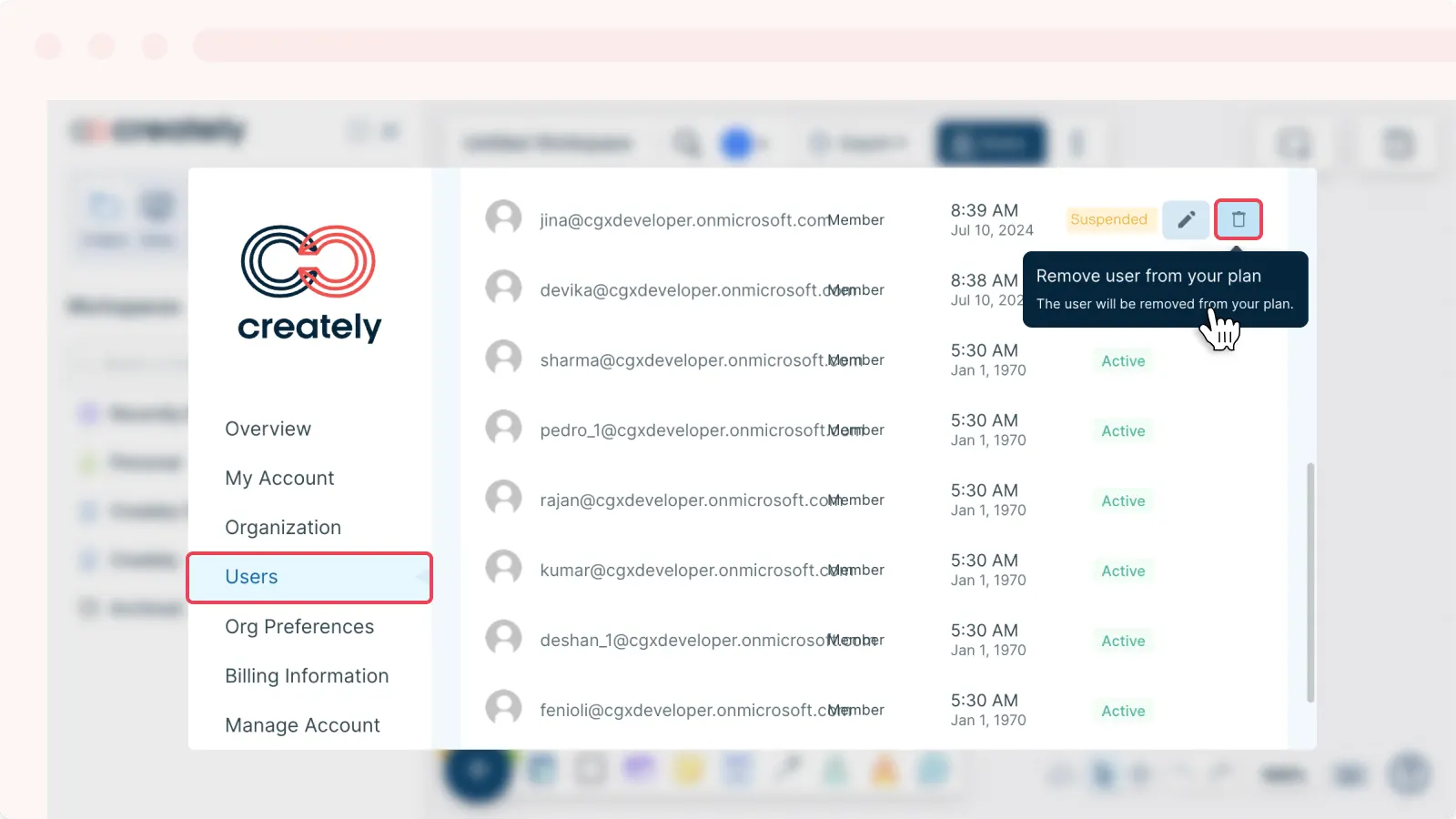
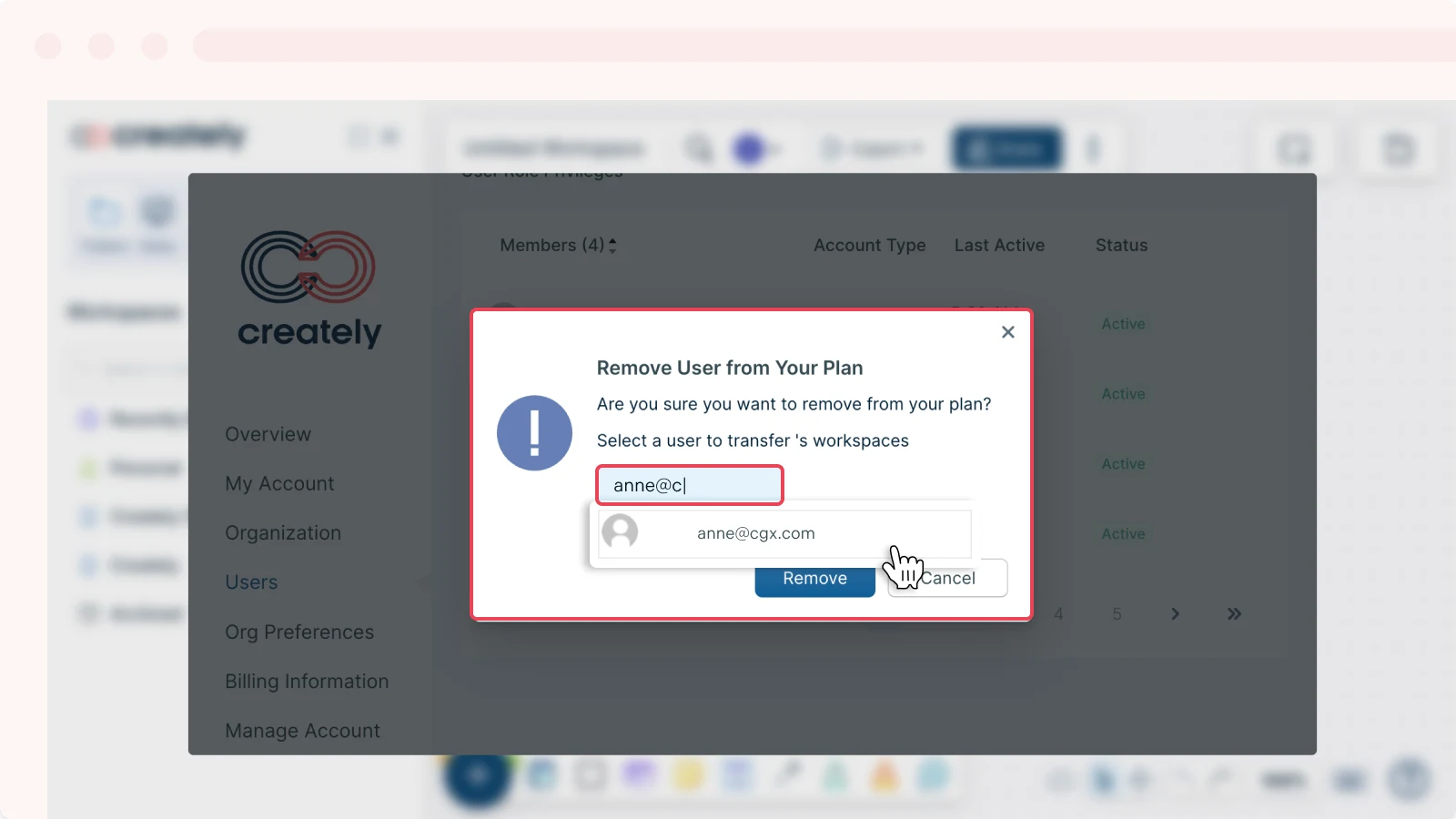
You can follow the steps below to permanently remove a user from your plan. When doing this, you will be prompted to transfer the to-be-removed user’s workspaces to another user whom you could select from the drop-down menu presented to you.
- In the Users tab, hover over the suspended member you wish to remove from the plan.
- Click Remove User from your Plan next to the Status.
- Select a user to transfer the documents to.
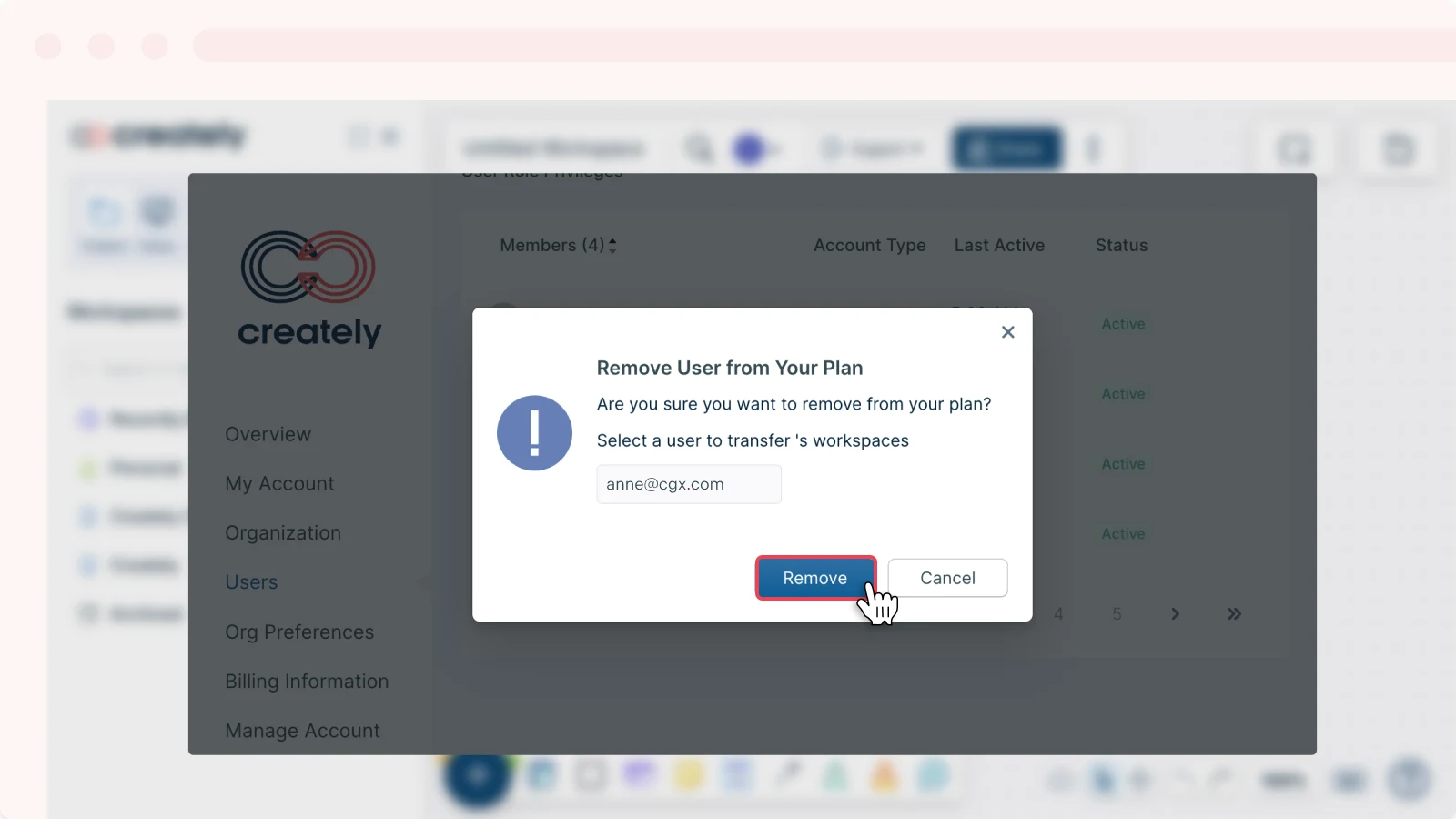
- Click Remove.