posted02/09/10
Flowcharts are fairly simple things. Before I wrote this, I almost thought “Hey, who’d ever need a tutorial on how to draw a flowchart? It’s too simple and it’ll probably need one line to explain.” Well… not really. There’s more to flowcharts than simple shapes and arrows connecting them if you want to get the idea across. Some tips below to help you create better flowcharts that get the message across:
Identify why you are drawing the Flowchart(s)
You may be drawing it to explain a process to someone, to understand a process, to find loopholes in a flow and so on. It is important to identify the objective on why you want a flowchart for this.

Are there many ‘actors’ involved?
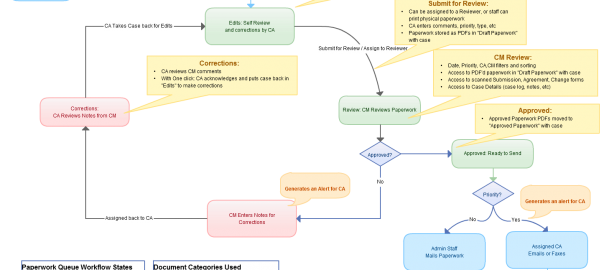
If there are different responsible parties (or things) involved in each step, you might want to convey that information clearly with a Swimlane flowchart. They help clarify who / what is responsible for each step quite easily.
If you have many actors (say more than 6), it might be better to generalize them if possible. Ex. rather than having two columns for Sally or Rob at HR department, just group them into the HR department. Again, it all depends on who the audience is.

On Swimlanes, Creately has some neat tricks that automatically glues shapes to swimlanes so you don’t miss them when resizing etc.
Decide on the start and end points of the flowchart
As trivial as it may sound, a flow with random endings is more confusing than it helps. So choose the objectives and keep it simple.

Break it down into multiple flows
Very long flowcharts can cause the reader to overlook the details that you are actually trying to convey. It is best to break down a flowchart into sub-flows. Use the connector and inbuilt link feature to create automatically linked documents with sub-flows in Creately.

Get your team on-board
Documenting processes or planning steps requires careful review and thinking. You can use Creately’s inbuilt collaboration features to help kick this process off easily.

Use colors meaningfully
You can color code your flowchart objects to convey things like Risk involved, Who’s responsible, Process state (Draft/Final), basically anything you want. But always remember to include a legend on the corner so everyone knows how to read the chart.

@chandika
posted17/08/10
Flowcharting is all about drawing simple and easy-to-understand diagrams illustrating the logical sequence in a process. Flowcharts help you communicate and document how processes work; and mapping out the logical steps in a process also helps you figure out ways to improve the process.
Here are ten best examples of Flowcharts that would come in handy. All of them created with Creately’s online diagramming software! With the easy to use Flowchart symbols, Swim Lane Templates and Work Flow templates flowcharting is a breeze on Creately. Anyone can create logical diagrams to document processes. It’s amazingly easy! Check the examples below to see some of the processes which are so easy to map out with flowcharts.
1) Understanding Creately

For those of you who haven’t heard of Creately, this is the time to learn about Creately through this simple Flowchart.
2) Creately’s Goal Funnel Flow

If you want to see how your website Goal Funnel really works, check out this flowchart. This is an example of Creately’s Goal Funnel.
3) Recruitment Process

With Creately’s 1- click styling features and smart connectors I managed to put together this simple flow chart to explain the recruitment process in under 3 minutes.
4) University Admission Process

Drag-n-Drop Creately’s Data Flow symbols to draw a simple Data Flow Diagram. This DFD shows the flow of data involved in a Student’s University Admission.
5) Purchase Order Process

Creately is loaded with Business Process Symbols too! Easy to use shapes and interactive interface helps you create Business Process Models at a blazing speed!
6) Flowchart on Social Media

Yet another exciting flowchart depicting the process involved in Social Media interaction.
7) Video Uploading Process
Thinking of uploading a video could be a pain, but the whole process looks extremely easy through this simple flowchart.

8 ) Creately’s Customer Support Process

Beautiful interface makes creating Swim Lane diagrams an ease on Creately. Don’t miss out on this Swim Lane diagram, it would help you understand Creately’s Customer Support process.
9) Credit Card Transaction Process

Ever wondered how a Credit Card Transaction is processed? Check this simple Swim Lane diagram to understand the distinct transaction steps and parties involved.
10) After Sales Service Process

Another Swim Lane diagram. With the 1-Click connect feature, I’ve managed to put up a Swim Lane diagram illustrating the After Sales Service process.
These are just some of the types of flowcharts you can create with Creately.com, watch out for Mind Maps next time. And let us know what more you’d like to see.
posted18/02/10
For any business, especially a web startup, having a sensible and comprehensive Social Media strategy is key to online success. To help you work out a comprehensive strategy, we’ve put together a simple framework with Creately that captures the basic aspects of the Social Media landscape that you’ll need to consider.

Social Media today goes well beyond social networking and blogging. It consists of many categories, but here we have chosen to highlight 10 key aspects which should be your business’ focus as you start on your Social Media journey. I’ve included two tools for each category to help you put your social media strategy into action.
@Induja
posted16/01/10
Setting up your own web product company? Start following the founders of Creately on Twitter to see a mix of interesting and insightful tweets!! And, yeah one such tweet is what made me contribute today! I found an really useful blog post on Mashable - ‘10 of the Best Social Media Tools for Entrepreneurs‘. This was tweeted by Creately’s co-founder Charan. This post grabbed my attention cos I wasn’t aware of some of the tools listed here.
To help me remember, I thought it would be worth it all into a diagram that would capture the essence of each of these services visually. I created this diagram on Creately. With Creately’s slick Upload Image feature, I managed to pull through all the icons of the Social Media Tools in the list, added a short description and it was ready to be published.
So here’s a simple chart to help you remember 10 of the Best Social Media Tools for Entrepreneurs and Startups!

If you enjoyed this - remember to check out how easily you can create visual maps like this with Creately - Online Diagramming.
@induja
posted04/11/09
An application failing to respond is no big deal and troubleshooting is no rocket science!! But we end up cursing the application each time it fails to respond.
Not everyone is a techie; and every time we have issues we run to IT support or our friends for help. Now thanks to Thomas Boito (First Steps in Troubleshooting), you needn’t hassle your tech-savvy friends anymore.
This flowchart by Thomas created with Creately.com illustrates the first steps in troubleshooting your PC desktop problems and is very simple yet effective. I hope you’ll find this flowchart as useful as I did - I’ve got it up on the wall.
Drawing flowcharts on Creately is stunningly easy and convenient with Creately’s 1-click create button. You too can try Creately for a great flowcharting experience! (Don’t worry you don’t have to pay a thing - and when you’re ready to commit, we’ll let you Pay the Price You Want)
Have you got a useful Creately diagram you’d like featured here - send us the public link to your diagram (Help Page - How to 1-Click-Publish your Diagrams on Creately)

@indu