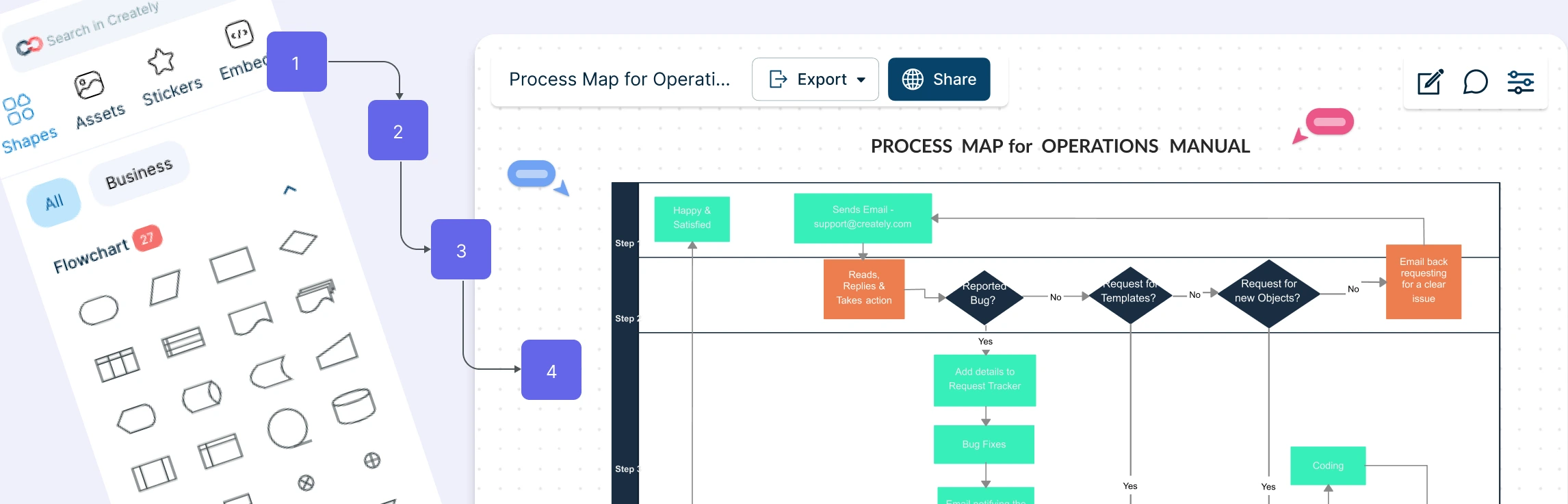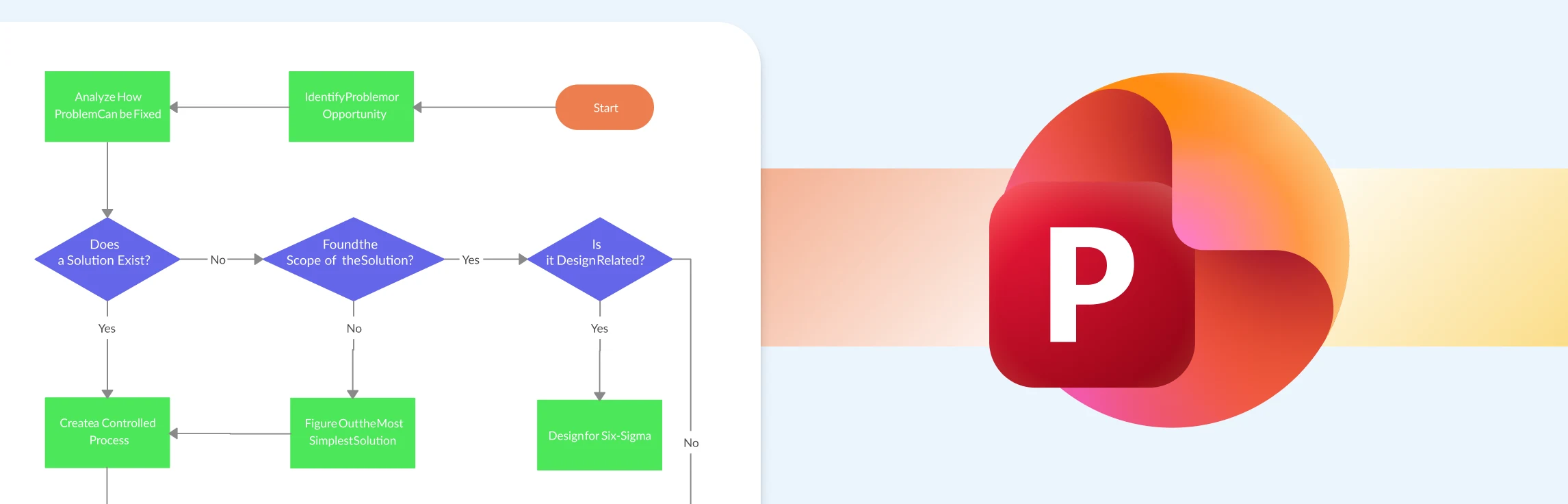
This guide walks you through exactly how to create a process map in PowerPoint, step by step, without overcomplicating things. It also covers the common limitations you’ll run into as your process grows, and introduces a more flexible alternative for building and sharing process maps faster. Along the way, you’ll find free templates to help you get started with less setup and more clarity.
What is a Process Map?
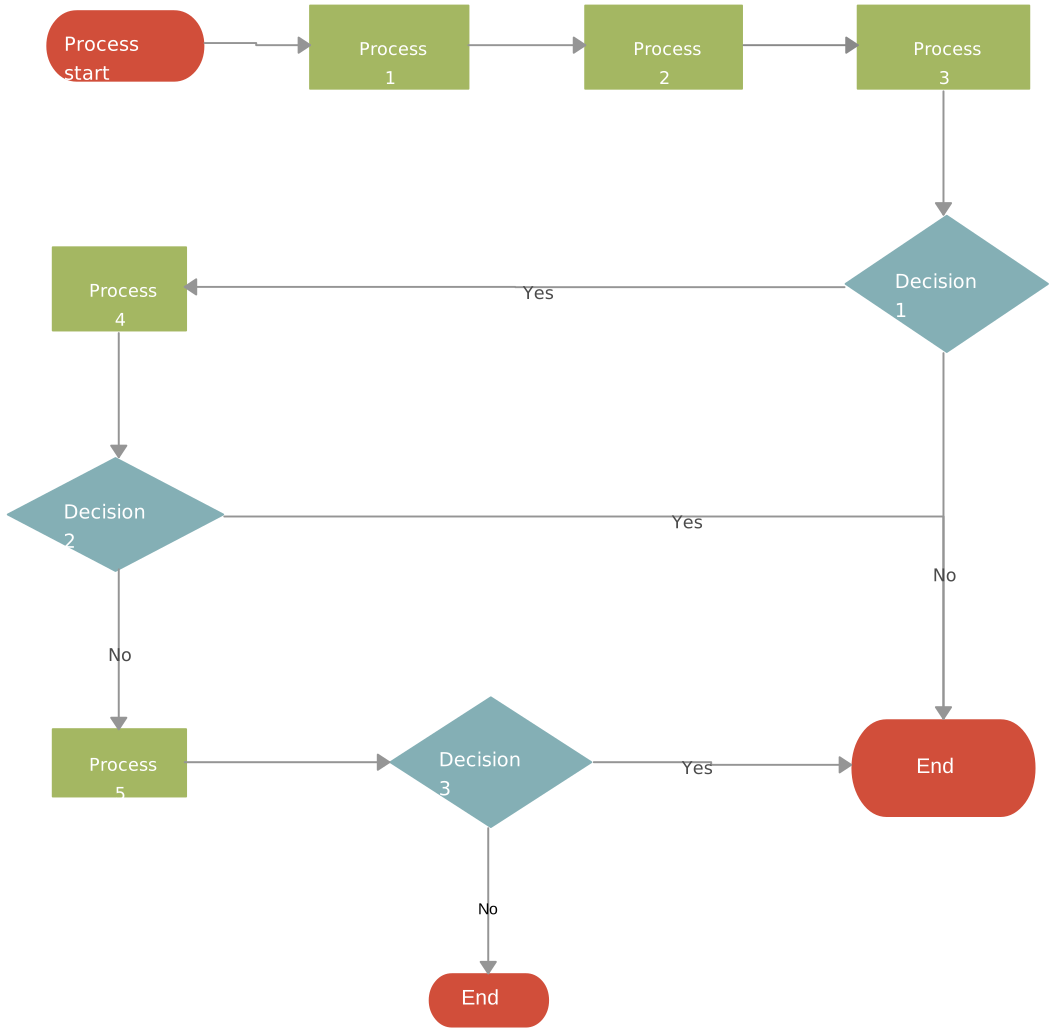
A process map shows each step in a process, the order in which those steps occur, and the decisions or handoffs involved along the way. By laying everything out visually, a process map makes it easier to understand how tasks flow, who is responsible for what, and where delays, gaps, or inefficiencies might be happening. Teams do process mapping to document existing workflows, improve inefficient processes, onboard new team members, and align stakeholders around a shared understanding of how work actually happens, not just how it’s supposed to happen.
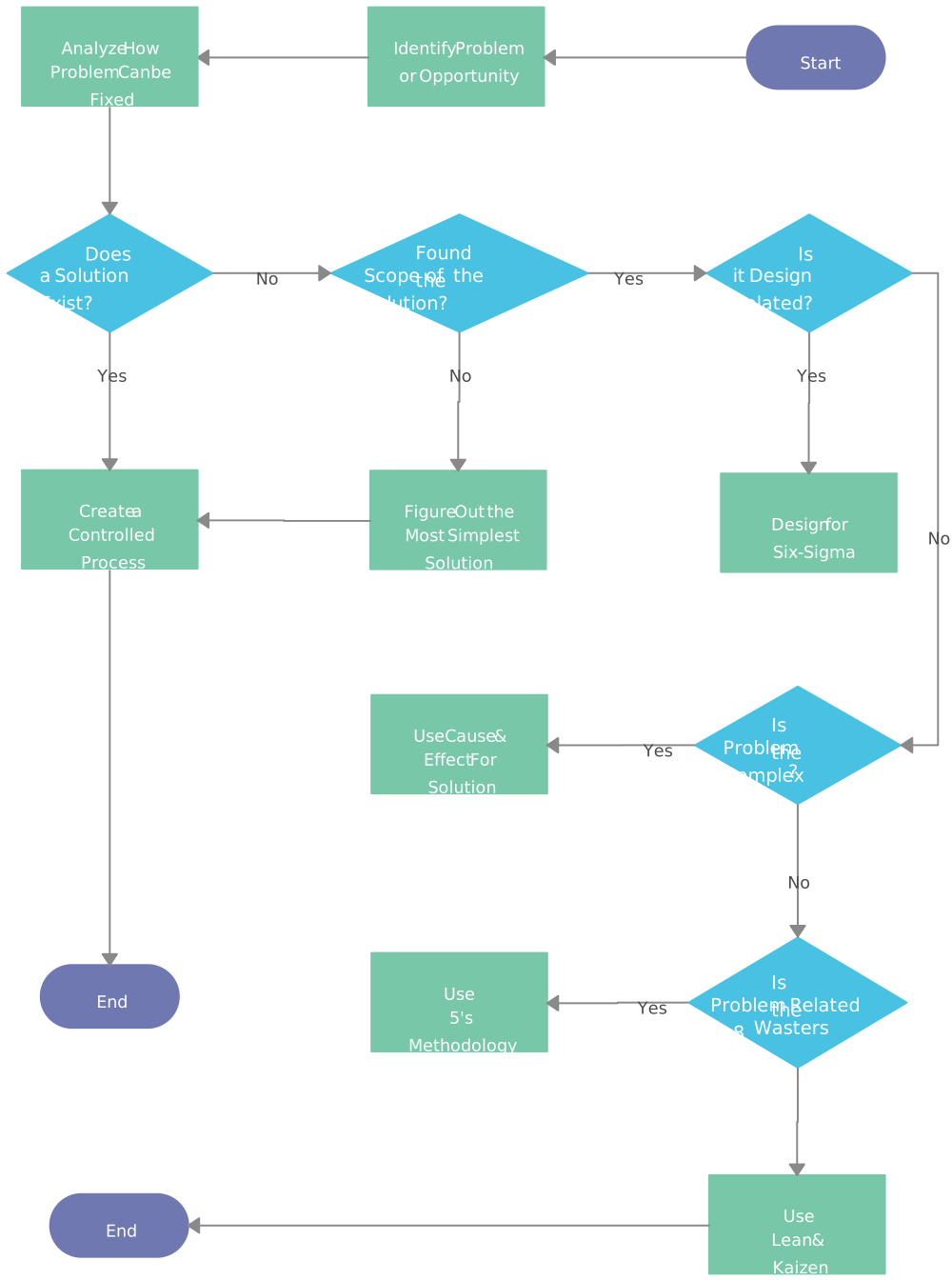

How to Make a Process Map in PowerPoint
Let’s take a look at how to make a Microsoft PowerPoint process map.
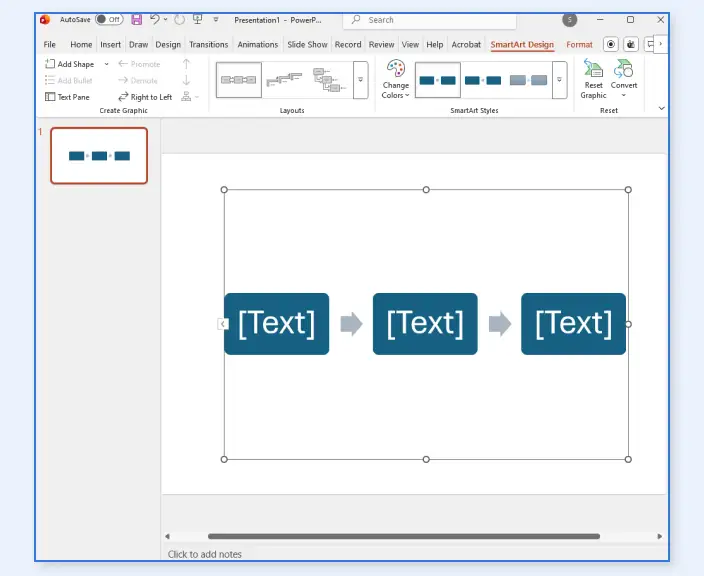
Step 1: Insert a SmartArt process layout
Go to Insert → SmartArt → Process and choose a layout that best matches your workflow, such as Basic Process or Chevron Process. These layouts work well for straight, sequential steps, but they offer limited flexibility if your process includes multiple paths or decision points.
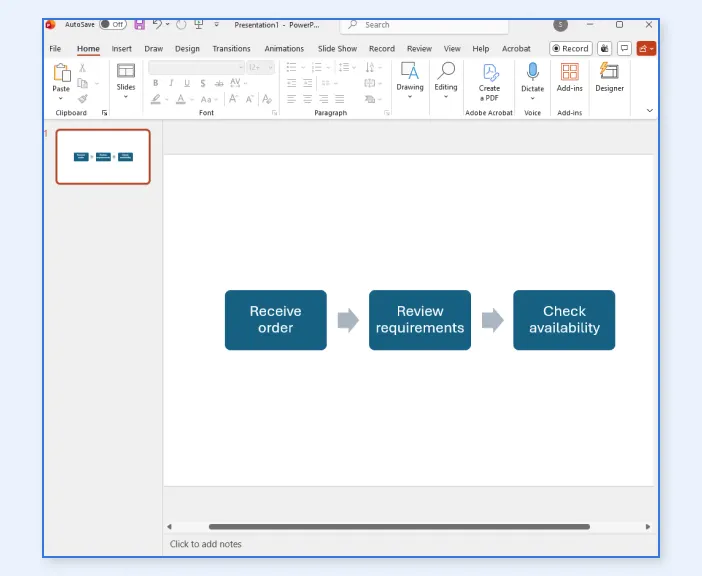
Step 2: Enter your process steps
Click into each SmartArt shape and enter your step names directly. This keeps things quick and neatly aligned, though longer descriptions can be harder to fit without resizing shapes or affecting readability.
Step 3: Add or remove steps
Use the SmartArt controls to add or delete steps as needed. This is convenient early on, but reordering steps or inserting new ones in the middle of an existing flow can feel restrictive once the process starts to grow.
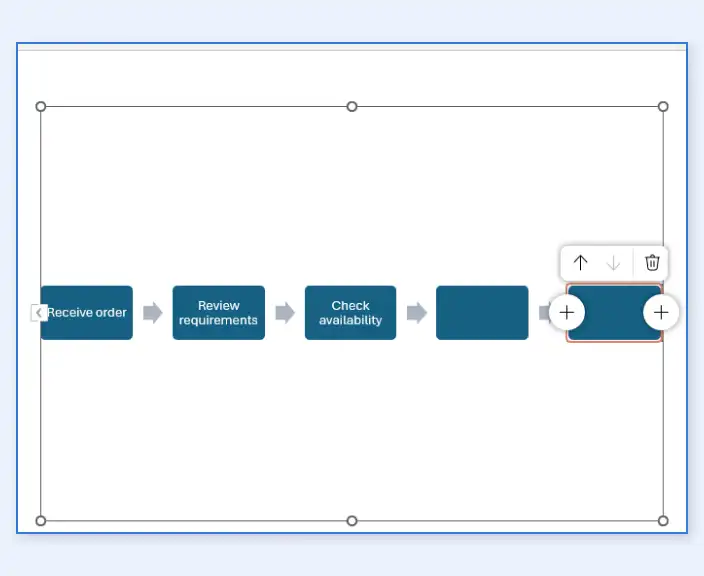
Step 4: Format for clarity
Apply colors, fonts, or styles to make the process easier to scan. While SmartArt handles basic styling well, more detailed customization like mixing shape types or emphasizing decision points is limited.
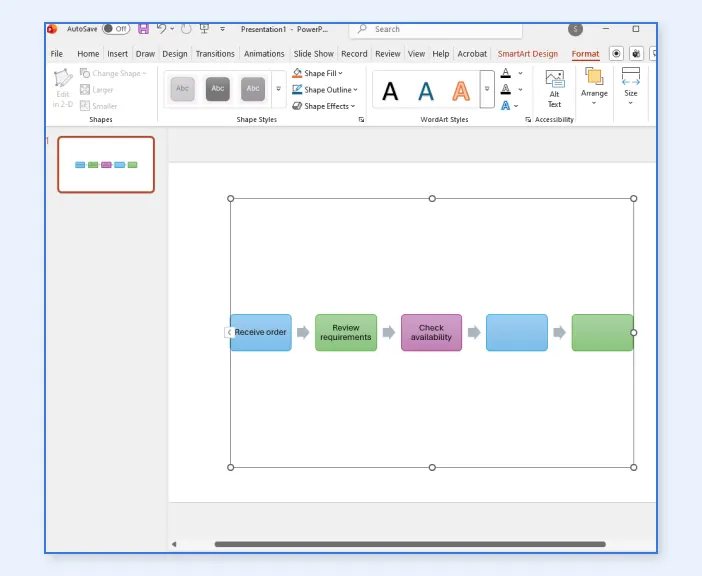
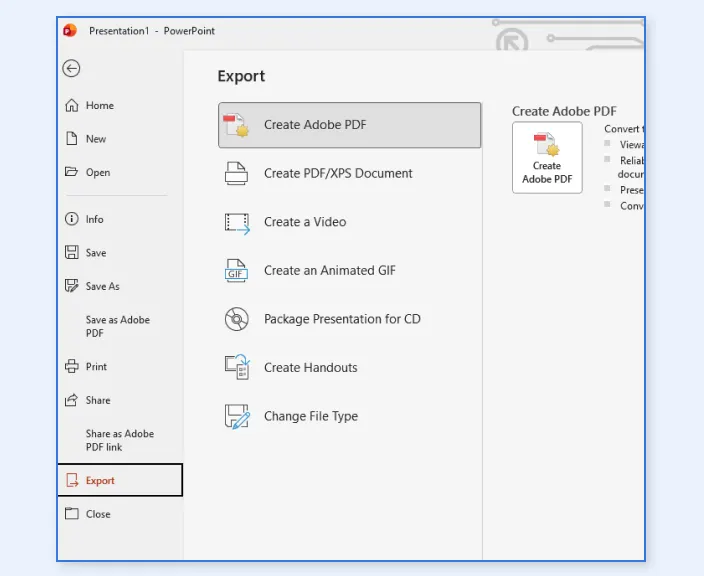
Step 5: Review and share the process map
Walk through the flow to make sure each step is clear and in the right order, then save or export the slide. Updating the map later is possible, but more complex changes often require breaking the SmartArt into individual shapes.
Limitations of Making a Process Map in PowerPoint
While PowerPoint is easy to access and familiar to most teams, it wasn’t designed specifically for mapping processes. As workflows become more detailed or collaborative, you will experience the following limitations when making a Microsoft PowerPoint process map.
Too much time spent on layout: Aligning shapes, resizing boxes, and keeping arrows straight can take longer than mapping the actual workflow, especially as the diagram grows.
Small changes cause big rework: Adding, removing, or reordering a single step can mean shifting multiple shapes and connectors, turning a quick update into a manual cleanup job.
SmartArt is limited to simple flows: It works well for straight, step-by-step processes, but quickly feels restrictive when you need branching paths, decisions, or exceptions.
Larger maps are harder to read: As steps increase, slides get crowded, text shrinks, and the process becomes harder to scan, especially when everything has to fit on one slide.
Collaboration is awkward: Sharing usually means emailing files or managing multiple versions, which makes it easy for changes to get lost or overwritten.
Updates are hard to maintain: Because changes aren’t dynamic, keeping a process map accurate over time can feel like rebuilding it instead of refining it.
If you need something more flexible and easier to maintain, Creately is built specifically for process mapping, making it faster to create, update, and collaborate on process maps without fighting the layout every step of the way.
Why Creately is Better for Making Process Maps
If you’re ready to move beyond manual slide editing and build process maps that are easier to create, update, and share, Creately’s process mapping software gives you a faster, more flexible way to visualize how work actually gets done. Here’s what you get with it.
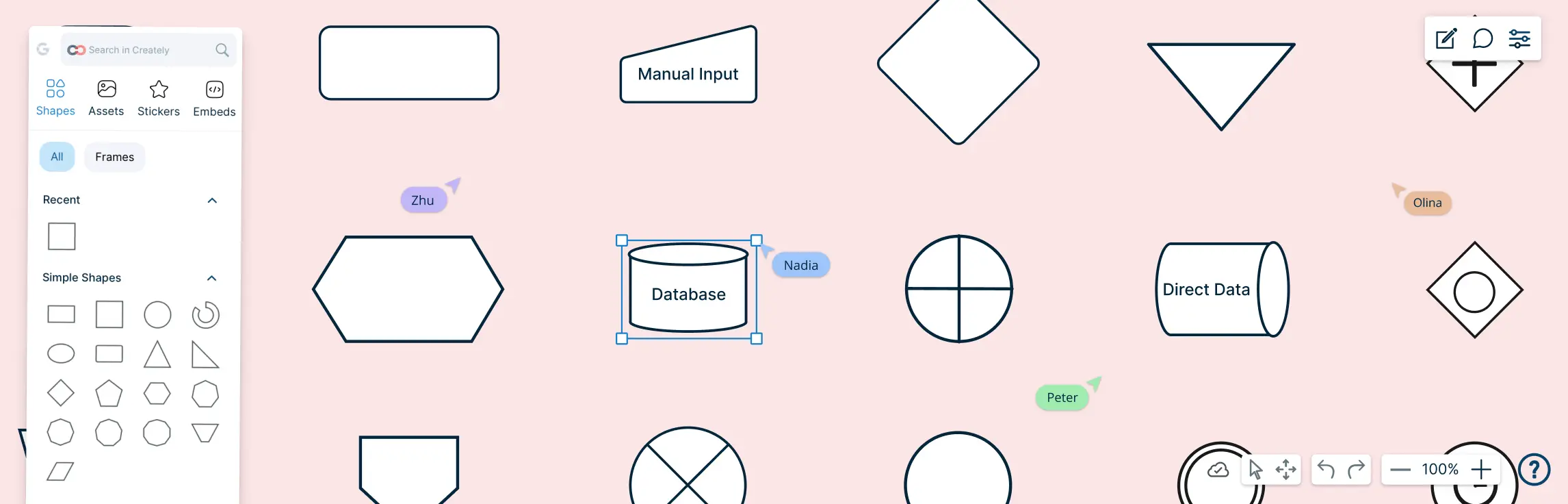
Designed for Process Mapping
Purpose-built shapes, connectors, and layouts that adapt as your process grows.
No fighting with alignment or spacing when steps change or expand.
Get Started Quickly with Free Templates
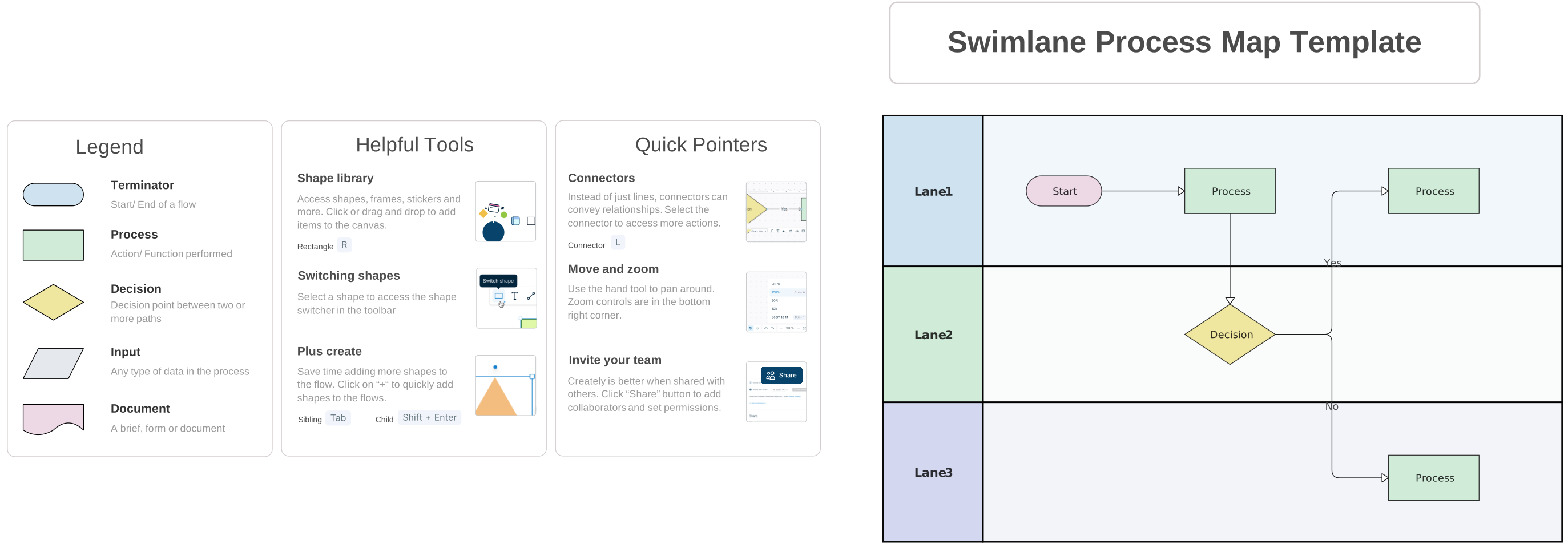
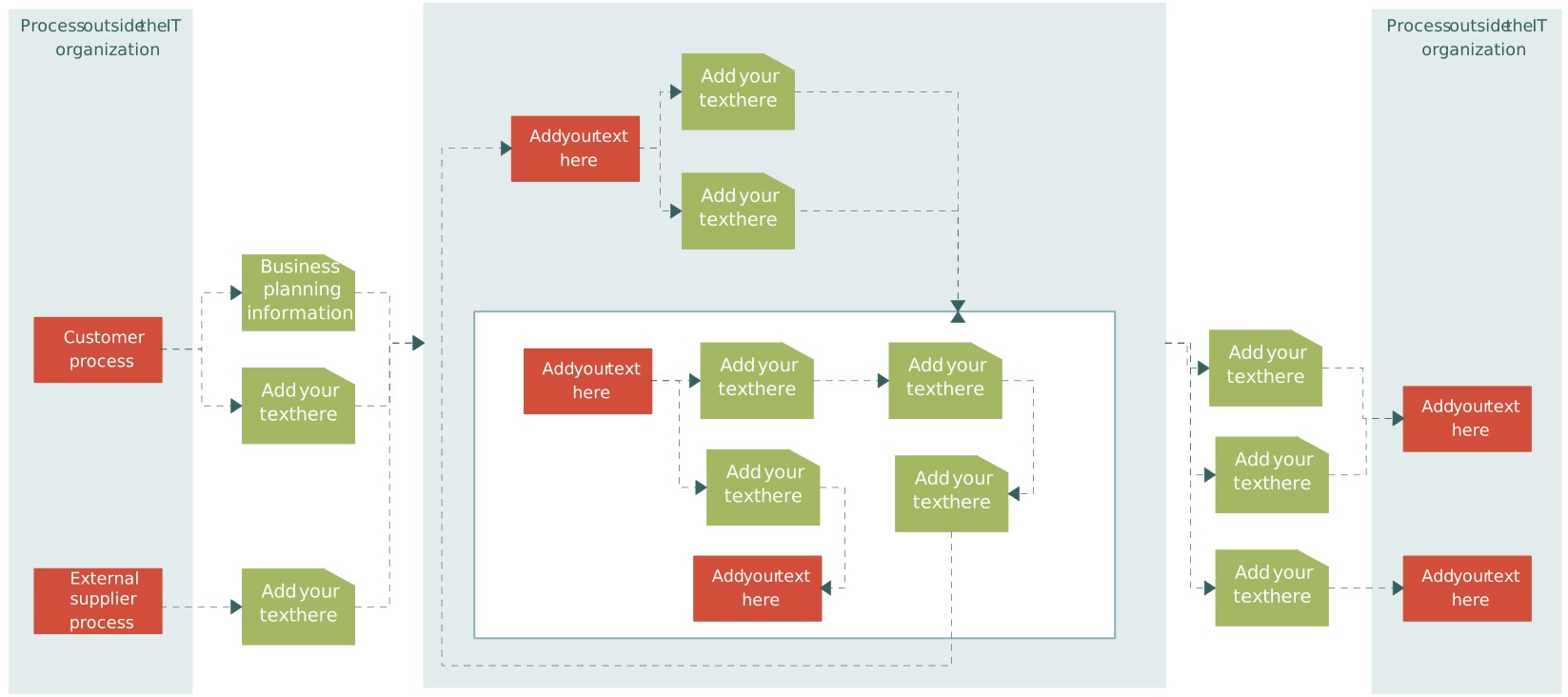
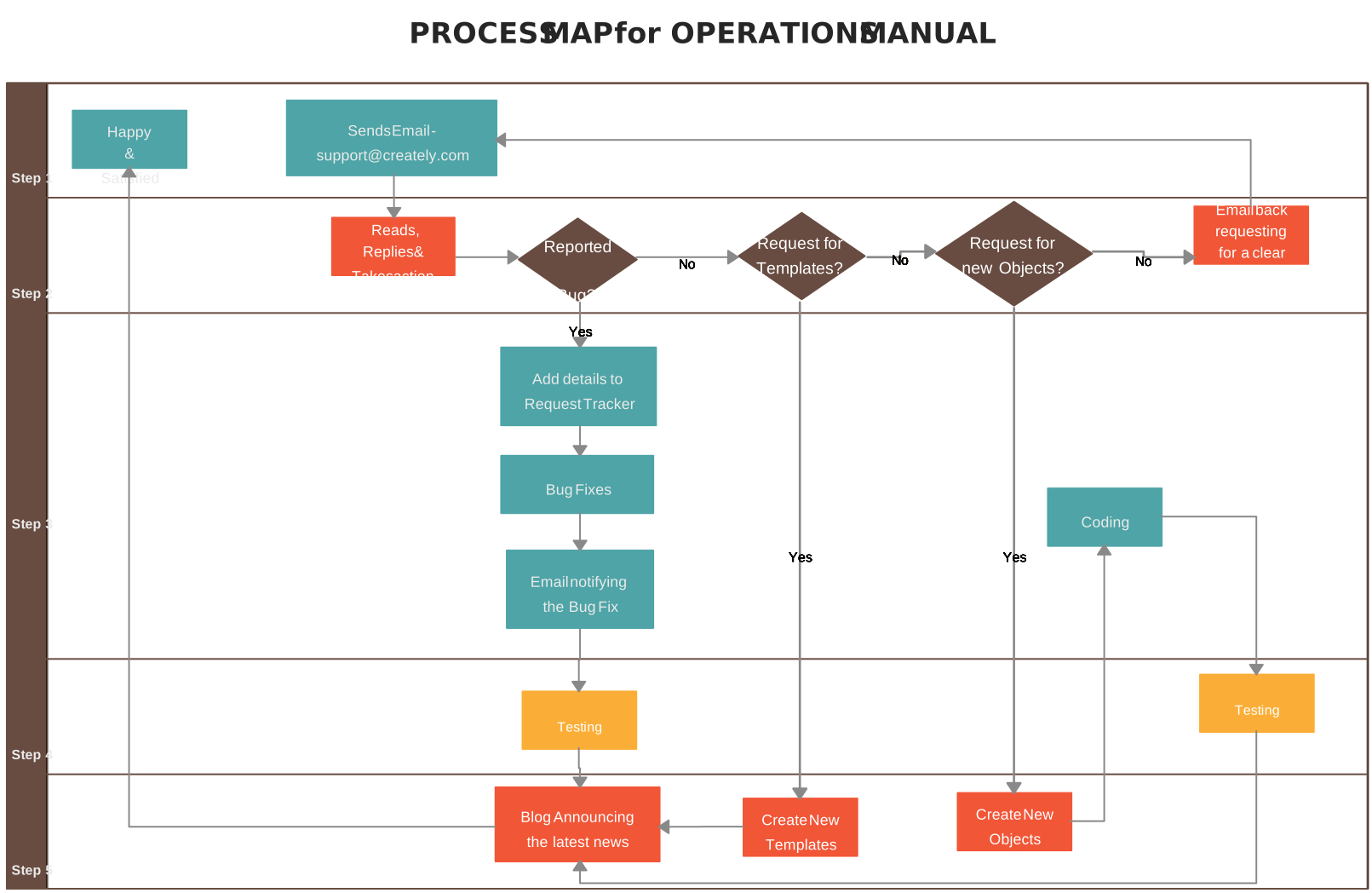
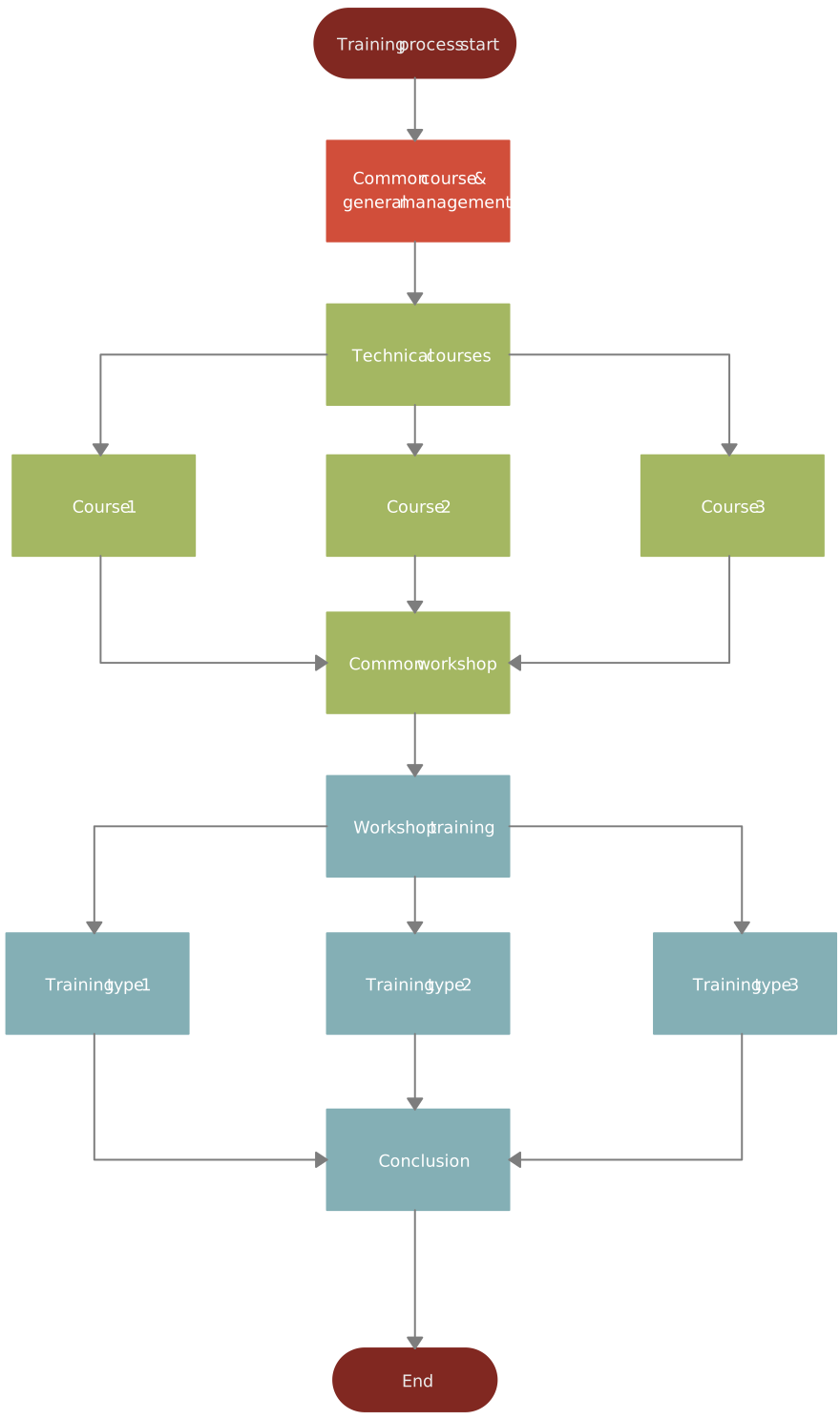
Use ready-made process map templates such as flowcharts, SIPOC diagrams, value stream maps, and swimlane process maps to save time and maintain consistency.
Customize templates to fit your team’s needs instead of starting from scratch.
Create Faster with AI and Automation
Use Creately’s AI flowchart generator to turn plain-language descriptions into structured, editable process maps in seconds.
Eliminate repetitive manual setup and start with a clear, logical flow instantly.
Built for Real-World, Complex Workflows
Easily model decision points, parallel paths, and exceptions.
Scale from simple processes to detailed, end-to-end workflows without clutter.
Real-Time Collaboration and Clarity
Work together on the same process map simultaneously.
Comment, review, and refine flows without version conflicts or file sharing.
Showcase your process maps in presentation mode for clear, distraction-free walkthroughs with stakeholders.
Easy to Update and Maintain
Add, remove, or rearrange steps without reworking the entire diagram.
Keep process documentation accurate as workflows evolve.
Creately Vs PowerPoint Process Map Features Comparison
If you’re deciding between sticking with slides or switching to a purpose-built tool, comparing Creately vs PowerPoint side by side makes it easier to see which one truly supports process mapping at scale.
Feature | PowerPoint | Creately |
Purpose-built for process mapping | No – general presentation tool | Yes – designed specifically for process and flow diagrams |
Speed of creation | Manual shape placement and formatting | Fast setup with drag-and-drop and smart layouts |
AI-assisted diagram creation | Not available | AI Flowchart Generator creates maps from text |
Handling complex workflows | Difficult to manage branching and exceptions | Easily supports decisions, parallel paths, and large flows |
Editing and updates | Small changes often require layout rework | Steps can be added or moved without breaking the diagram |
Collaboration | File-based sharing, no real-time editing | Real-time multi-user collaboration and comments |
Canvas size and scalability | Limited to slide boundaries | Infinite canvas for large and detailed process maps |
Templates | Limited, presentation-focused | Free, ready-to-use process map templates |
Ongoing maintenance | Time-consuming to keep updated | Easy to maintain as processes evolve |
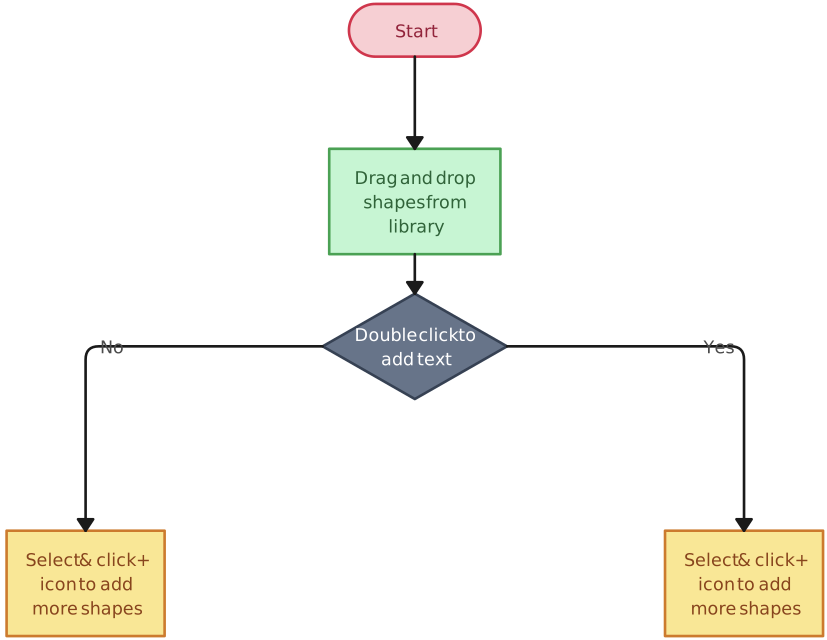
Free Process Map Templates to Get Started


Helpful Resources for Making Process Maps
Discover different types of Process Maps and how they can be used.
Learn about the symbols used and how they visualize the process flow.
Learn how process maps are used in business processes.