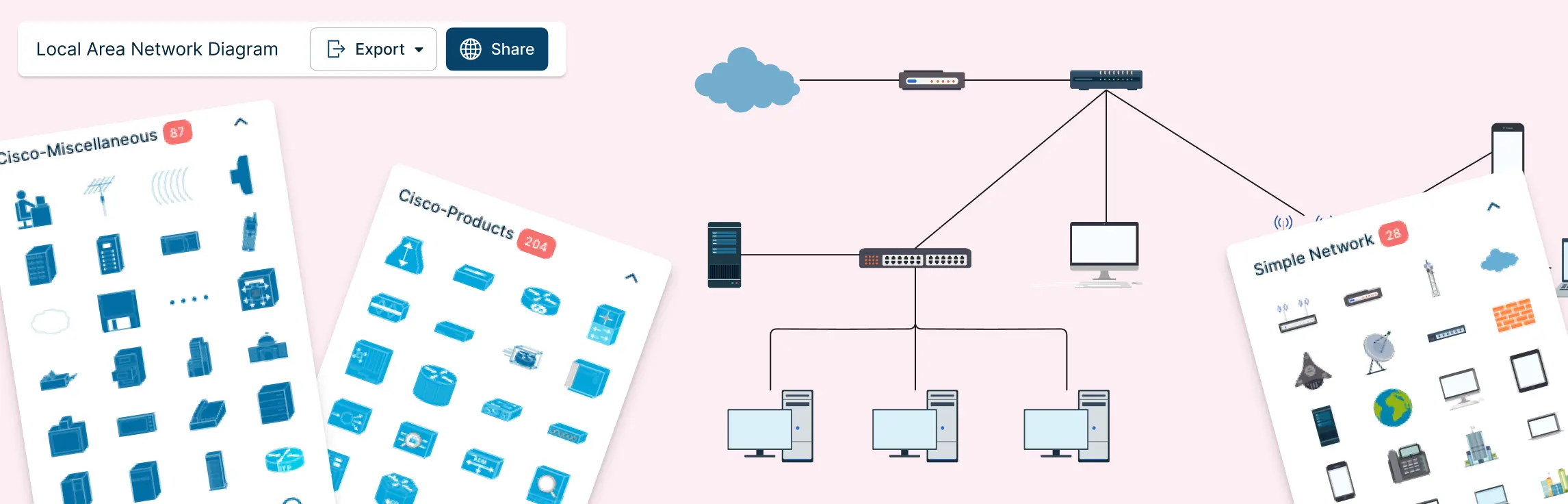
If you’ve ever tried to understand a network setup by staring at a jumble of cables, spreadsheets, or half-erased whiteboard sketches, you know the frustration. Devices are connected, something breaks, and suddenly no one knows what connects to what—or why. That’s exactly where a local area network diagram makes all the difference.
This guide breaks down everything you need to know about LANs, from the basics and key components to network types, advantages, and best practices. Most importantly, you’ll learn how to create clear, easy-to-understand LAN diagrams that bring structure, speed, and sanity back to your network documentation.
What Is a Local Area Network (LAN)?
A Local Area Network (LAN) is a network that connects computers and other devices within a limited area, such as a home, office, or small campus. In simple terms, it allows multiple devices to communicate, share files, access printers, and use the internet together without relying on external networks.
Understanding the LAN definition is essential for anyone managing or designing networks because it’s the foundation of most modern office and home setups. Unlike larger networks like MANs (Metropolitan Area Networks) or WANs (Wide Area Networks), a LAN is focused on high-speed connectivity within a small geographic area, which makes it faster, more secure, and easier to manage.
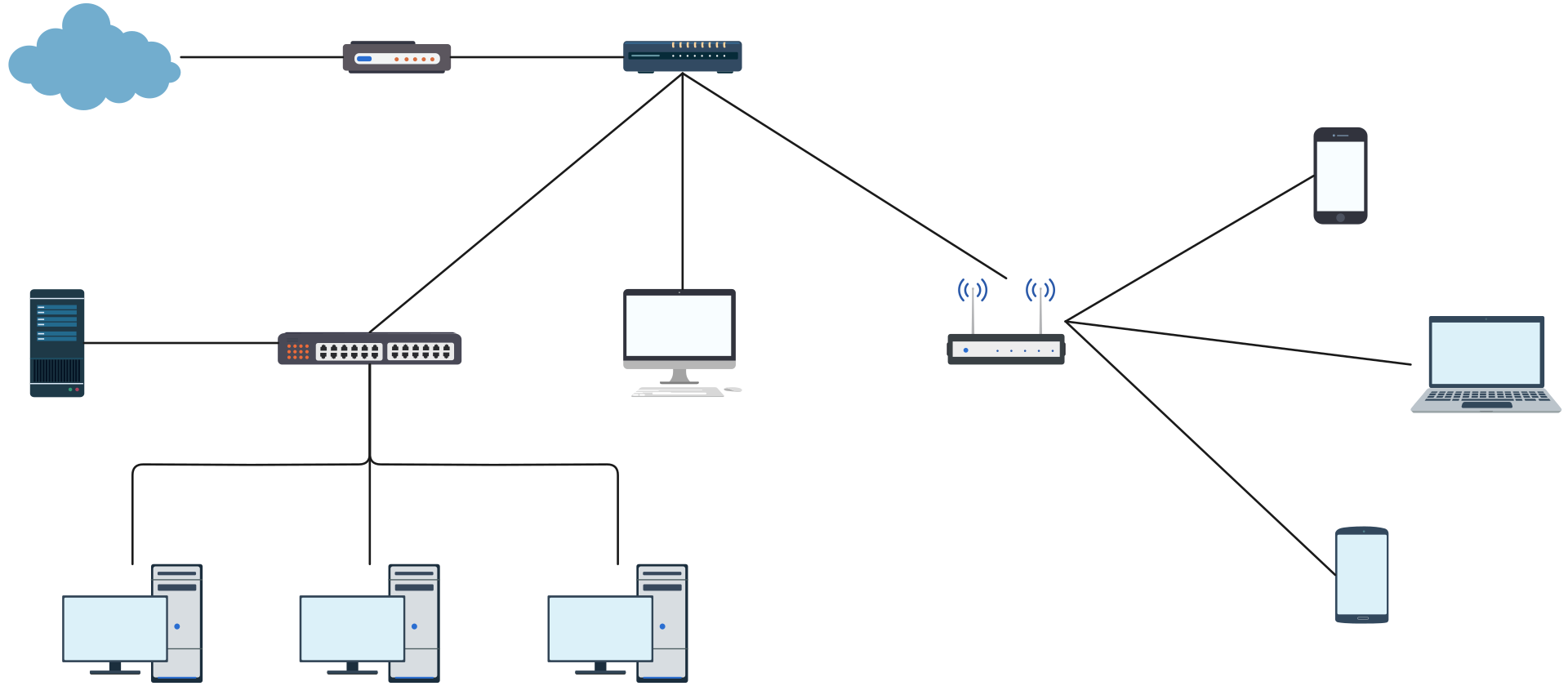

Key Components of a LAN Network
A Local Area Network (LAN) is built from a combination of devices and connections that work together to keep your network fast, secure, and efficient. Understanding the key components of a LAN network is essential for designing, managing, or troubleshooting any office or home network setup.
1. Devices
These are the building blocks of your LAN:
- Routers: Direct traffic between your LAN and other networks, like the internet, and assign IP addresses to devices.
- Switches: Manage data flow between devices, making sure information reaches the right destination efficiently.
- Hubs: Older devices that broadcast data to all connected devices, now mostly replaced by switches.
- Access Points (APs): Enable wireless connections, letting laptops, phones, and other Wi-Fi devices connect to your network.
- Computers and Workstations: The devices people use daily to access files, applications, and resources.
- Printers and Shared Devices: Allow multiple users to print or share hardware across the LAN.
2. Connections
Connections tie everything together:
- Wired (Ethernet): Offers fast, reliable, and low-latency connectivity—ideal for desktops and critical devices.
- Wireless (Wi-Fi): Adds flexibility and mobility, letting laptops, tablets, and phones connect without cables.
Why Documenting These in a Diagram Matters
Visualizing all these devices and connections in a LAN network diagram can save you headaches down the line. It helps you:
- Quickly spot misconfigurations or bottlenecks.
- Plan network expansions or upgrades efficiently.
- Onboard new team members faster by giving them a clear view of the network.
- Troubleshoot issues faster by knowing exactly where each device sits and how it connects.
A simple LAN diagram turns a complex network into a clear, easy-to-understand map—perfect for both small offices and larger teams.
LAN vs MAN vs WAN: Understanding the Differences
When planning a network, it’s important to understand how a Local Area Network (LAN) differs from larger networks like a Metropolitan Area Network (MAN) or a Wide Area Network (WAN). Each has its own use cases, coverage, speed, and cost. The table below makes it easy to compare:
| Feature | LAN (Local Area Network) | MAN (Metropolitan Area Network) | WAN (Wide Area Network) |
| Coverage | Small area: office, home, or campus | City-wide | Country-wide or global |
| Speed | High (typically 100 Mbps – 10 Gbps) | Moderate (10 Mbps – 1 Gbps) | Variable, often lower than LAN |
| Cost | Low to moderate setup cost | Moderate | High, especially for large distances |
| Typical Use Cases | Connecting office devices, printers, file sharing | Connecting multiple office branches in a city | Connecting offices across countries or continents |
| Example | Office LAN connecting computers, printers, and Wi-Fi | City government networks, university campuses | Internet, multinational corporate networks |
Why LAN Often Works Best for Teams
For most teams, a LAN network is ideal because it offers:
- Speed: Fast data transfer between devices.
- Control: Centralized management of network devices and resources.
- Simplicity: Easy to set up, troubleshoot, and scale as your team grows.
These features make LAN the go-to choice for modern offices and collaborative workspaces where productivity, clarity, and seamless connectivity matter most.
Types of LAN Networks
A Local Area Network (LAN) can be set up in different ways depending on your team’s size, goals, and resources. Understanding the types of LAN helps you choose the right structure and visualize your network clearly. Here are the most common types:
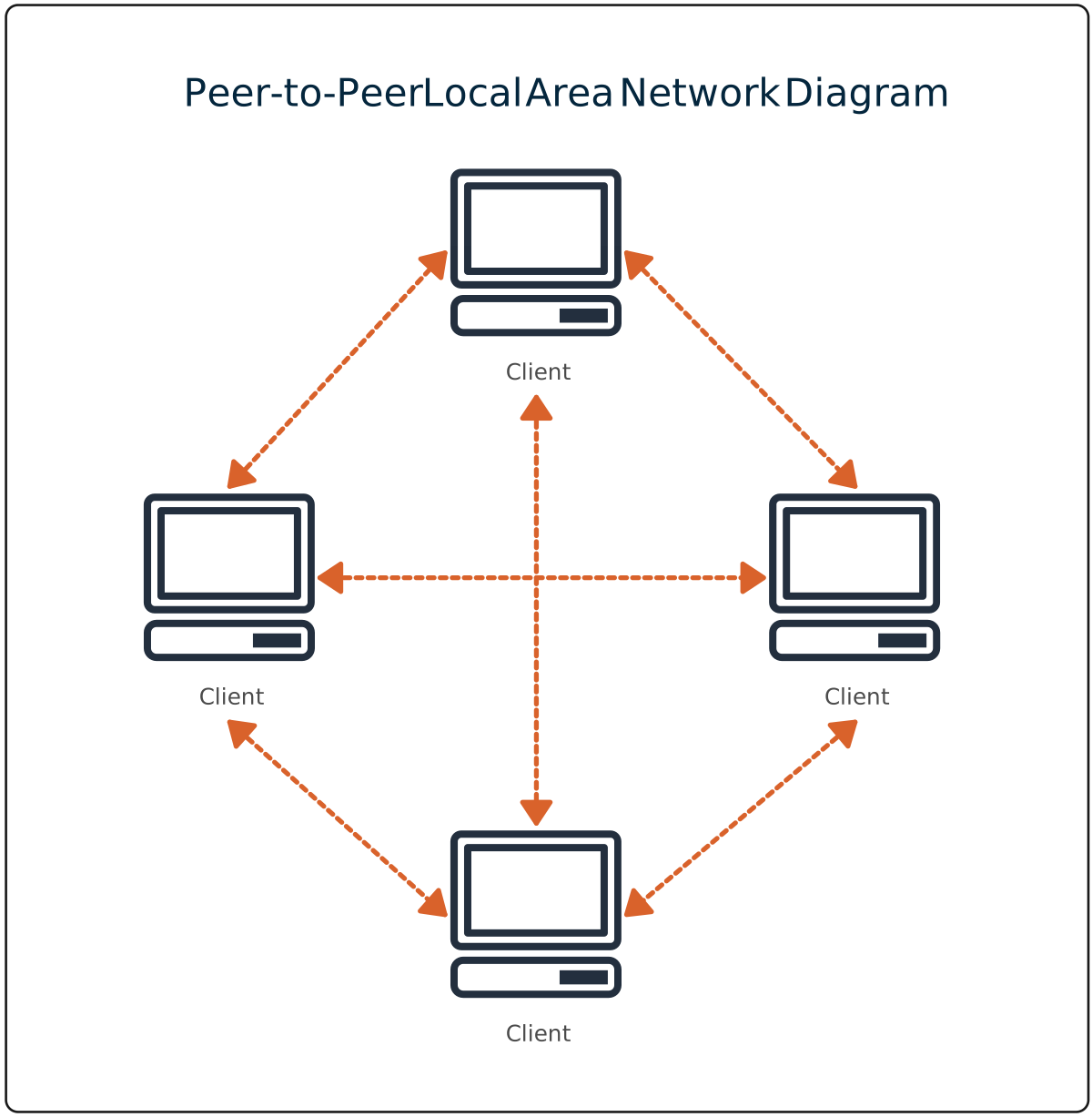
1. Peer-to-Peer LAN
In a peer-to-peer LAN, every device acts as both a client and a server. This means each computer can share files, printers, or resources directly with others without relying on a central server.
Example: Small office or home LAN where a few computers need to share documents and printers.
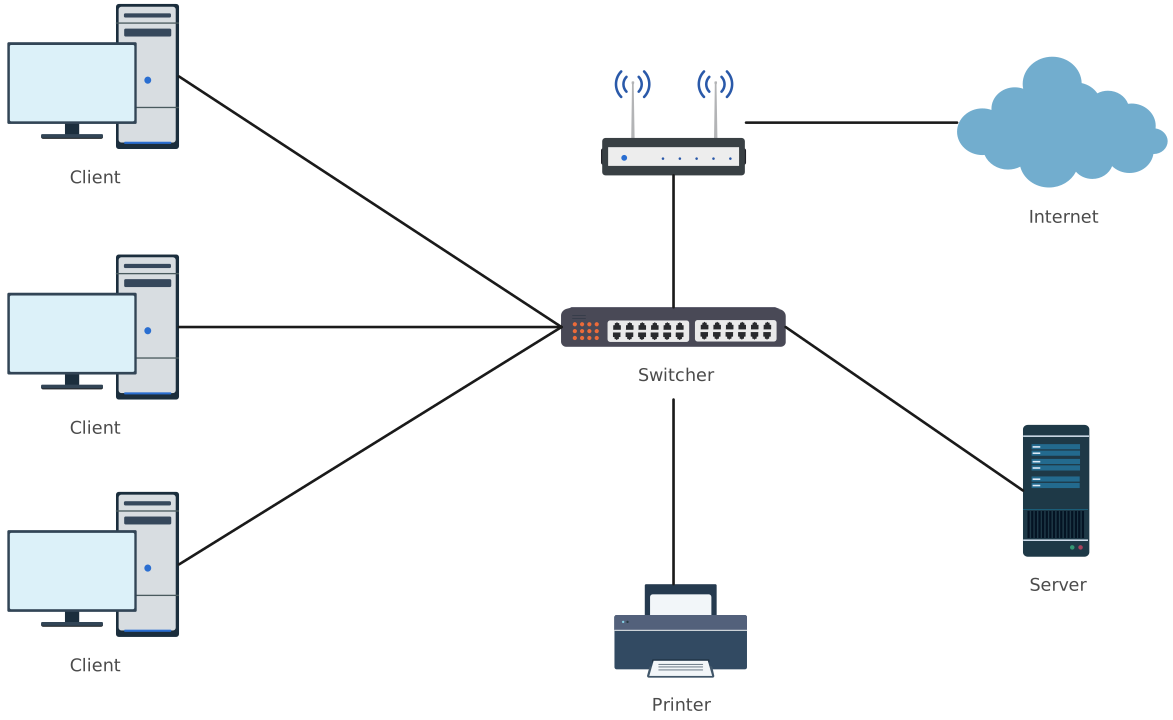
2. Client-Server LAN
This type of LAN has a central server that manages resources and controls access. Client devices connect to the server to access files, applications, or printers.
Example: Medium to large offices where security, centralized storage, and resource management are important.
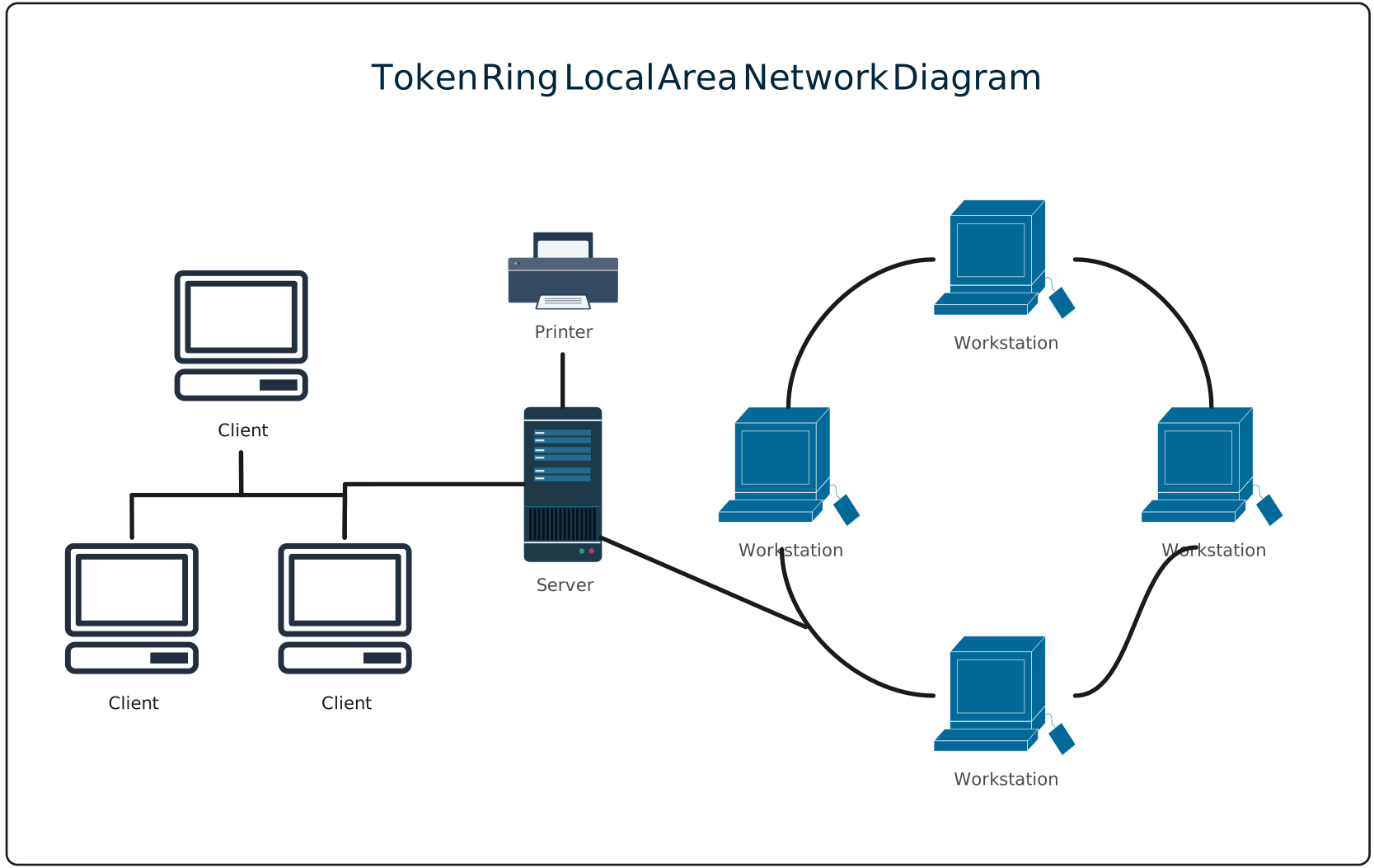
3. Token Ring LAN
A token ring LAN uses a ring-shaped topology where a “token” circulates around the network, allowing devices to send data only when they hold the token. This reduces collisions and organizes traffic efficiently.
Example: Legacy office networks or specialized industrial setups.
4. Virtual LAN (VLAN)
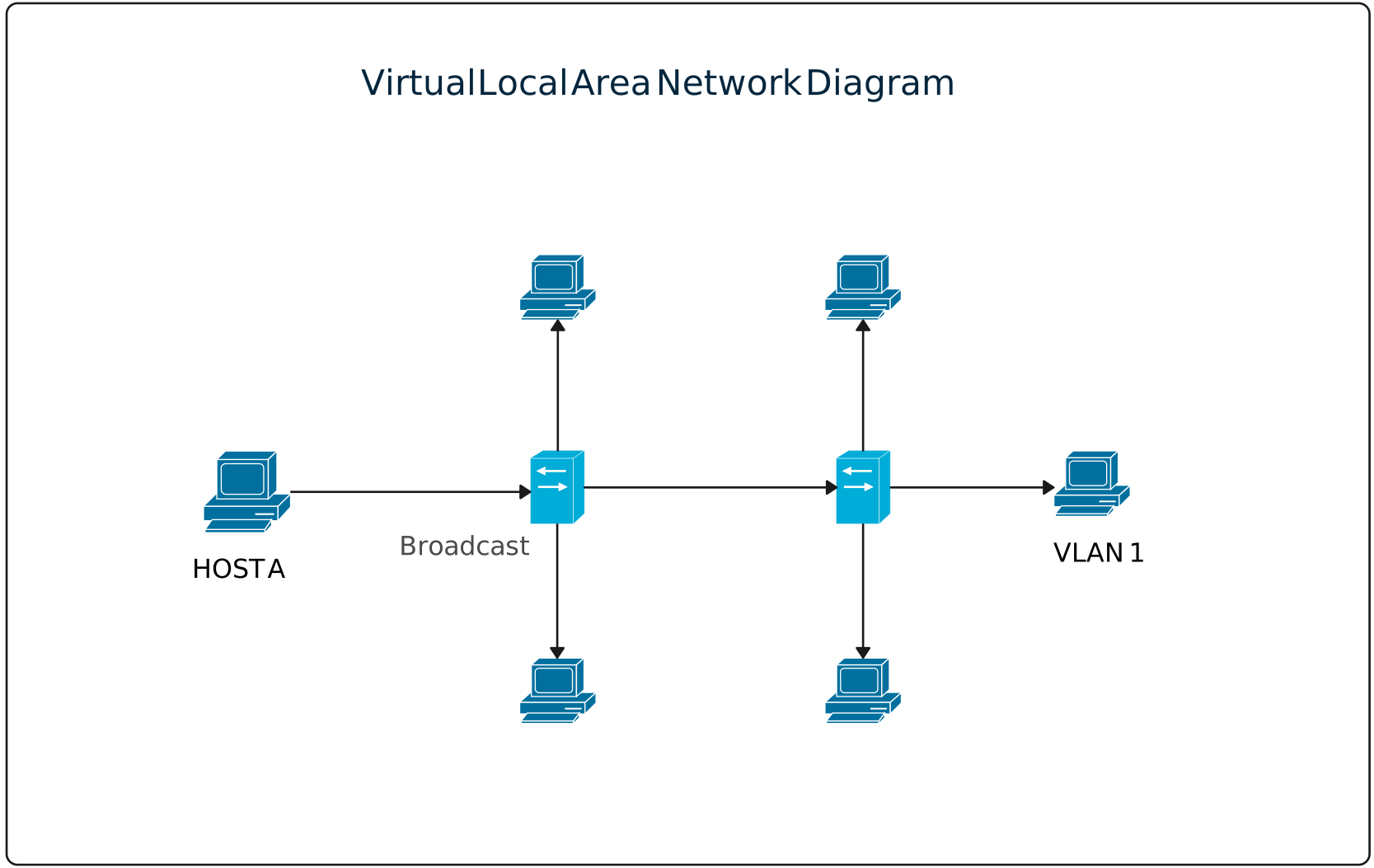
A VLAN is a logical grouping of devices within a larger LAN. Even if devices are physically spread across different switches, a VLAN makes them appear on the same network.
Example: Modern offices that need to separate departments (e.g., HR and IT) while sharing the same physical infrastructure.
Pro Tip: Visualizing the type of LAN in a LAN network diagram can save hours of troubleshooting and make future network upgrades or expansions much easier.
Advantages and Disadvantages of LAN
A Local Area Network (LAN) brings many benefits for teams, but like any technology, it has its trade-offs. Understanding the advantages of LAN and its limitations helps you plan and manage your network effectively.
| Advantages | Disadvantages |
| High Speed: LANs provide fast data transfer between devices, perfect for offices that rely on quick file sharing and communication. | Limited Coverage: LANs are restricted to a small geographic area, so connecting multiple office locations requires additional networking solutions. |
| Cost-Efficient: Setting up a LAN is relatively affordable, especially compared to WANs, and helps teams share resources without extra expenses. | Maintenance Required: Even small networks need regular monitoring, updates, and troubleshooting to keep things running smoothly. |
| Resource Sharing: Devices like printers, files, and applications can be shared easily among team members, improving collaboration and productivity. | Network Dependency: Teams may face frustration if a critical device or server goes down, impacting productivity. |
| Better Control and Security: LANs give IT teams full control over access, ensuring sensitive data stays protected. | Scalability Limits: Expanding beyond a single office or adding too many devices can complicate the network. |
How to Draw a Local Area Network Diagram
Creating a Local Area Network (LAN) diagram may seem complex, but breaking it down into clear steps—and using the right tools—makes it simple, fast, and even enjoyable. A good LAN diagram brings clarity, reduces frustration, and ensures your team can collaborate without confusion.
Step 1. Identify All Devices and Connections
Start by creating a complete inventory of every device on your network:
- Computers, laptops, printers, and servers
- Network devices like switches, routers, hubs, and access points
- Peripheral devices that may need access, such as network-attached storage (NAS)
Next, note how each device connects:
- Wired connections (Ethernet): Fast, reliable, and low-latency
- Wireless connections (Wi-Fi): Flexible, convenient, and mobile-friendly Tip: Interview team members or check network logs to ensure you capture every device.
Missing even one device can create confusion later.
Step 2. Choose the Right LAN Topology
Decide how devices are connected in your network:
- Star Topology: All devices connect to a central switch or hub—ideal for most modern offices
- Bus Topology: Devices share a single backbone line—simple but prone to collisions
- Ring Topology: Data moves in a circular path—efficient but less common today
- Hybrid Topology: Combines multiple topologies to handle complex or larger networks
Tip: Picking the right topology upfront helps your diagram accurately represent how data flows and reveals potential bottlenecks.
Step 3. Map Devices and Connections Visually
Now it’s time to draw your LAN:
- Use Creately’s drag-and-drop interface to place pre-built icons for computers, routers, switches, printers, and access points.
- Draw lines to show wired or wireless connections, using different colors or line styles for clarity.
- Organize devices logically: for example, keep servers centralized and group department devices together.
Tip: Align and space devices evenly for a clean, professional-looking diagram.
Step 4. Label Everything Clearly
Labels are critical to making your diagram useful:
- Name each device and its role (e.g., “Finance PC 01” or “Main Router”)
- Indicate connection types, IP addresses, or VLAN IDs if necessary
- Highlight key devices like servers or network gateways for easy reference
Tip: Clear labels save hours of troubleshooting and prevent confusion when teams expand or network changes occur.
Step 5. Add Notes, Legends, and Color Coding
- Use a legend to explain symbols, colors, or line types for anyone viewing the diagram
- Highlight critical paths or shared resources for quick reference
- Color-code devices by department, type, or priority to make the diagram intuitive
Tip: Visual cues make diagrams easier to read at a glance and reduce the risk of errors during maintenance.
Step 6. Review, Validate, and Update Regularly
A network diagram is only as useful as it is accurate:
- Review the diagram with your team or IT department to confirm accuracy
- Update it whenever new devices are added, removed, or connections change
- With Creately’s real-time collaboration, multiple team members can update the diagram simultaneously, track changes, and keep everyone aligned
Tip: Think of your LAN diagram as a living document—it evolves alongside your network.
Best Practices for LAN Diagramming
Creating a Local Area Network (LAN) diagram isn’t just about connecting devices—it’s about clarity, accuracy, and making your network easy to understand for everyone on your team. Follow these best practices to ensure your diagrams are both functional and visually appealing:
1. Keep It Clean and Consistent
- Avoid overcrowding your diagram with too many details in one area.
- Use consistent shapes and icons for similar devices (e.g., all routers have the same symbol).
- Maintain uniform line styles for wired vs. wireless connections.
- Clean diagrams prevent confusion and make troubleshooting faster.
2. Use Visual Hierarchy and Color Coding
- Organize devices logically: central servers at the top, workstations grouped by department.
- Use colors to distinguish device types, departments, or connection types.
- Highlight critical components like routers, switches, or gateways for quick reference.
- A well-structured visual hierarchy helps teams understand the network at a glance.
3. Collaborate with Your Team
- Involve IT and team members when creating or updating diagrams.
- With tools like Creately, you can collaborate in real-time, leave comments, and track changes.
- Team input ensures the diagram reflects reality and prevents errors.
- A diagram is only powerful if your team can actually read it at a glance.
4. Keep Your Diagram Updated
- Networks evolve—new devices, removed hardware, or changed configurations should be reflected in your diagram.
- Regular updates maintain its usefulness for troubleshooting, onboarding, and scaling.
By following these best practices, your LAN network diagrams won’t just be diagrams—they’ll be actionable tools that save time, reduce frustration, and make network management easier for everyone.
A well-documented LAN isn’t just nice to have—it’s essential. In this guide, we explored what a Local Area Network is, its key components, how LANs compare to MANs and WANs, the different types of LAN networks, and the real-world advantages and disadvantages of using a LAN. We also walked through how to draw a local area network diagram step by step and shared best practices to keep your diagrams clean, readable, and useful over time.
When your network is visualized clearly, troubleshooting gets faster, collaboration improves, and scaling becomes far less stressful. That’s where Creately shines. With drag-and-drop network shapes, pre-built LAN diagram templates, and real-time team collaboration, Creately makes network diagramming feel effortless—no messy whiteboards, no guesswork.
👉 Ready to bring clarity to your network? Start creating your LAN diagrams with Creately and experience how visual thinking just works.
Helpful Resources
Learn how to draw a network diagram step by step, from planning what to include to laying out components clearly and choosing the right symbols.
Discover key bus topology diagram elements, highlight common design patterns, and point out the limitations you need to account for when working with this topology.
Understand how to approach Cisco network topology diagrams with confidence and create visuals that are practical, accurate, and easy to understand.
Learn how to create a home network setup diagram step by step, understand common layouts, follow practical best practices, and use free templates to map your setup.
Discover how to create a wide area network diagram step by step, understand key components, WAN examples, and follow proven best practices.
Explore what hybrid topology diagrams are, the hybrid types & examples, highlight advantages and disadvantages, provide a step-by-step creation process, and best practices.
Discover what a logical network diagram is, how it differs from a physical network diagram, why it’s useful, and how to create one.