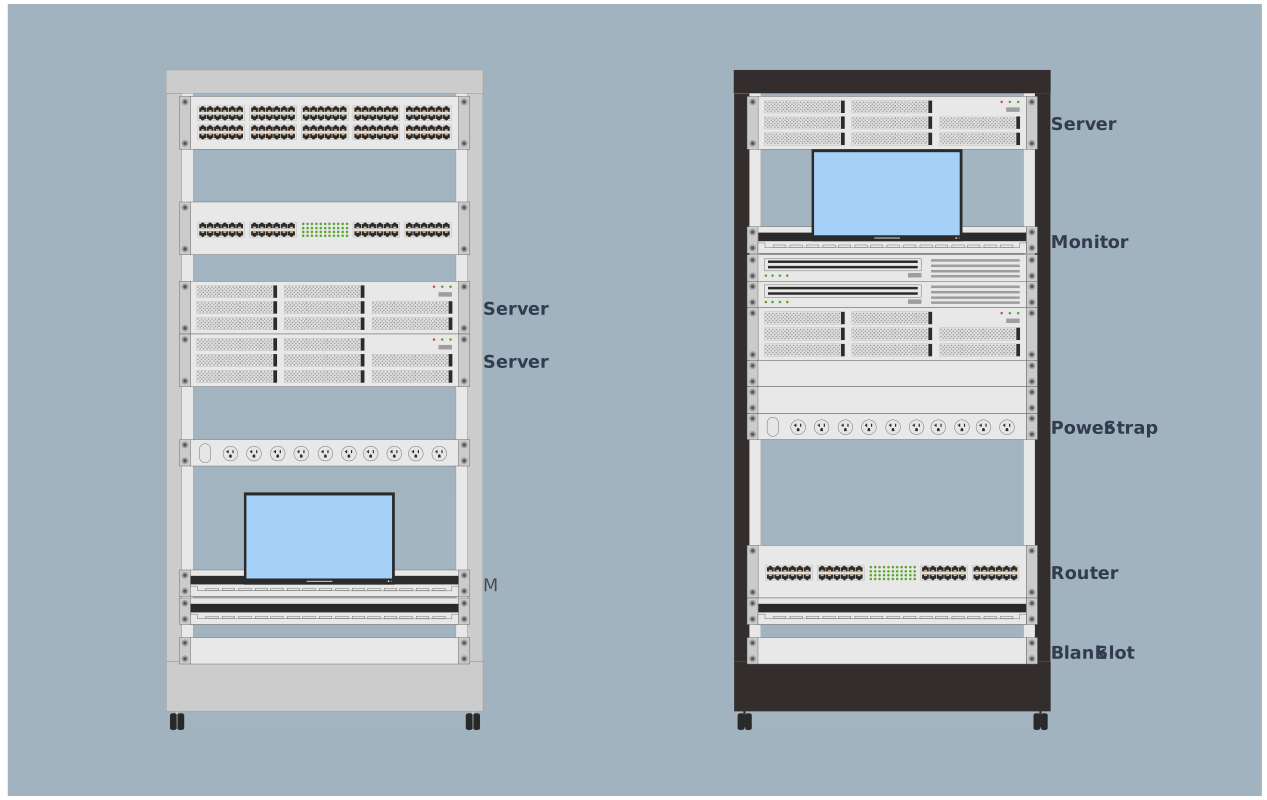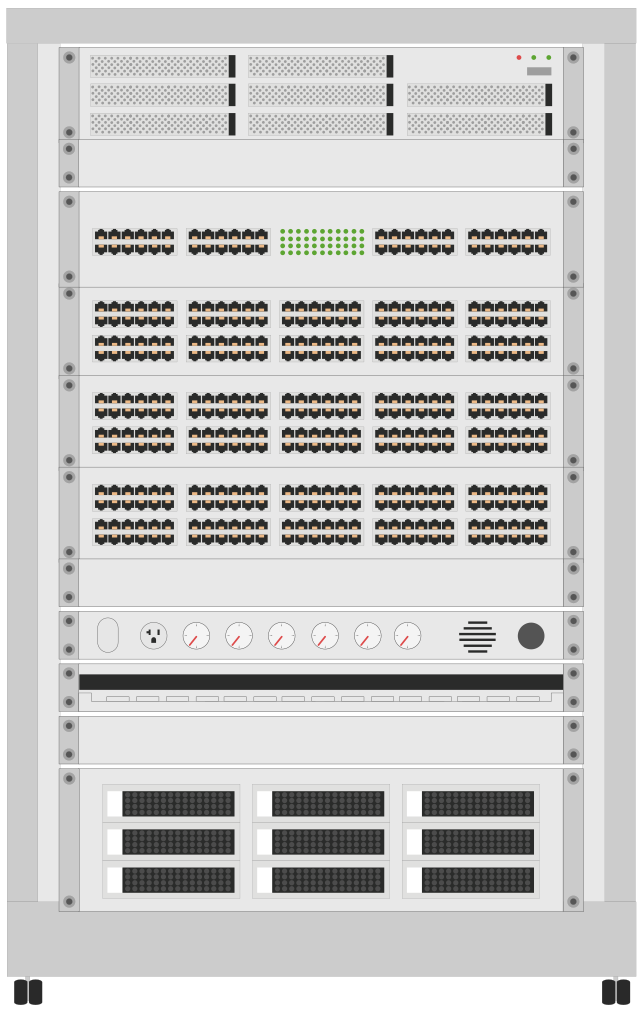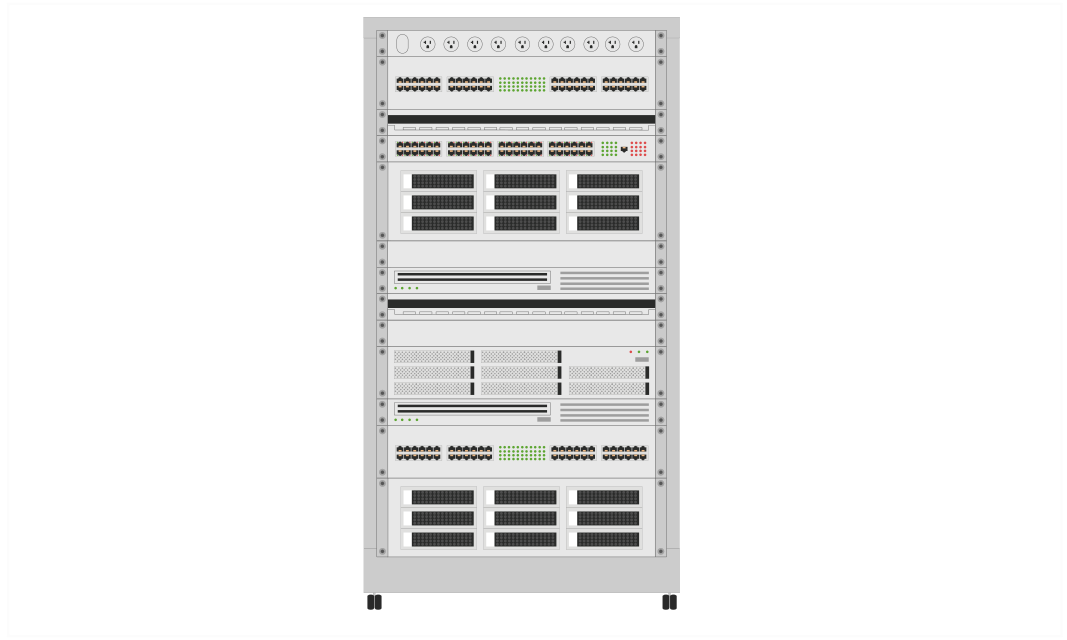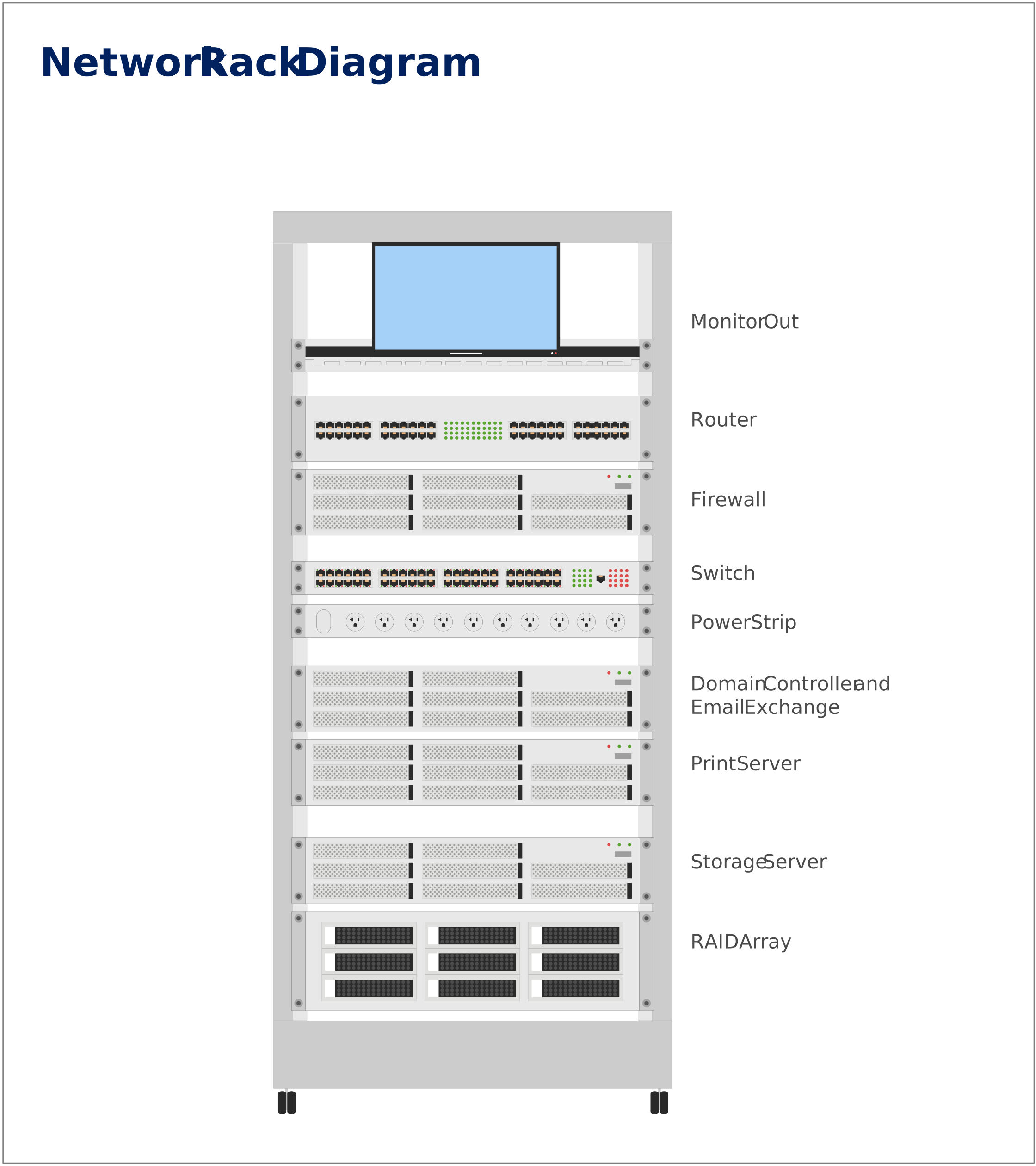
In this guide, you’ll learn what a rack diagram is, how to make a rack diagram in Visio, and the common limitations teams run into when using Visio for rack layouts. We’ll also explore a faster, more collaborative alternative and explore some ready-made rack diagram templates to get started.
What Is a Rack Diagram?
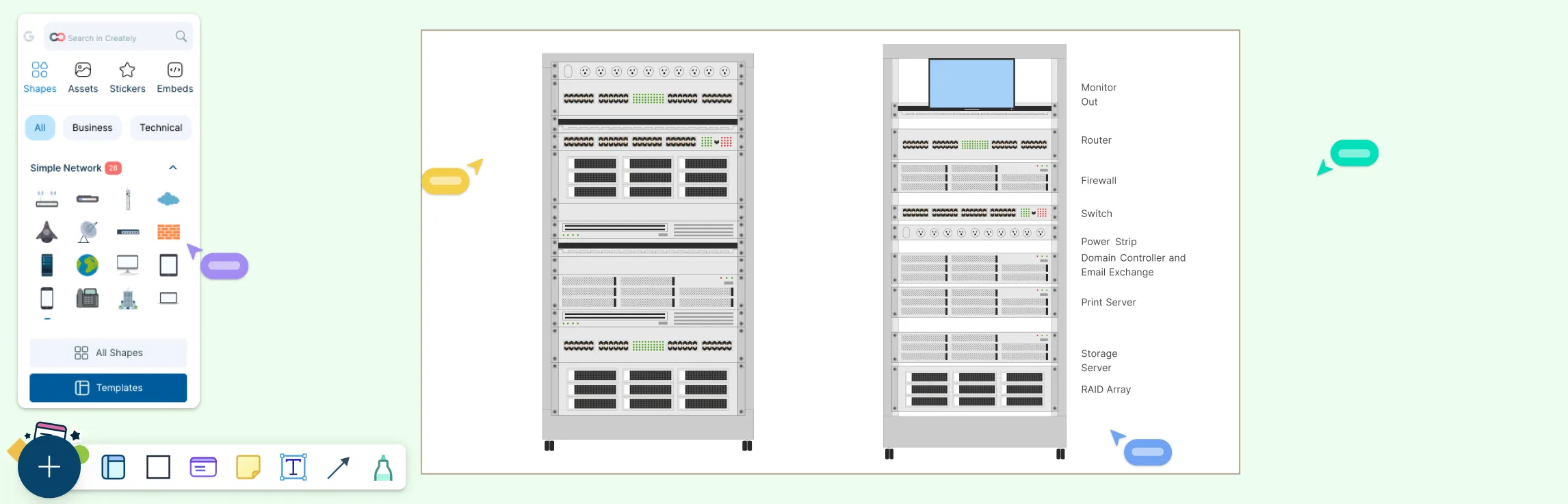
A rack diagram is a simple visual map of everything inside your server rack—servers, switches, patch panels, and how they’re arranged. If you’ve ever wasted time tracing cables or guessing where a device lives, this fixes that. A rack diagram lets you see what’s installed, how much rack space it uses, and how everything connects, all at a glance. With a well-drawn network rack diagram, troubleshooting becomes faster, planning is easier, and managing your infrastructure feels a lot less stressful.
Steps to Create a Rack Diagram in Visio
Follow these steps to create a network rack diagram in Visio, from setup to export.
Step 1: Open Microsoft Visio
Launch Microsoft Visio. From the start screen, choose a blank drawing or go to the Network category to start with a layout suited for rack diagrams. Depending on your Visio version, some advanced network templates may not be available, but you can still proceed with a basic setup.
Step 2: Get the Rack Diagram Stencils
Go to File → New → Network, then select the Rack Diagram template. This loads rack frames, rack-mounted equipment, and freestanding device stencils.
Step 3: Set the Page Scale and Measurement Units
Open Page Setup, choose your measurement units (such as meters), and set a drawing scale (for example, 1:10) so the rack and equipment reflect real-world proportions. Skipping this step can make resizing later more time-consuming.
Step 4: Add the Rack or Cabinet Frame
Drag a rack shape onto the canvas. With the scale set, the rack automatically sizes itself and becomes the foundation for equipment placement.
Step 5: Place Rack-Mounted Equipment
From the Rack Mounted Equipment stencil, drag servers, power supplies, routers, shelves, and other devices into the rack. Adjusting U sizes can take extra effort, especially for larger racks.
Step 6: Label Devices
Label each component with device names, roles, or model details to make the diagram easy to understand and maintain. Keeping labels consistent often requires manual formatting in Visio.
Step 7: Align and Organize the Diagram
Use grids, rulers, and alignment tools to keep everything clean, aligned, and evenly spaced. Complex racks may require careful fine-tuning.
Step 8: Save and Export the Diagram
Save your Visio file and export it as a PDF or image for sharing, documentation, or presentations. Collaboration typically happens after export rather than directly in the diagram.
Limitations of Using Visio for Network Rack Diagrams
While Visio is a powerful tool, it does come with a few limitations when creating and maintaining rack diagrams.
Requires manual setup for page scale, rack units, and alignment before you can start diagramming.
Limited rack and server stencils in non-Professional versions of Visio.
Adjusting U sizes and stacking equipment can be time-consuming for large racks.
Keeping labels, fonts, and formatting consistent often requires extra manual work.
Collaboration typically happens after exporting files, not directly within the diagram.
Changes to rack layouts can be slow to update, especially when diagrams grow complex.
Not ideal for quick iterations or real-time feedback with teammates.
If Visio starts to feel slow or restrictive as your rack diagrams grow, a more flexible diagramming tool can save time and effort.
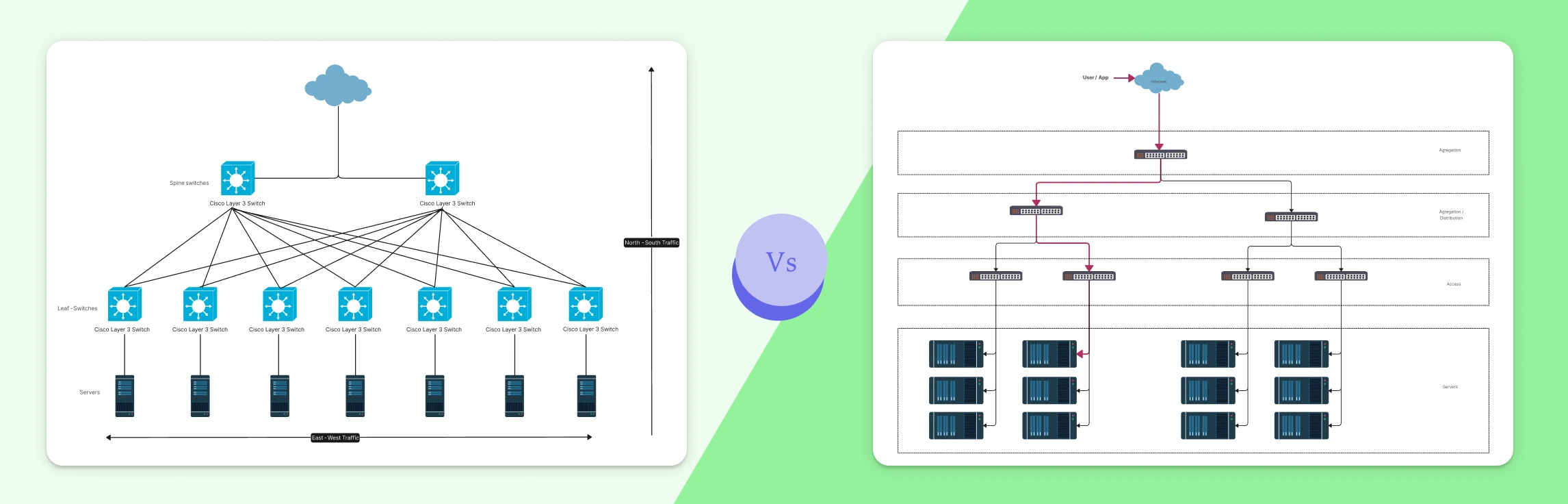
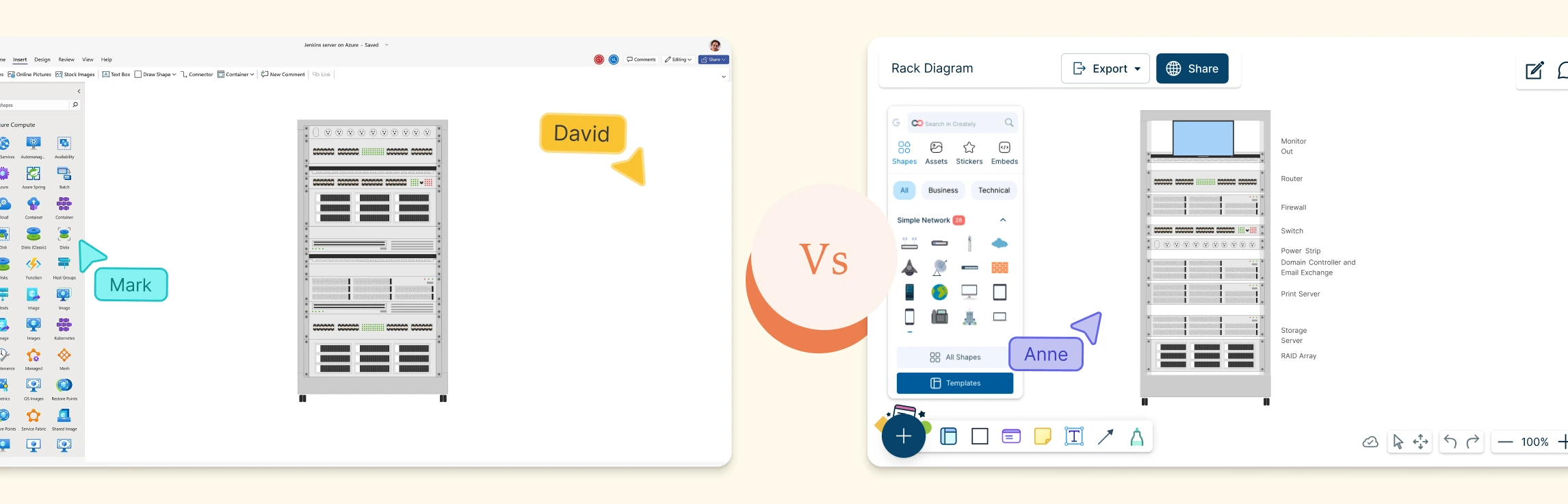
Creately Vs Microsoft Visio Rack Diagram Features Comparison
With Creately, you can draw your network rack layout in minutes and focus on designing your infrastructure, instead of managing tool complexity like in Visio. Here’s a quick feature comparison between the two.
| Feature | Creately | Microsoft Visio |
| Setup & Speed | Cloud-native: start instantly in any browser—ideal for quick builds and updates | Hybrid: desktop app plus Visio for the Web |
| Rack Diagram Templates | Ready-made rack and data center templates to start fast | Built-in rack diagram templates |
| Shape Libraries | Built-in IT and rack components for common use cases | Stencils plus vendor-specific imports |
| Collaboration | Real-time, high-fidelity multi-user editing with mouse tracking, built for teamwork | Co-authoring in web/Teams; more limited in desktop workflows |
| Ease of Editing | Intuitive drag-and-drop with auto-align for fast iteration | High-precision controls (Size & Position) |
| Cloud Access | Fully cloud-based—easy access for distributed teams | Cloud access via OneDrive/SharePoint (Microsoft 365) |
| Version Control | Built-in history with automatic saving in-app | Version history via OneDrive/SharePoint |
| Pricing | Free plan with basic collaboration features; paid plans available for teams and enterprises | Paid plans starting at $5.00 per user/month (billed annually), available as a Microsoft 365 add-on |
Why Creately is a Better Alternative for Visio Rack Diagrams
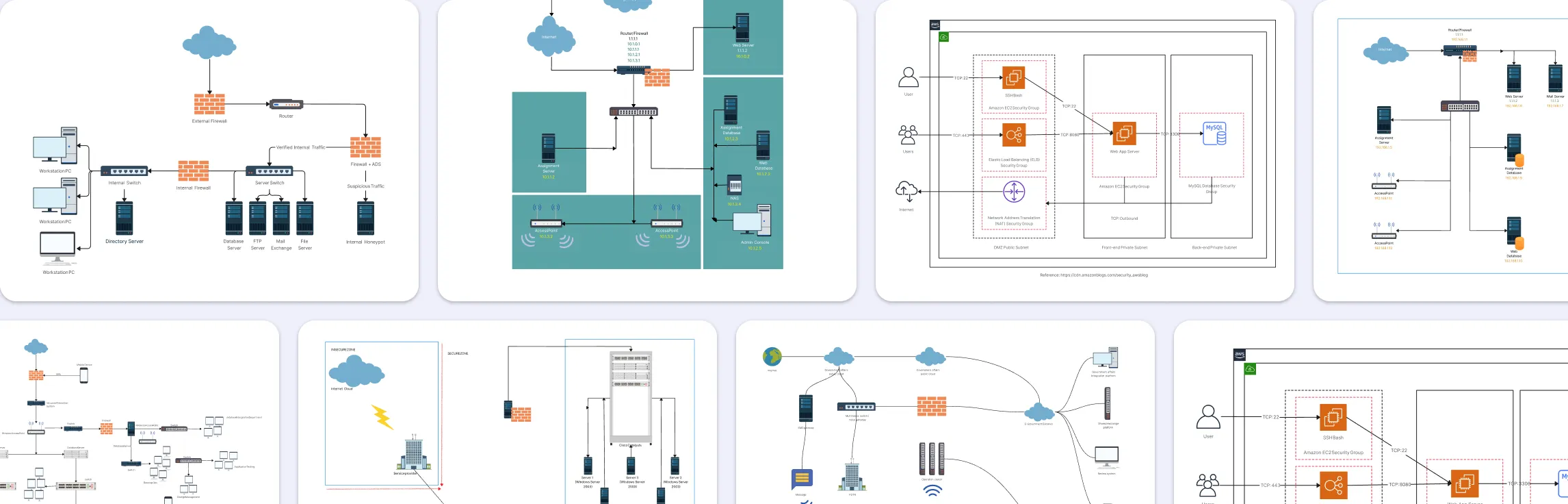
In addition to rack diagramming, Creately’s rack diagram software offers complementary features from quick onboarding and layout expansion to clear presentations for reviews and planning.
Ready-to-Use Templates
- Professionally-designed templates to get started instantly without manual setup.
- Free network diagram templates to map connections, layouts, and infrastructure alongside racks.
Easy Learning Curve
- Easy for both technical and non-technical users to get started.
- No prior diagramming expertise required to create accurate rack layouts.
Infinite Canvas
- Expand your diagram freely as racks, rooms, or data centers grow.
- Add context, annotations, and related diagrams without space constraints.
Presentation Mode
- Present network rack layouts in a clean, guided format for reviews and planning with presentation mode.
- Walk stakeholders through infrastructure layouts without recreating slides.