If you’re trying to figure out how to make a family tree in Google Docs, you’re likely looking for a simple way to map out family relationships using tools you already have. Google Docs can create basic diagrams, but it does require some manual work to structure generations and keep everything aligned. This guide walks you through the steps, explains the limitations you may run into as your tree expands, and offers alternative options and free templates if you need something more flexible.
What is a Family Tree?
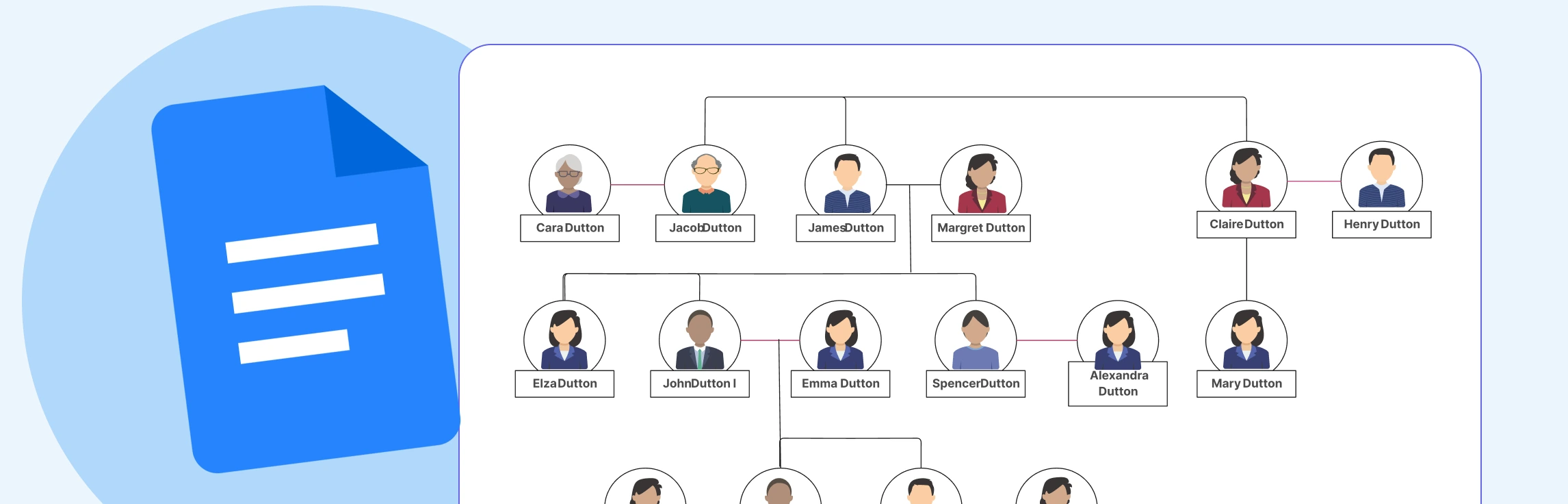
A family tree is a simple visual that helps you see how your family is connected across different generations. It lays out your parents, grandparents, siblings, cousins, and more, showing how one branch leads to another. You can draw it by hand or create a digital version with photos, dates, and personal notes. In the end, it’s really just a clear way to understand your roots and see how everyone fits into your family story.
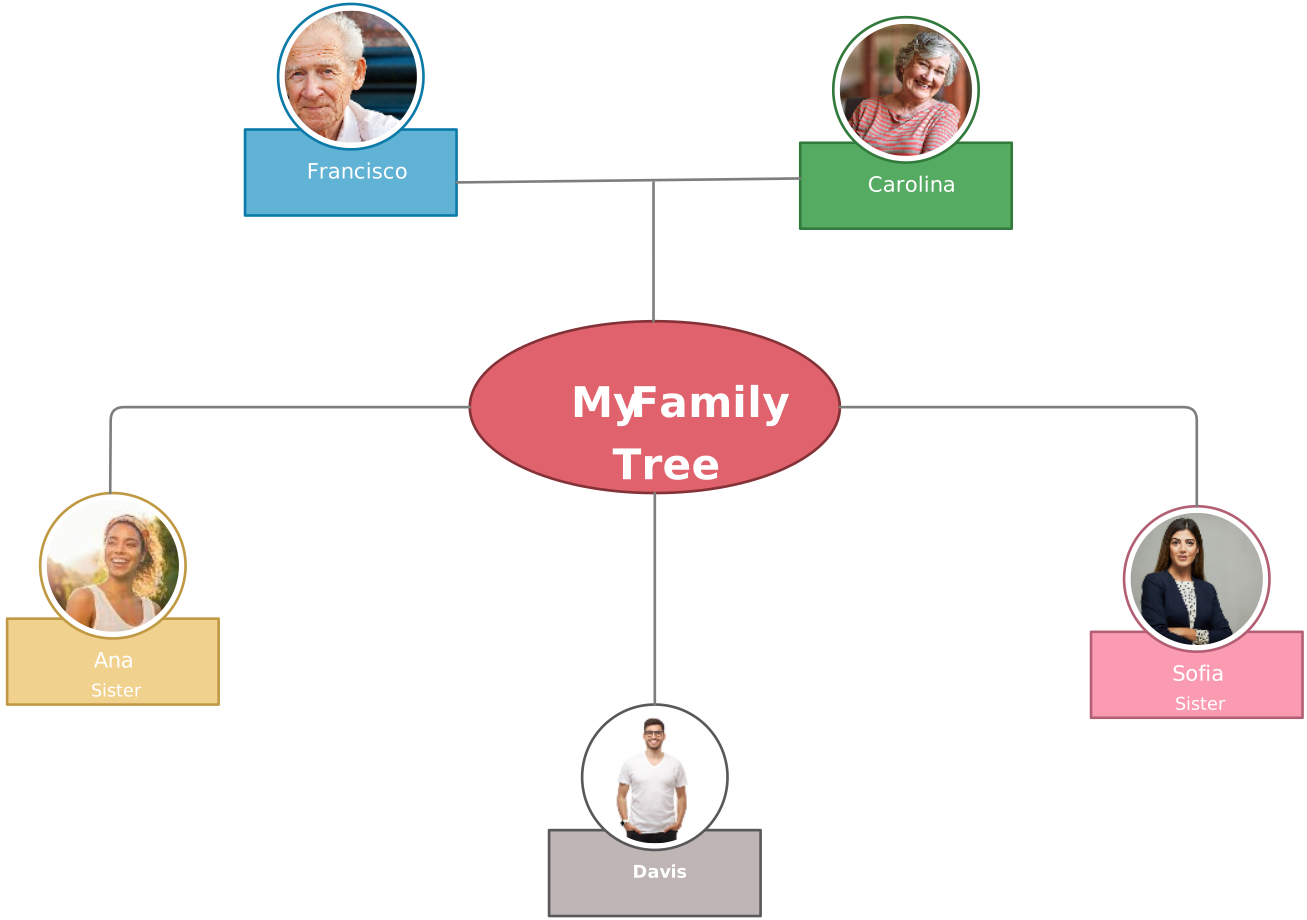

How to Create a Family Tree in Google Docs
If you want to build a simple, shareable family tree using tools you already have, here’s how you can put one together in Google Docs with its built-in drawing features.
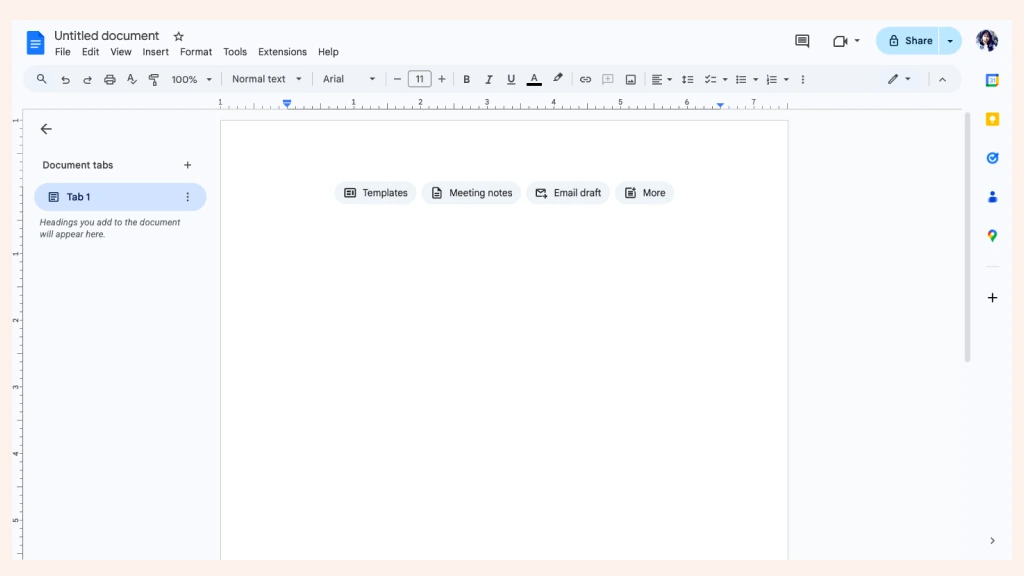
Step 1: Open a Blank Google Doc
Start with a fresh document so you have enough room to build your layout. Google Docs isn’t built for diagrams, so having open space helps.
Step 2: Insert a Drawing Canvas
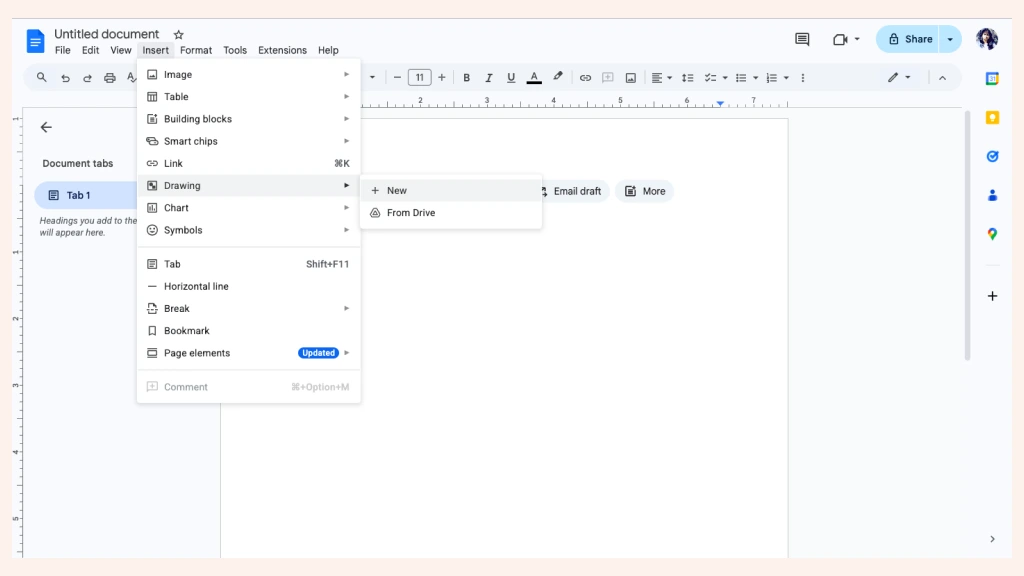
Go to Insert → Drawing → + New. This drawing window acts as your workspace, though it can feel a bit limited for larger family trees.
Step 3: Add Shapes for Each Family Member
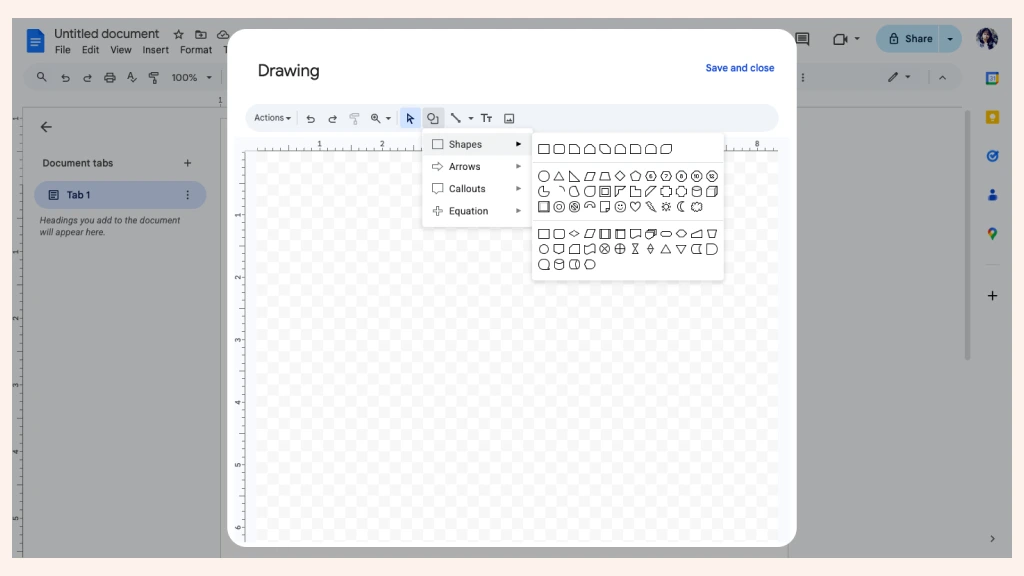
Inside the drawing tool, click Shape → Shapes and add a box for each person.
Step 4: Add Family Member Names
Type in their names and basic details. Keeping text short helps, since the canvas can get crowded quickly.
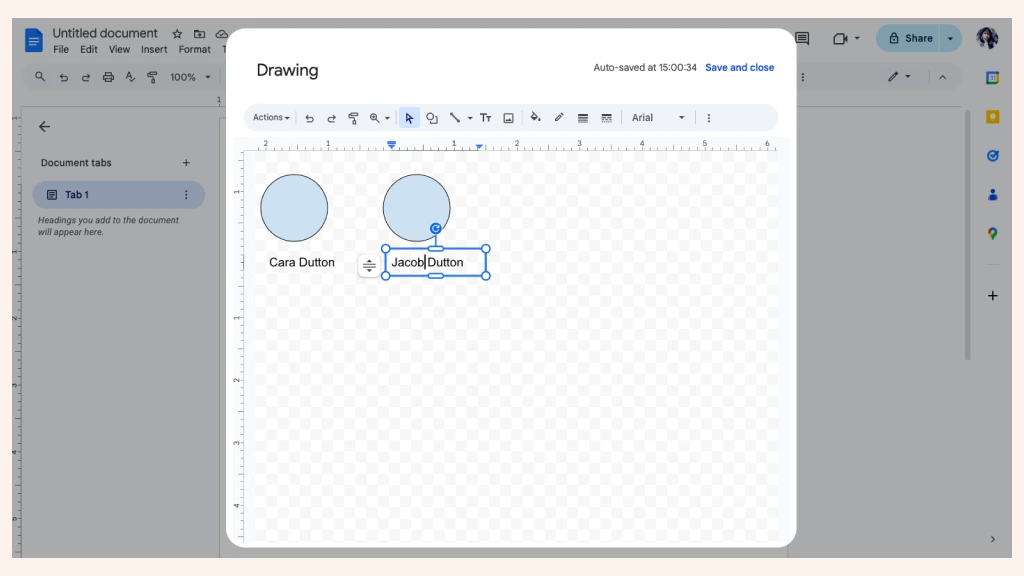
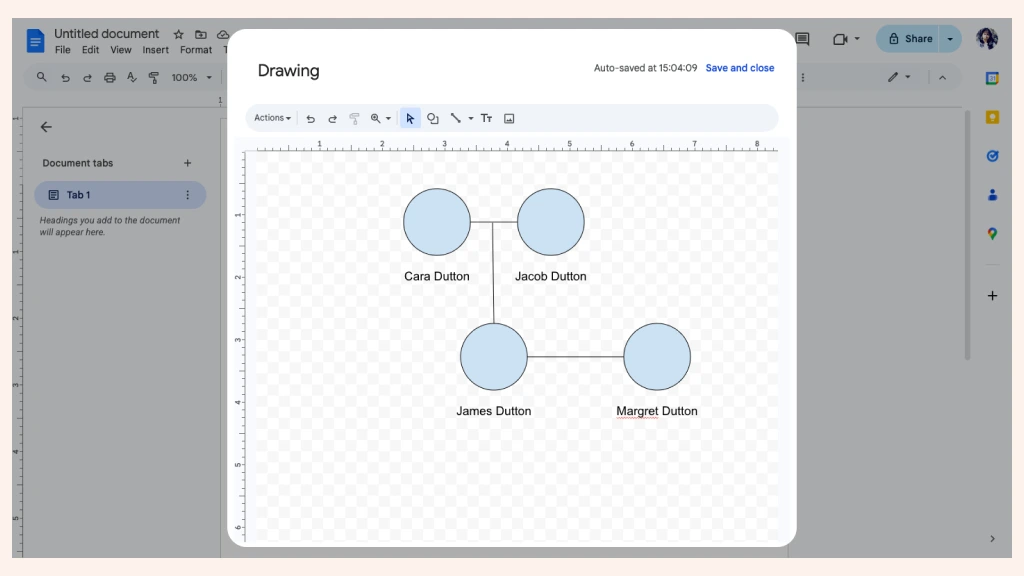
Step 5: Connect Family Members with Lines
Use Line → Connector to show parent–child and sibling relationships. Connectors don’t auto-adjust, so you may need to reposition them carefully as you arrange family members.
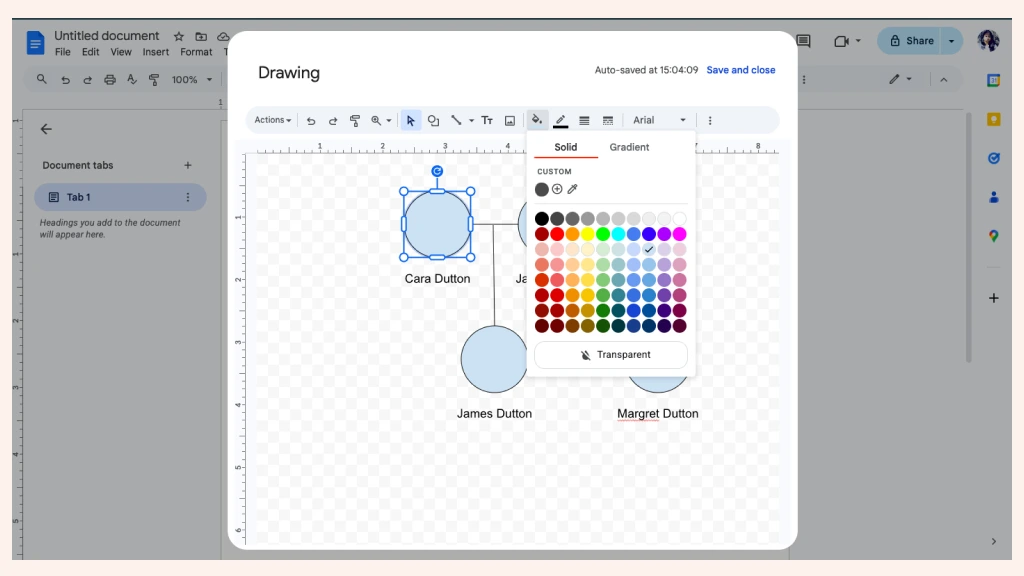
Step 6: Add Colors or Styles
Use fill colors or borders to distinguish branches or sides of the family. This makes your diagram easier to read as more relatives are added to the canvas.
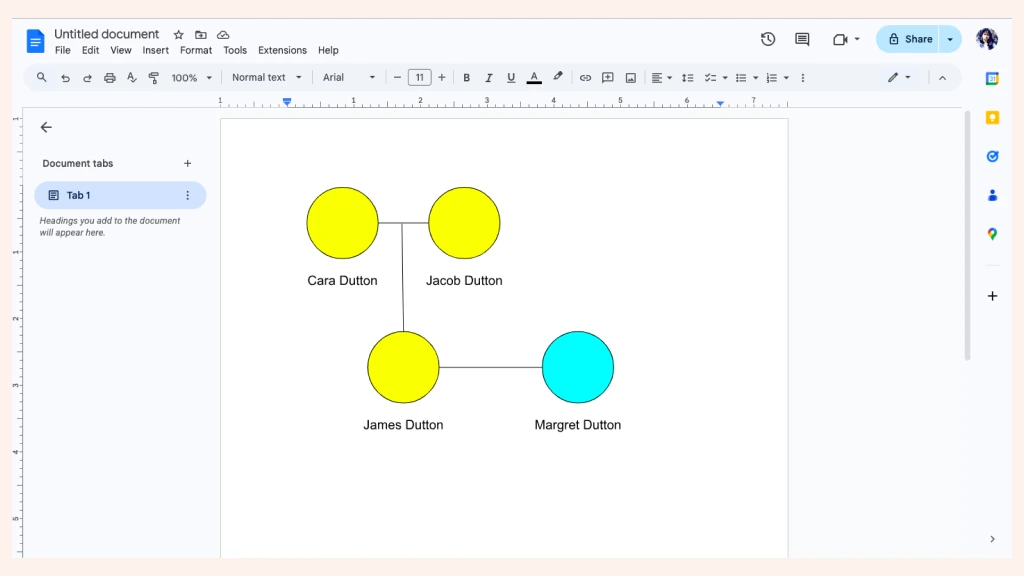
Step 7: Save and Share Your Diagram
Click Save and Close to add the family tree to your Google Doc. You can then share the document with others using the Share button, making it easy for family members to view or contribute if needed.
Drawbacks of Making a Family Tree in Google Docs
Creating a family tree in Google Docs can work for simple layouts, but once you start adding more relatives and generations, a few challenges like the following become hard to ignore.
Not designed for diagrams: Google Docs is made for text documents, so building structured visuals like family trees requires workarounds using the Drawing tool.
Limited canvas space: The Drawing window has a fixed-size canvas, making it difficult to fit multiple generations or wide branches without constant resizing.
No automatic alignment or layout: Every box and connector must be arranged manually, which becomes time-consuming as the tree grows.
Connectors don’t auto-adjust: Lines don’t stay attached when moving shapes, meaning you often need to reposition or redraw them.
Hard to represent complex families: Step-relations, multiple spouses, adopted children, or blended families require manual layout changes that can quickly become messy.
Visual clutter increases quickly: Adding photos, notes, or dates can make the diagram cramped, since Docs doesn’t handle layered visual details well.
Editing large trees is slow and tedious: You may need to constantly re-open the Drawing tool and reorganize elements as more members are added.
Limited export and printing options: Large diagrams might get cropped or lose clarity when exported or printed from Docs.
Benefits of Using Creately for Drawing a Family Tree
Creately’s family tree creator gives you a smooth, flexible space to map out your entire family history without the limitations you’d run into when trying to build a family tree in Google Docs. It’s designed for visual work, so you can focus on telling your family story instead of fighting with layout issues.
Flexible & Effortless to Build
With an infinite canvas, you never run out of space or have to squeeze multiple generations into a tiny drawing window.
Drag-and-drop editing makes it easy to move branches around without everything shifting out of place.
Smart connectors stay attached automatically, avoiding the constant redrawing you’d deal with in Google Docs.
Great for Complex Family Relationships
Easily map blended families, step-relationships, multiple marriages, or adopted children—no rigid layouts holding you back.
You can freely arrange branches to match your real family structure, not a forced hierarchy.
Add photos, dates, stories, and notes without clutter, since Creately handles layered visuals cleanly.
Instant Start & Clean, Clear Design
Choose from ready-made family tree templates when you don’t want to build from scratch.
Use colors, icons, and formatting to make branches instantly understandable.
Everything stays neatly aligned, even as your tree grows across generations.
Made for Sharing & Working Together
Invite family members to join in, add details, or verify information in real time.
Discuss changes directly on the diagram using comments and mentions—no endless email chains.
Export your tree to PNG, PDF, JPEG, or embed it anywhere without losing the layout.
Easy to Maintain as Your Family Grows
Cloud saving keeps your diagram synced and accessible anytime.
Adding new relatives takes seconds and doesn’t break your existing layout.
Perfect for long-term family history projects where you want something accurate, organized, and painless to update.
Creately Vs Google Docs Family Tree Features Comparison
If you’re trying to decide whether to build your family tree in Google Docs or switch to a more visual tool like Creately, this comparison shows how each platform handles layout, editing, collaboration, and other features.
Feature / Capability | Creately | Google Docs |
Canvas & Space | Infinite canvas that expands naturally as your tree grows | Small, fixed drawing canvas that quickly becomes cramped |
Ease of Editing | Drag-and-drop editing with smart alignment | Manual positioning for every box and line |
Connectors | Smart connectors that stay attached and adjust automatically | Lines don’t stay connected and often need to be redrawn |
Complex Family Structures | Easily handles blended families, step-relations, multiple marriages | Difficult to represent non-linear or complex relationships |
Templates | Fully customizable family tree templates | No dedicated templates; manual setup required |
Visual Styling | Advanced styling with colors, photos, icons, and consistent formatting | Limited formatting options; designs become cluttered quickly |
Collaboration | Real-time collaboration with comments and @mentions | Basic document sharing; no real-time editing inside drawings |
Updates & Growth | Expands smoothly without breaking the layout | Adding more members requires constant rearranging |
Sharing & Exporting | Export as PNG, PDF, JPEG, or embed online with stable formatting | Exports can crop or distort large diagrams |
Long-Term Maintenance | Designed for ongoing updates and multi-generation family trees | Harder to maintain as the diagram grows in size and detail |
Check out our guide on how to make a family tree to learn how to build one in Creately, along with practical tips for arranging generations clearly and showing family relationships accurately as your tree expands.
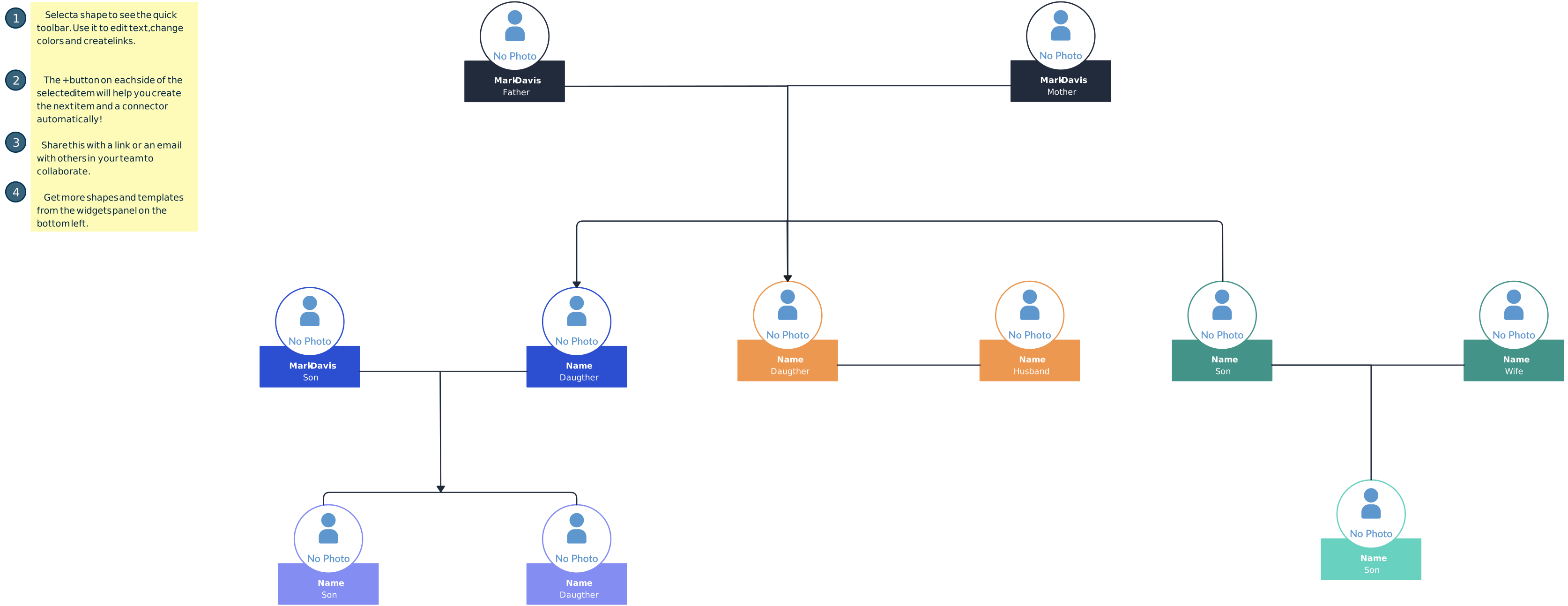
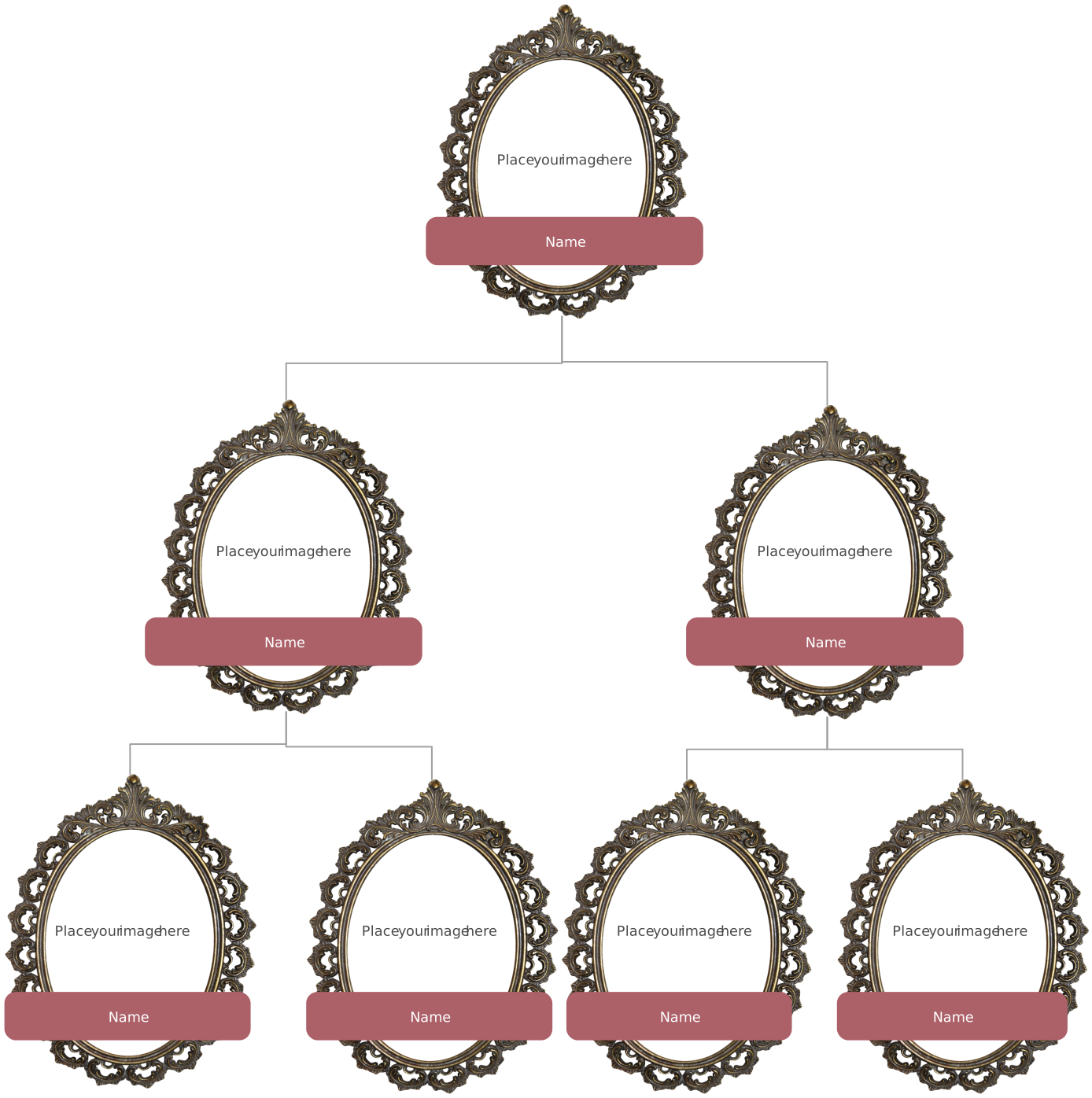
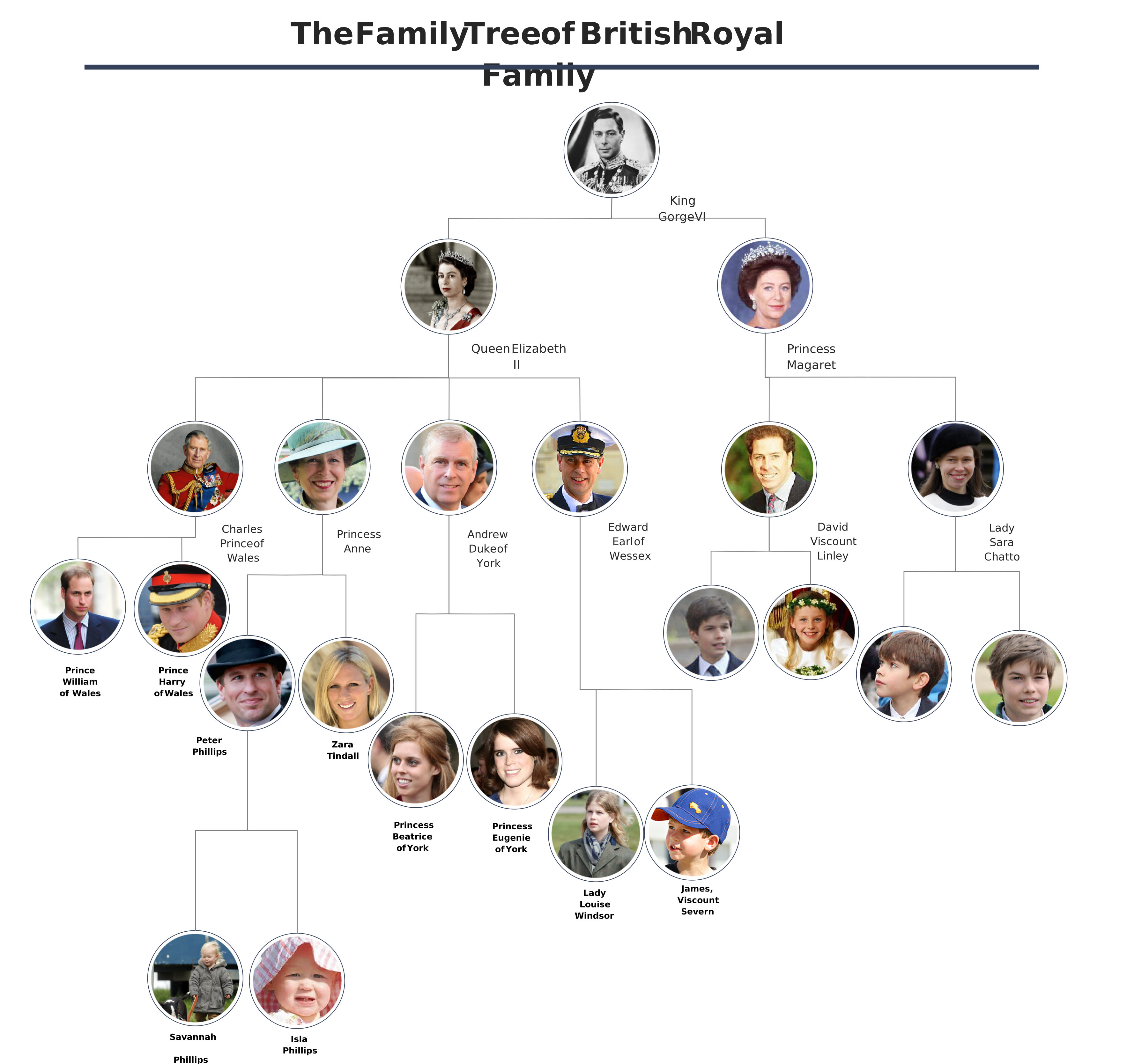
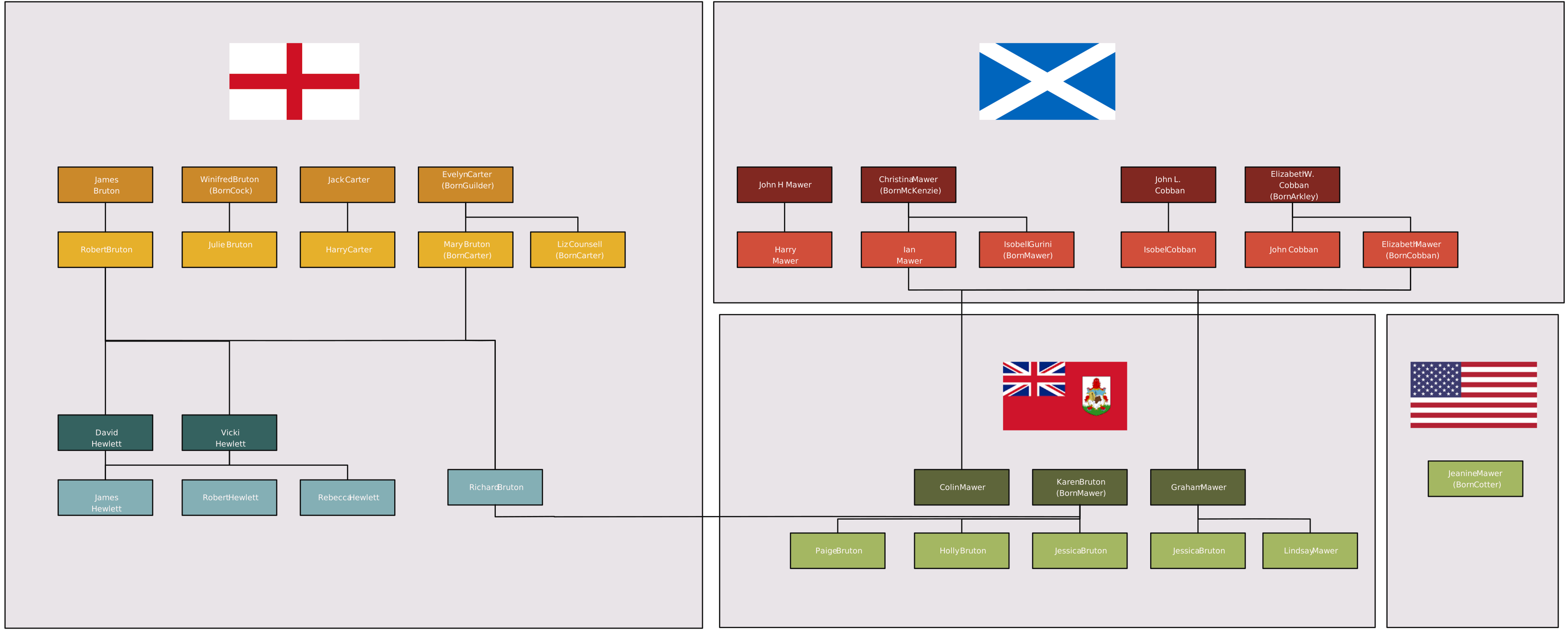
Free Family Tree Templates to Get Started




Helpful Resources for Building Family Trees
Discover the steps of making a Family Tree in Microsoft Word.
Learn how to make a Family Tree in Microsoft PowerPoint.
Find out how to make a Family Tree in Microsoft Excel.