Quick answer: a loop in a flowchart is shown by a decision point that sends the process back to an earlier step until a condition changes. Label the condition clearly, show the repeated action, and include an exit path so the loop does not look infinite or ambiguous. A flowchart loop is a fundamental concept in process automation and programming, allowing tasks to repeat based on a defined condition. Whether used in software development, workflow optimization, or decision-making processes, flowchart loops help visualize repetitive actions clearly and efficiently.
This guide explores what a flowchart loop is, its importance, and the different types—including for loops, while loops, do-while loops, and nested loops—with practical examples to enhance understanding. Read on to discover how to create effective flowchart loops and avoid common pitfalls in loop design.
What Is a Flowchart Loop?
A flowchart loop is a way to represent repetitive actions in a process visually. It shows how a specific set of steps is repeated until a condition is met. In a flowchart, loops typically include a decision node that checks whether the process should continue or stop. If the condition is met, the loop repeats; if not, the flow moves to the next step.
Loops are essential in programming, workflow automation, and business processes because they help streamline repetitive tasks. For example, in software development, loops are used to process data, validate user input, or perform calculations. In workflow automation, they ensure tasks like sending reminders or checking inventory levels happen automatically. By using flowchart loops, teams can save time, reduce errors, and improve efficiency in various processes.
Types of Flowchart Loops
Loops in flowcharts are used to repeat a set of instructions until a specific condition is met. They are essential in programming, automation, and business workflows to streamline repetitive tasks. There are four primary types of flowchart loops, each serving a distinct purpose:
1. For Loop (Definite Loop)
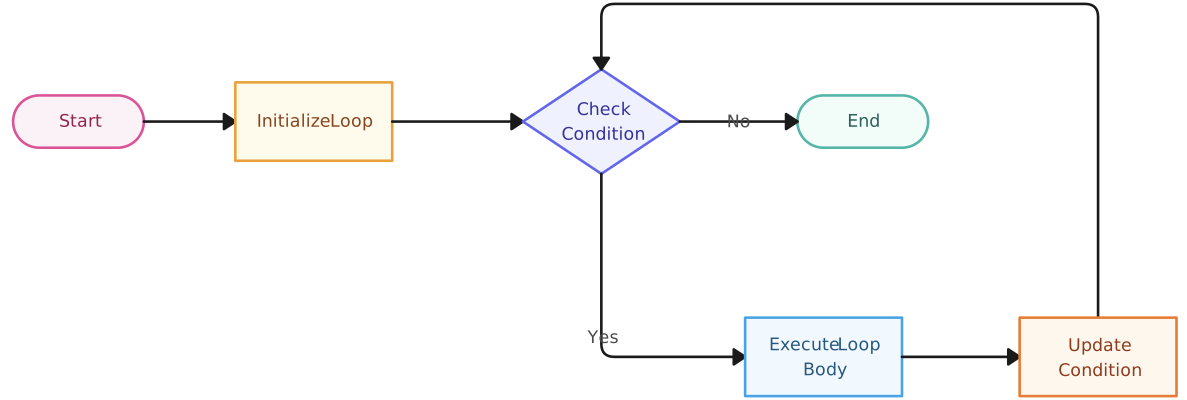
A for loop is a definite loop, meaning it runs a predetermined number of times. It is structured with three key components:
- Initialization: Setting the starting value of a variable.
- Condition: Checking if the loop should continue running.
- Increment/Decrement: Updating the variable to eventually break the loop.
How a For Loop Works in a Flowchart:
- The loop begins with an initial value (e.g.,
i = 1). - A decision node checks if the condition (e.g.,
i ≤ 5) is true.- If true, the loop executes the process and increments
iby 1. - If false, the loop terminates.
- If true, the loop executes the process and increments
- The process repeats until the condition is no longer met.
Where It’s Used:
- Repeating a process a fixed number of times, such as iterating over an array.
- Counting items in an inventory system.
- Processing a fixed set of user inputs in a form.

2. While Loop (Pre-Test Loop)
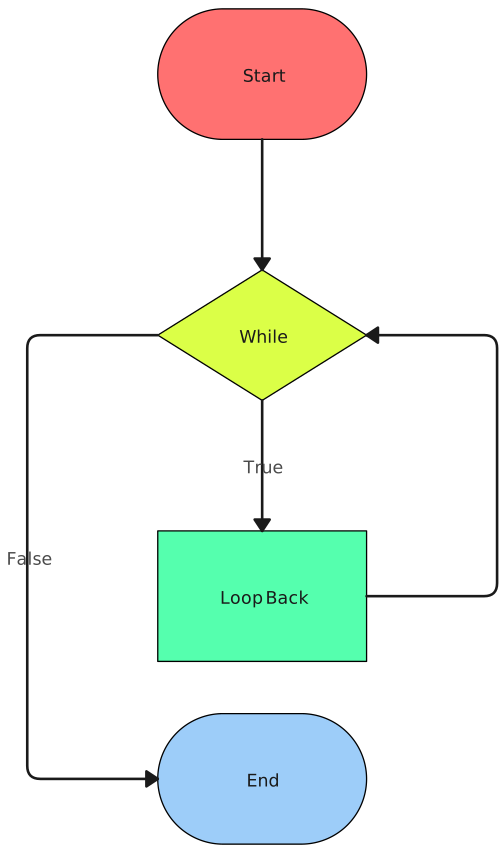
A while loop is a pre-test loop, meaning it checks the condition before executing the loop body. If the condition is false from the beginning, the loop will never run.
How a While Loop Works in a Flowchart:
- A decision node checks if the condition is true.
- If true, the process inside the loop executes.
- After execution, the loop returns to the decision node to recheck the condition.
- If false, the loop exits.
Example While Loop Use Case:
🔹 User Password Validation
- The system prompts the user for a password.
- If the password is incorrect, it asks again.
- If correct, the loop ends, and the user gains access.Where It’s Used:
- Continuously checking for user input until valid data is provided.
- Monitoring real-time conditions, like checking for low battery warnings.
- Running a background process until a shutdown condition is met.
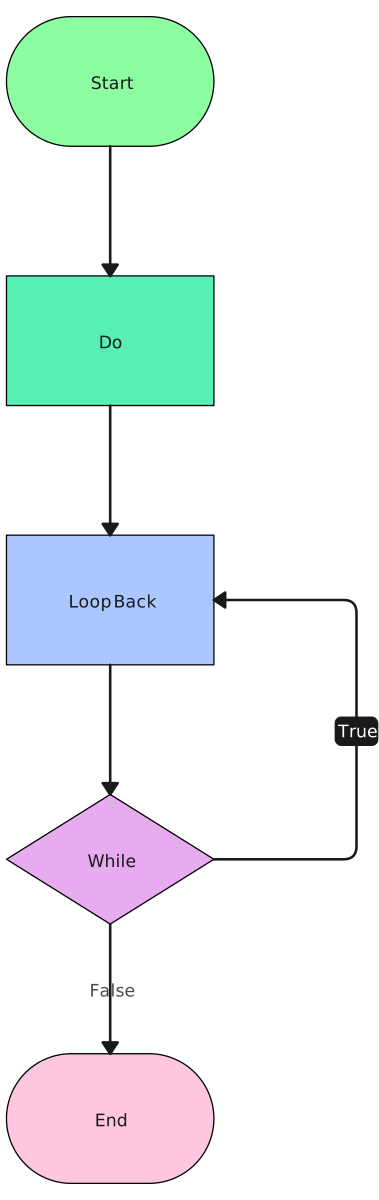
3. Do-While Loop (Post-Test Loop)
A do-while loop is a post-test loop, meaning it executes the loop at least once before checking the condition. This makes it useful when an action needs to be performed before evaluating whether it should continue.
How a Do-While Loop Works in a Flowchart:
- The process inside the loop executes first (without condition checking).
- After execution, a decision node checks the condition.
- If true, the loop repeats.
- If false, the loop exits.
Where It’s Used:
- Ensuring a message or prompt appears at least once before repeating.
- Repeatedly executing a function until the user chooses to stop.
- Processing items in a queue, ensuring at least one attempt is made.
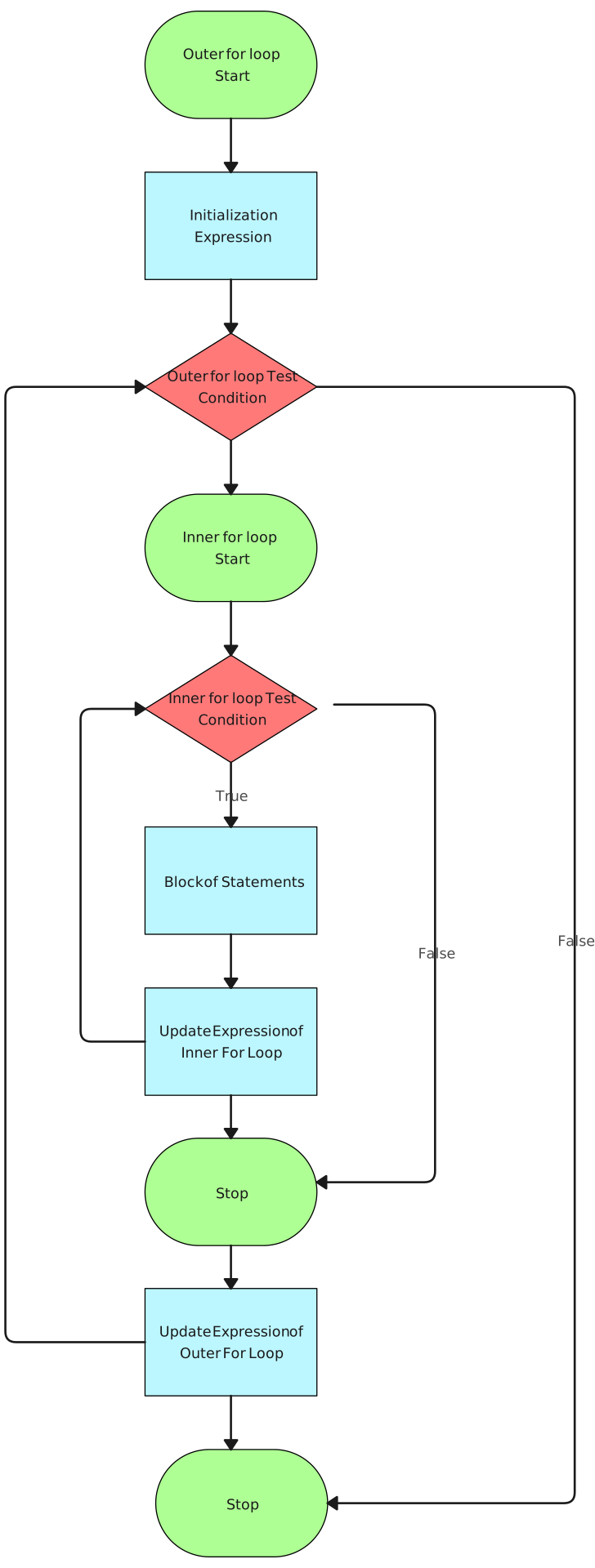
4. Nested Loops (Loops Inside Loops)
A nested loop occurs when one loop runs inside another. The inner loop completes all its iterations before the outer loop moves to the next cycle.
How Nested Loop Works in a Flowchart:
- The outer loop starts and checks its condition.
- The inner loop runs through all its iterations.
- Once the inner loop completes, the outer loop increments and runs again.
- The process repeats until the outer loop’s condition is no longer met.
Where It’s Used:
- Processing data in a grid format, such as nested tables or matrices.
- Managing multi-level workflows, like processing orders with multiple items.
- Running batch processes that require multiple levels of iteration.
Each flowchart loop serves a unique purpose, helping automate tasks efficiently. By understanding how for loops, while loops, do-while loops, and nested loops work, you can design better workflows and improve process efficiency. Whether you’re programming, automating business tasks, or visualizing workflows, using the right loop ensures smoother execution and better results.
Flowchart Examples for Loops in Real-World Scenarios
Flowchart loops are widely used in banking, user validation, and mathematical calculations to automate repetitive tasks efficiently. Below are three real-world scenarios where flowchart loops play a crucial role.
Example 1: ATM Withdrawal Process (While Loop)
Scenario: An ATM allows users to withdraw money, but the transaction should only proceed if the entered amount is within the account balance and the daily withdrawal limit.
How the Flowchart Loop Works:
- The user inserts their card and enters the PIN.
- A while loop checks if the account has sufficient funds and if the withdrawal is within the limit.
- If both conditions are met, the ATM dispenses cash and updates the balance.
- The loop asks if the user wants another transaction. If yes, the process repeats; if no, the card is ejected.
Loop Type Used: While Loop
Why? The ATM continuously checks the withdrawal conditions before proceeding.
Example 2: Repeated User Input Validation (Do-While Loop)
Scenario: A login system requires a valid username and password. If incorrect details are entered, the system prompts the user to try again.
How the Flowchart Loop Works:
- The user enters their login credentials.
- The system checks if the input is correct.
- If incorrect, the do-while loop prompts the user to re-enter credentials.
- If correct, access is granted, and the loop exits.
Loop Type Used: Do-While Loop
Why? The loop ensures that the system asks for input at least once before validating it.
Example 3: Iterative Calculation (Factorial Calculation – For Loop)
Scenario: A program calculates the factorial of a given number, using a loop to multiply it step by step.
How the Flowchart Loop Works:
- The user enters a number N (e.g., 5).
- A for loop runs from
1toN, multiplying each number to get the factorial. - The result is displayed after the loop completes.
Example Calculation for N = 5: 5! = 5 × 4 × 3 × 2 × 1 = 120
Loop Type Used: For Loop
Why? Since the number of iterations is known in advance, a for loop is the best choice.
Example 4: Generating a Multiplication Table (Nested Loop)
Scenario: A school program needs to generate a multiplication table from 1 to 5. Since each number has to be multiplied by values from 1 to 10, a nested loop is used to iterate through both numbers and multipliers.
How the Flowchart Loop Works:
- The outer loop selects a number (1 to 5).
- The inner loop multiplies that number by values from 1 to 10.
- The result is displayed for each multiplication step.
- Once all multiplications for a number are done, the outer loop moves to the next number.
Example Output for Numbers 1 to 3:
Multiplication Table for 1
1 × 1 = 1
1 × 2 = 2
...
1 × 10 = 10

Multiplication Table for 2
2 × 1 = 2
2 × 2 = 4
...
2 × 10 = 20

Multiplication Table for 3
3 × 1 = 3
3 × 2 = 6
...
3 × 10 = 30
Loop Type Used: Nested Loop
Why? The outer loop controls the main number, while the inner loop handles the multiplication steps.
These flowchart loop examples showcase how while loops, do-while loops, and for loops are applied in real-world scenarios. Whether ensuring secure ATM transactions, validating user input, or performing iterative calculations, flowchart loops help automate processes efficiently.
Common Mistakes and How to Avoid Them
While flowchart loops are powerful tools for automating repetitive tasks, they can lead to issues if not designed correctly. Here are some of the most common mistakes to watch out for, along with tips on how to avoid them:
1. Infinite Loops in Flowcharts
An infinite loop occurs when the loop’s condition is always true, causing the loop to run indefinitely without exiting. This can freeze processes and lead to program crashes or system malfunctions.
How to Avoid It:
- Define exit conditions carefully: Always ensure that the loop has a clear exit condition that will eventually be met.
- Test the loop: Regularly test the flowchart to ensure that the loop terminates after the desired number of iterations or when the condition is no longer true.
- Use break conditions if necessary: For more complex loops, implement break statements or limiters to exit the loop after a certain number of iterations or based on user input.
2. Poorly Defined Loop Conditions
A loop condition that’s too vague or not specific enough can lead to unexpected behaviors. For example, using a broad condition like “While true— or “Until completed— can result in loops that don’t perform as expected.
How to Avoid It:
- Be specific: Make sure your conditions are clear, measurable, and achievable.
- Use appropriate comparison operators: Define the condition with operators such as <, >, ==, or != that can precisely evaluate the state of the process.
- Test boundary conditions: Ensure that the loop will work as intended for both extremes of the condition (e.g., very high or low values).
3. Overcomplicated Loop Structures
Complicated or overly nested loops can make the flowchart difficult to follow, causing confusion and errors. When loops become too complex, they can introduce bugs and make troubleshooting much harder.
How to Avoid It:
- Simplify the logic: Break down complex loops into simpler, smaller loops whenever possible.
- Use clear labels and descriptions: Label each step of the loop clearly to indicate what is happening and why.
- Avoid deep nesting: If using nested loops, ensure they are necessary and not overly deep. Consider separating different logic into separate flowchart segments if it helps maintain clarity.
By being mindful of common loop mistakes like infinite loops, poorly defined conditions, and overcomplicated structures, you can create more efficient and error-free flowcharts. Regularly reviewing your flowchart’s design and thoroughly testing your loops will help ensure that your process automation or program runs smoothly.
Helpful Resources
Effortlessly create and share flowcharts, enhancing team communication and streamlining workflows with free flowchart software.
Explore everything you need to about flowcharts in the comprehensive tutorial, from history to applications.
Learn the basics of how to create a simple flowchart and continue to expand your skills.
Learn the various symbols used in flowcharting, their meanings, and how to use them effectively.
Discover 10 practical flowchart ideas and try out the editable templates.
How Creately Can Help Streamline Flowchart Creation
Creately’s Free Flowchart Software stands out as a powerful diagramming tool that helps you design flowchart loops with ease, providing an intuitive experience for both beginners and experts. Here’s how Creately simplifies the process:
1. Pre-designed Flowchart Templates
Creately offers a library of customizable flowcharts templates, including ready-made designs for various loop types. This saves you time and ensures consistency in your flowchart design.
2. Drag-and-Drop Functionality
With an intuitive drag-and-drop interface, Creately allows you to quickly add loop shapes, decision points, and connectors, simplifying the process of building your loops step-by-step.
3. Real-time Collaboration
Creately allows real-time collaboration, so teams can work together seamlessly when designing flowcharts. This is especially helpful when building complex loops and workflows where input from multiple people is required.
4. Cloud Integration and Sharing
Save your flowcharts to the cloud and share them easily with team members or clients. You can also export your flowcharts in various formats for further use in presentations or documentation.
5. Flexible Loop Building
Creately’s flexible interface allows you to create different types of loops (for, while, do-while, nested) and easily adjust the logic as your process evolves.
For efficient and professional flowchart creation, Creately offers all the features needed to design and visualize complex flowchart loops with ease. Whether you’re building a simple loop or a multi-level nested structure, Creately streamlines the design process, ensuring that your flowcharts are both easy to understand and visually appealing.
Conclusion: Mastering Flowchart Loops with Creately
In this guide, we’ve explored the concept of flowchart loops and their importance in automating processes and programming tasks. We covered the different types of loops—For Loops, While Loops, Do-While Loops, and Nested Loops—explaining their use cases with real-world examples, from ATM transactions to factorial calculations.
We also highlighted common mistakes, such as infinite loops and poorly defined loop conditions, and shared tips for avoiding them. Finally, we discussed tools like Creately, which can help streamline the process of designing flowchart loops with its easy-to-use interface, pre-designed templates, and real-time collaboration features.
If you’re ready to start creating your own flowchart loops, Creately is the perfect tool to help you design, visualize, and collaborate efficiently. Give it a try today and bring your flowchart creation to the next level!
FAQs About Flowchart Loops
What is a flowchart loop and how does it work?
What are the different types of flowchart loops?
How can Creately help in creating flowchart loops?
Resources:
Căzănescu, V.E. and Gheorghe Ştefănescu (1990). Towards a New Algebraic Foundation of Flowchart Scheme Theory. Fundamenta Informaticae, 13(2), pp.171–210. doi:https://doi.org/10.3233/fi-1990-13204.
Khalid Sayood (2007). Loops. Synthesis lectures on electrical engineering, pp.45–57. doi:https://doi.org/10.1007/978-3-031-02017-9_5.
Xinogalos, S. (2013). Using flowchart-based programming environments for simplifying programming and software engineering processes. [online] IEEE Xplore. doi:https://doi.org/10.1109/EduCon.2013.6530276.