Flowchart Software

Turn any process into a flowchart everyone can follow.

Map a process, spot the gaps, and keep the final workflow useful after the meeting. Start with AI or a template, build quickly with smart connectors and automatic layouts, then add owners, notes, files, and feedback in one shared workspace.

★★★★★ 4.5/5 on G2 (900+ reviews) 10M+ users 1,000+ teams
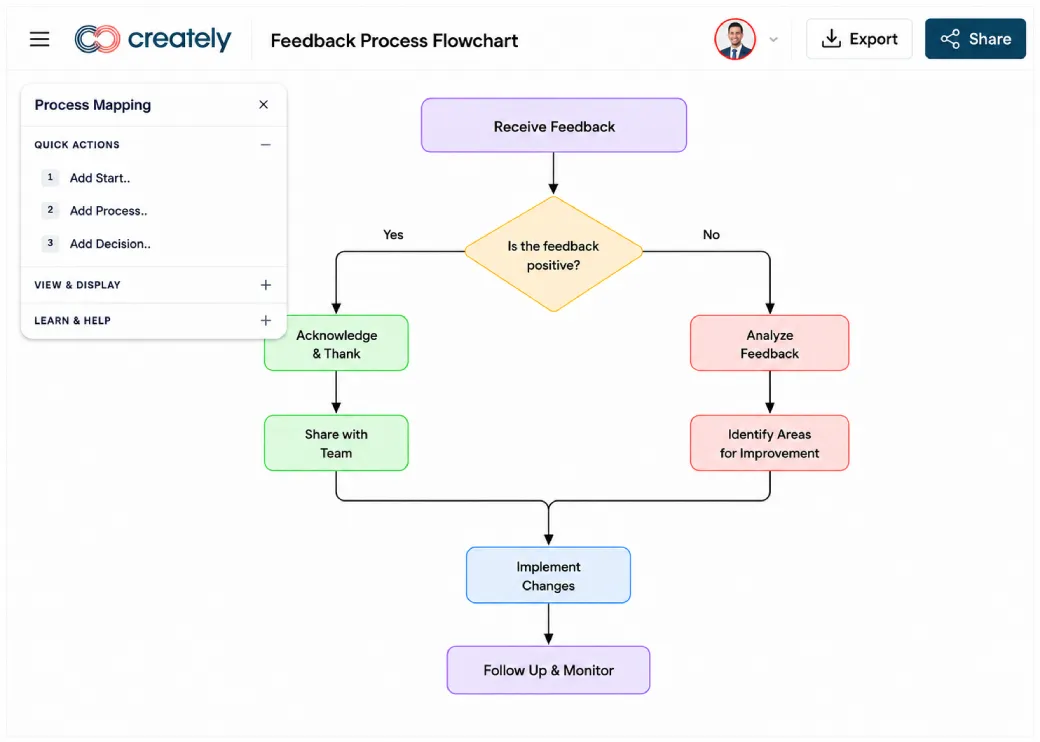
Creately flowchart software workspace for building and reviewing process diagrams

what is a flowchart software

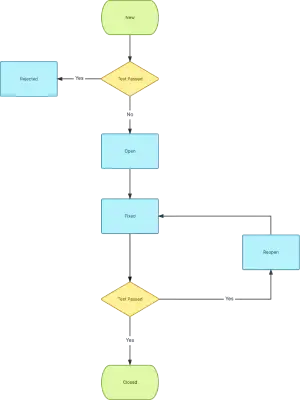
Example flowchart diagram in Creately

Flowchart software turns the logic of a process into a visual sequence of actions, decisions, and handoffs. With Creately, teams can build online flowcharts, review them together, spot missing steps, clarify ownership, and keep processes current as they change. Common uses include:

  • Process workflows
  • SOP documentation
  • Decision trees
  • User flows
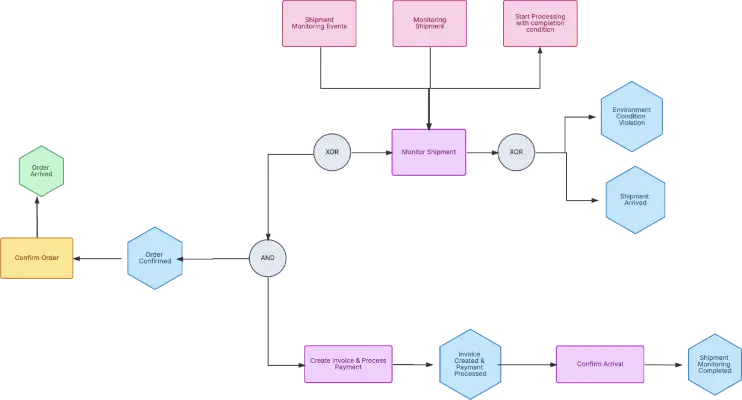
  • System diagrams
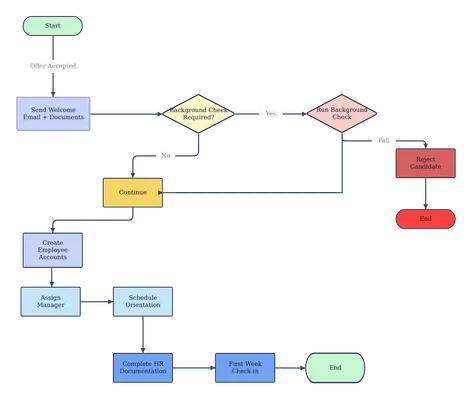
  • Onboarding & training flows

What types of flowcharts can I create with Creately?

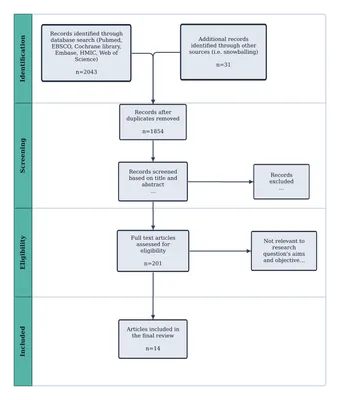
You can create process flowcharts, swimlane flowcharts, decision trees, workflow diagrams, user flows, system flowcharts, onboarding flows, and PRISMA flow diagrams. Start with a template, a blank canvas, or an AI-generated draft, then customize every step and branch.

What should good flowchart software help me do?

A good flowchart tool should make it quick to add and rearrange steps, keep connectors readable, support standard flowchart symbols, and let teammates review the same diagram together without creating duplicate files.

Who uses Creately's online flowchart tool?

Operations teams use the flowchart builder for SOPs and process improvement, product and engineering teams map user flows and system logic, and HR teams create onboarding, approval, and training workflows.

Can I create and collaborate on online flowcharts?

Yes. Creately's flowchart app lets teams build online flowcharts together, comment directly on the diagram, and share view, comment, or edit access so feedback stays connected to the process.

Why teams switch

Build the flow fast. Keep the process useful.

Creately removes the repetitive drawing work and keeps the context people need attached to the diagram. That means less time formatting boxes and more time improving how the work gets done.

Turn a written process into an editable first draft with Creately AI. Adding a step takes one click — no manual dragging or connector alignment. Inserting or removing a step re-routes connectors automatically, so an edit doesn't break the layout. Add owners, notes, links, and files to the relevant step so the diagram can become living process documentation.

Start from AI, not a blank canvas

Describe the process in plain language and the AI Flowchart Generator drafts the shapes, connectors, and branches for you to refine.

Quick-Create every step

Add the next shape and connector in one click instead of dragging, dropping, and lining things up by hand.

Edit without the cleanup

Insert a step mid-flow and the connectors re-route themselves — no chasing broken lines after a change.

Keep the "how" with the flow

Attach owners, instructions, links, and files to individual steps so people can act on the process, not just view it.

How does Quick-Create speed up building a flowchart?

One click adds the next shape and connector already aligned, so you're not dragging, dropping, and manually lining things up for every step.

What happens to connectors when I insert a step mid-flow?

They re-route automatically, so adding or removing a step doesn't leave broken or crossed lines behind.

Does auto layout apply automatically, or do I have to trigger it?

It runs continuously as you build, keeping spacing and alignment clean even as a simple flow grows into a dense, branching one.

Can I still customize a flowchart after using Quick-Create or auto layout?

Yes — every shape, connector, and label stays fully editable, so automation speeds up the first pass without locking in the result.

AI Flowchart Generator

Go from a written process to an editable first draft.

Describe the participants, steps, decisions, and outcome in plain language. Creately AI turns them into a structured flowchart you can check, correct, expand, and style. AI gives you a head start; your team keeps control of the final process.

Describe your process

"New hire completes paperwork, IT provisions laptop, manager runs first-week check-in."

Generate flowchart →

Can the AI Flowchart Generator handle branching decisions, not just linear steps?

Yes — describing a decision point in plain language (e.g. "if approved... if rejected...") is enough for the generator to add the diamond shape and both branches.

Does an AI-generated flowchart still need manual cleanup?

Usually just light edits — relabeling a step or adjusting a branch — since the generator handles shape choice, connectors, and layout automatically.

What kind of input does the AI Flowchart Generator accept?

A plain-language description of the process works best — the steps involved, who's responsible for each, and any decisions or branches along the way.

Can I keep editing an AI-generated flowchart like one built manually?

Yes — once generated, it's a normal editable diagram, so Quick-Create, auto layout, and manual adjustments all still apply.

Flowchart software compared

How does Creately compare to Lucidchart, Miro, Visio & draw.io?

They differ most in how each flowchart tool behaves during day-to-day building and editing — not in feature lists. The table highlights where Creately’s flowchart builder reduces manual work and keeps complex online flowcharts structured as they change.

Creately
Lucidchart
Primary strength
Structured, collaborative process documentation
Advanced diagramming and data-linked visuals
Starting options
Blank canvas, workflow templates, or AI prompt
Blank canvas or large template library
Team workflow
Co-edit, comment, review, and attach context to steps
Real-time diagram collaboration and in-editor discussion
Consider it when
The flowchart must stay useful as an owned, reviewed process
You need complex diagrams, data linking, or enterprise visualization
Creately difference: Owners, notes, links, and files can live on the relevant process step
Creately
Miro
Primary strength
Structured, collaborative process documentation
Workshops, ideation, and visual collaboration
Starting options
Blank canvas, workflow templates, or AI prompt
Blank board, templates, or AI prompt
Team workflow
Co-edit, comment, review, and attach context to steps
Live and async collaboration with facilitation tools
Consider it when
The flowchart must stay useful as an owned, reviewed process
The flowchart begins inside a broader team workshop
Creately difference: Owners, notes, links, and files can live on the relevant process step
Creately
Visio
Primary strength
Structured, collaborative process documentation
Technical diagramming in the Microsoft ecosystem
Starting options
Blank canvas, workflow templates, or AI prompt
Blank diagram or Microsoft templates
Team workflow
Co-edit, comment, review, and attach context to steps
Microsoft 365 sharing and collaboration
Consider it when
The flowchart must stay useful as an owned, reviewed process
Your organization is standardized on Microsoft tooling
Creately difference: Owners, notes, links, and files can live on the relevant process step
Creately
Draw.io
Primary strength
Structured, collaborative process documentation
Free, flexible diagramming with local storage options
Starting options
Blank canvas, workflow templates, or AI prompt
Blank canvas or community templates
Team workflow
Co-edit, comment, review, and attach context to steps
Best when lightweight file-based diagramming is enough
Consider it when
The flowchart must stay useful as an owned, reviewed process
You want a capable free editor without a broader workspace
Creately difference: Owners, notes, links, and files can live on the relevant process step

Is Creately cheaper than Lucidchart or Miro?

Creately's free plan covers the full shape library and templates with no card required, and paid tiers are generally positioned below Lucidchart and Miro for comparable team features.

Why choose Creately over Miro for flowcharts specifically?

Miro is built first for whiteboarding, so flowchart layout and connector routing stay manual; Creately is built for flowcharts, so auto layout and re-routing happen as you edit.

Does draw.io support real-time collaboration like Creately?

draw.io is free and simple but offers limited real-time collaboration compared to Creately, which supports live cursors, comments, and simultaneous editing.

Is Visio still worth it compared to cloud-based flowchart tools?

Visio remains common in enterprises already on Microsoft tooling, but cloud-based tools like Creately typically offer easier real-time collaboration and no desktop install.

Start from a template

What flowchart templates can I start from?

Pick one close to your process in the flowchart creator, then tailor it — every shape, label, and branch stays editable, giving you a faster way to create polished online flowcharts without starting from scratch.

Are the flowchart templates fully customizable?

Yes — shapes, labels, colors, and branches on any template stay fully editable, so it's a starting structure rather than a fixed layout.

Which template should I start with for a new process?

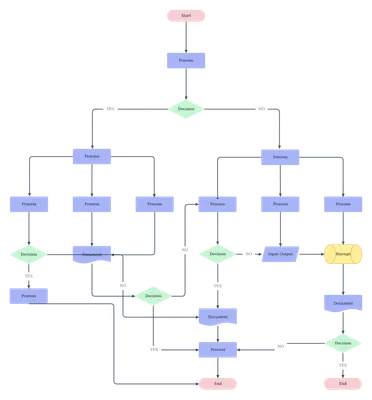
Match it to the shape of the process — a Basic Flowchart for a simple linear sequence, or a Complex Process Flowchart if multiple decision points are involved.

Can I save my own flowchart as a reusable template?

Yes — a finished flowchart can be saved as a custom template so the same structure is ready to reuse for similar processes later.

Do the templates work for complex processes, not just simple ones?

Yes — templates like the Complex Process Flowchart and PRISMA Flow Diagram are built for multi-branch, technical, or research-style processes rather than only simple flows.

What teams say

Flowcharts that make teamwork easier.

Customers value being able to build polished diagrams, collaborate in one place, and keep supporting notes and files connected to the work.

Best tool for visualizing workflows

"It allows us to collaborate easily. We add notes and attachments to keep the important context of the project right on the diagram."

Pavithra J.

Great tool for all your flowchart needs

"The item linking and customization options help make flowcharts look professional with very little effort — I use it for OKRs, roadmaps, and file structures."

Sam V.

Designing process flow diagrams

"Automatically saves work in the cloud, plus you can collaborate quickly with teammates and link diagrams straight into presentations."

Samwel M.

A genuinely satisfying experience

"The wide range of templates made it easy to get our PRDs done — the sprint task flowchart got the most use on my team."

Sudarshan B.

Refined, professional-looking diagrams

"The shapes are elegant with smooth curves that look polished. I'm a student using the free features for now, but I'm looking forward to trying the advanced ones."

Mayank S.

From blank canvas to export

From rough process to shared source of truth.

A useful flowchart starts with clear boundaries and ends with ownership. Use these five steps to create something your team can understand, review, and maintain:

Step 01

Set the boundaries

Define where the process starts, where it ends, and who needs to use it.

Step 02

Choose your starting point

Use a template, a blank canvas, or an AI prompt based on what you already know.

Step 03

Map the real flow

Add actions, decisions, owners, and exceptions—not just the ideal path.

Step 04

Review with the people involved

Invite teammates to comment, correct gaps, and agree on responsibility.

Step 05

Share and maintain it

Publish one accessible version and update it when the process changes.

Do I need training to build my first flowchart?

No — starting from a template and using Quick-Create to add each step is usually enough to build a working flowchart without prior experience.

How long does it typically take to build a flowchart from scratch?

A simple process can be mapped in minutes with Quick-Create; more branching or detailed flows take longer mainly because of the review and decision-mapping, not the drawing itself.

Can multiple people build the same flowchart at once?

Yes — live cursors and comments let teammates edit the same flowchart together in real time rather than working on separate copies.

What happens if the process changes after I've shared the flowchart?

Edits update instantly for anyone with the link, and version history keeps a record of what changed, so shared copies never go stale.

Frequently Asked Questions About Online Flowcharts

Is there free flowchart software?

Yes. Creately offers a free plan for creating and collaborating on flowcharts. Check the pricing page for the current limits and features included in each plan.

What's the Best Online Flowchart Tool for Teams?

It depends on the work around the diagram. Compare how each tool handles fast edits, collaboration, ownership, process documentation, permissions, integrations, and version history—not just shapes and templates.

Can teams collaborate on a flowchart in real time?

Yes — live cursors, comments, and mentions let teams review and edit the same flowchart together instead of passing files back and forth.

What symbols are used in a flowchart?

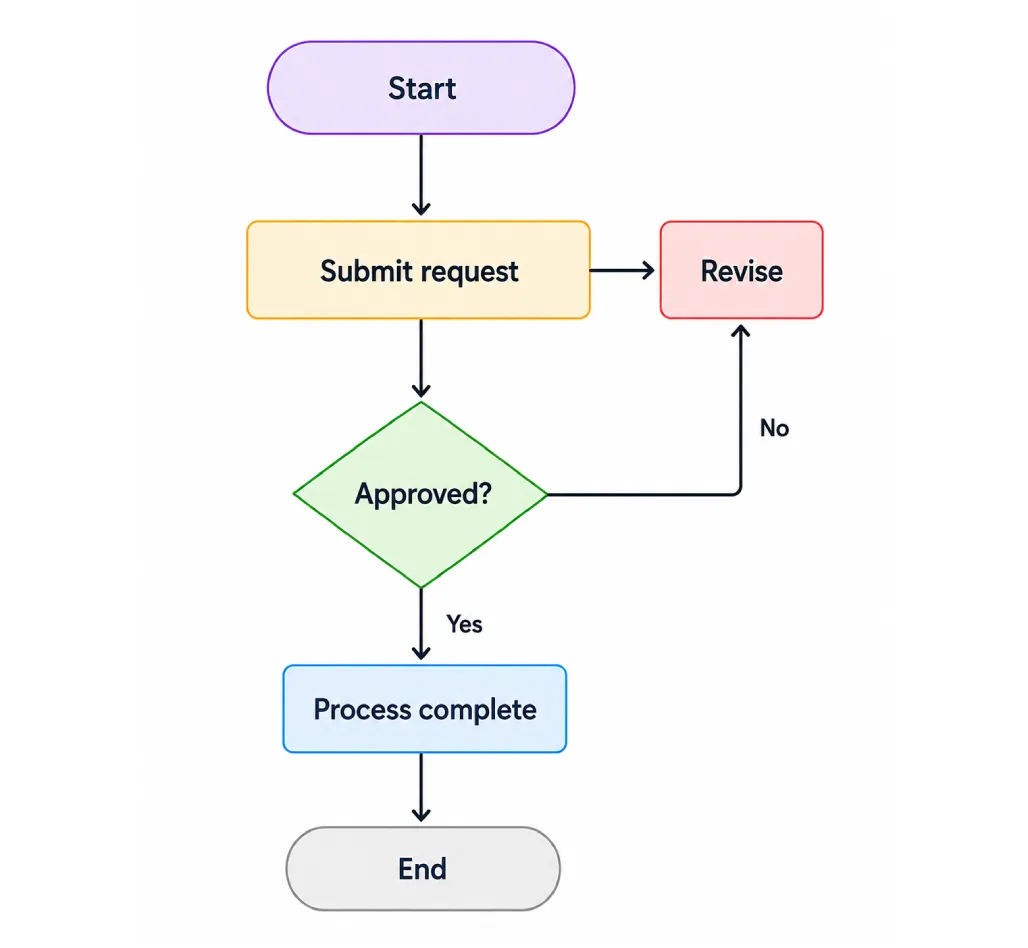
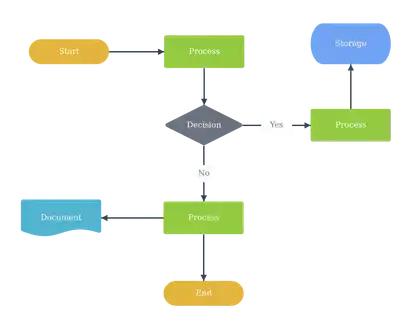
Ovals mark start/end points, rectangles mark process steps, diamonds mark decisions, and arrows show the direction of flow between them.

Can I export or present my flowchart?

Yes — export to PDF, PNG, SVG, or JPEG, or present straight from the workspace in meetings and reviews.

Is Creately a good flowchart maker for beginners?

Yes. Quick-Create adds shapes and connectors automatically, so new users can build a working flowchart from a template without learning the full shape library first.

Can I make a flowchart without downloading software?

Yes. Creately's flowchart tool runs entirely online in the browser — nothing to install, and diagrams save automatically to your account.

Can flowchart software integrate with tools like Slack, Jira, or Confluence?

Security and privacy capabilities vary by provider and plan. Review Creately's current security information and confirm that its access controls, data handling, and compliance options match your organization's requirements.

Make the process clear—and keep it that way.

Start with a template, a blank canvas, or an AI-generated first draft.

Create a Flowchart Free