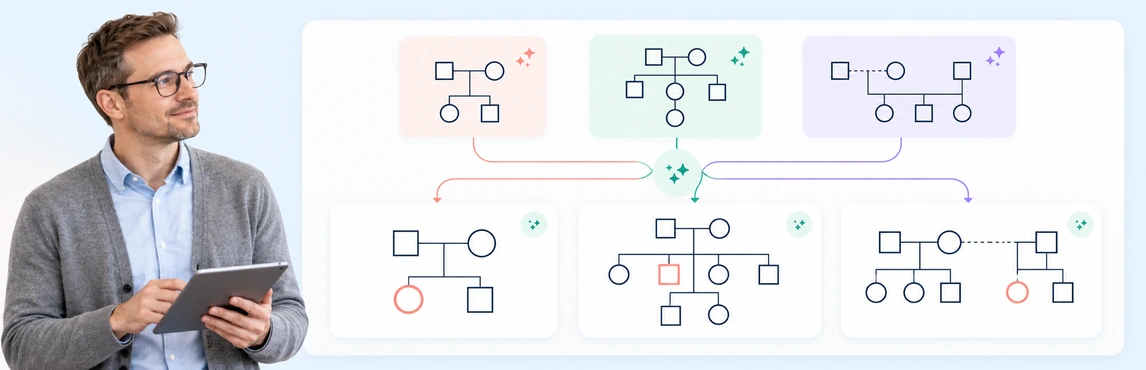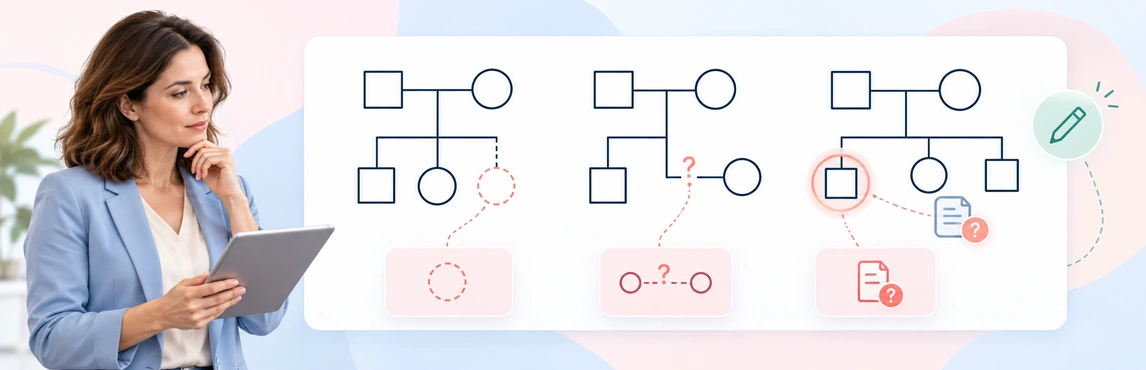
To create a genogram using AI, prepare a short family note, generate a first draft in Creately’s AI Genogram Maker, and review every person, symbol, and relationship before sharing it. For the general drawing process, see how to make a genogram; this guide focuses on the AI-assisted workflow.
Start with a clear family note
Decide what the genogram needs to show and include only the people and details relevant to that purpose. Use names consistently, describe relationships explicitly, and separate confirmed information from anything you still need to check.
The example below is fictional. Use it to practice the workflow rather than entering information about a real client or family into a public demo.
John (male, 45) is married to Mary (female, 43). They have two children, Emma (female, 18) and Tom (male, 15). John’s parents are Robert (male, 72) and Susan (female, 70).
Use a prompt that makes the scope clear
When you open a Genogram workspace, use a short instruction like this with the AI text-to-genogram feature:
Create a three-generation genogram using only the facts in this fictional family note. Show the stated marriage and parent-child connections. Do not infer missing people, dates, gender markers, health information, or relationship dynamics. Leave unclear details for me to review.

[Paste the family note here]
If you are working from your own notes, replace the example with the information relevant to your task. Mark uncertainty directly—for example, “relationship status unknown”—instead of asking the AI to guess.
Generate the first draft
Open the AI Genogram Maker to start a Genogram workspace. In the Genogram Assistant, open Generate from text, paste the prompt and family note under Describe your family, then select Generate Genogram. These labels match Creately’s product illustration; the dashboard route can vary by workspace. Treat the result as a draft and check it against the source note.

Check the generated genogram
Compare the diagram with the original note before editing or sharing it. Review each of these areas:
- People and generations: Check names, ages or dates, duplicates, and placement in the correct generation.
- Family structure: Confirm every partner, parent-child, and sibling connection is present and attached to the right people.
- Relationship status: Make sure distinctions such as married, separated, divorced, adoptive, foster, or step relationships match what the note actually says.
- Emotional relationships: Keep these lines only when the source explicitly describes the relationship. Do not treat a missing detail as evidence of conflict or closeness.
- Symbols and markers: Check that person shapes and relationship lines communicate the intended details. Use only identity details provided in the source note; don’t infer them from a person’s name. See the genogram symbols guide to confirm a symbol or explain a custom one in a legend.
- Unknown information: Look for details the diagram may have filled in without support. Remove them or mark them for follow-up rather than treating them as confirmed.
The example below shows a possible layout for the fictional family note. Review the names and connections against the source note before using the diagram.

Edit relationships and symbols
Select a person or connection that needs correction, then update its details or relationship type in the editor. Use the fictional family note above to practice one correction:
- Original note: John and Mary have two children, Emma and Tom.
- Incorrect draft: Tom is connected to John as a child, but the connection to Mary is missing.
- Edit in Creately: Select Mary and Tom on the canvas, then choose the parent-child relationship from the relationship library.
- Verified result: Tom and Emma are both connected to John and Mary as their children. No extra parent or relationship has been added.
Use consistent notation and include a legend when your team uses custom symbols or labels. The genogram relationship types guide can help you choose and interpret relationship lines.
For a full source-by-source correction checklist, read How to Review and Correct an AI-Generated Genogram.
Add notes and relevant fields
Add a short note to a person or relationship when the diagram alone does not preserve the context you need. Keep each detail tied to its source and purpose, and leave unrelated personal information out of the genogram. If structured field packs are available in your workspace, use the relevant fields to organize clinical, medical, social, or research details.
Before you use the diagram in a professional setting, review the information against the original notes and follow your organization’s privacy and documentation practices. Use fictional information when trying the workflow in a public demo.
Export or share the genogram
Before you export or share, check that the diagram is readable and includes the details its audience needs. Confirm the names, relationships, symbols, and legend, and remove information that should not be included in the copy you are sharing.
For a visual copy, export an image. If your workspace includes advanced reports or other file exports, choose a format that suits its next use. You can also share the diagram with view or edit access; check the permission before sending the link. Advanced reports and exports depend on your plan and product access.
Start with an editable genogram template
An editable template can provide a useful structure when you want to start with a particular family layout. Open one of these examples, then adapt it to the family note and purpose of your genogram. If you use AI to create a first draft, compare the result with the template and source information; the template is a starting point, not evidence about the family.


Helpful Resources for Creating Genograms with AI
Learn how text-to-genogram generation works and what information it can identify from a written family description.
Review the different family and emotional relationship lines you can represent in a genogram.
Browse editable genogram templates for different family structures and starting points.