Class Diagram Maker
Visualize and Create Effective Designs
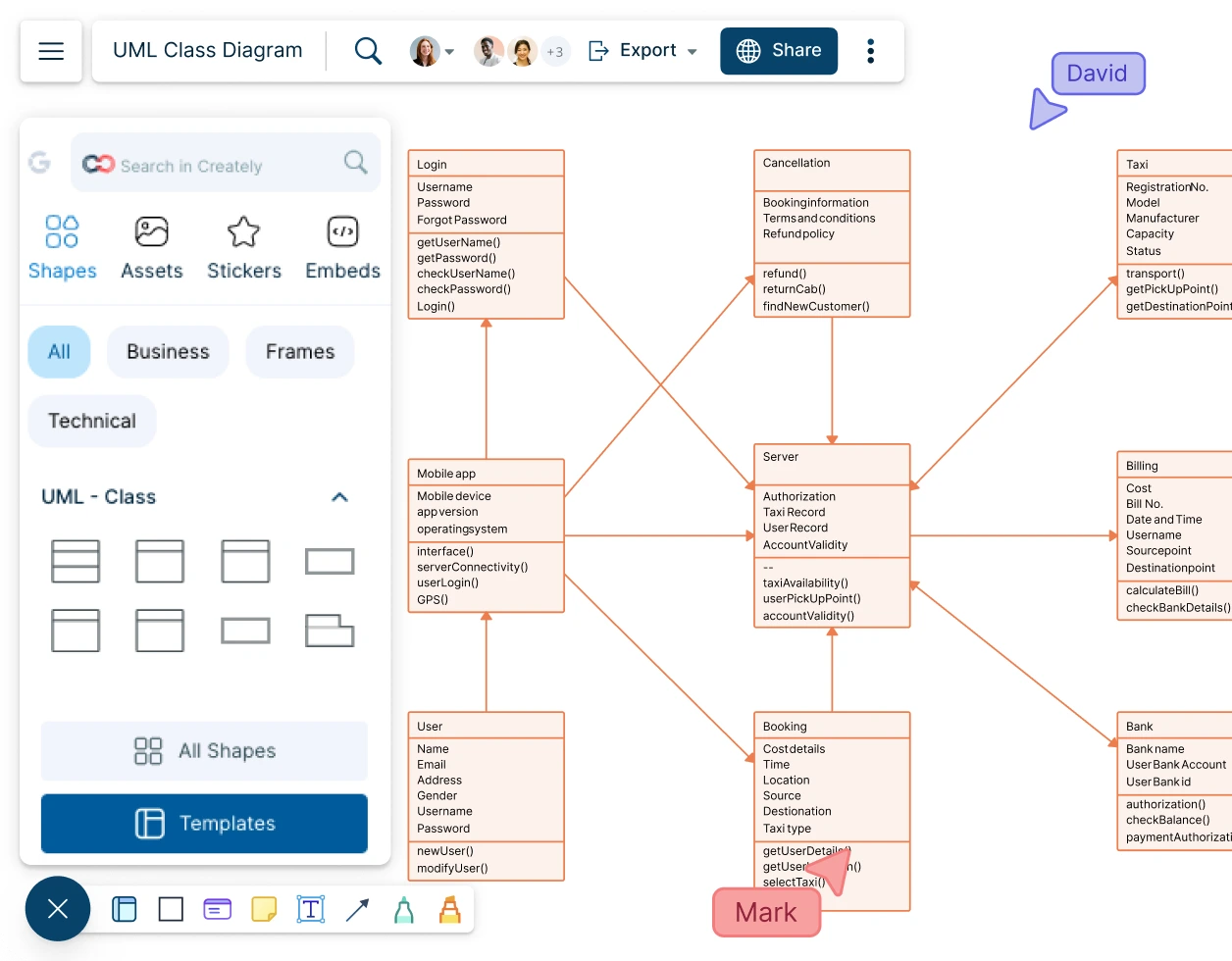
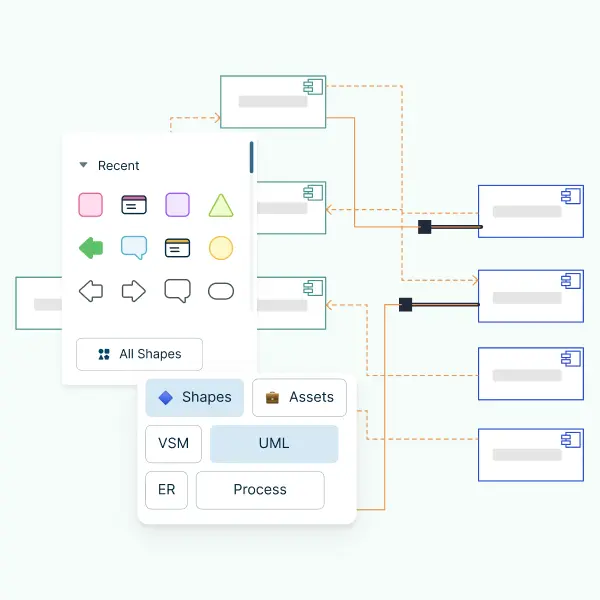
Create a high-level view of a system's design to model, plan and document the architecture.
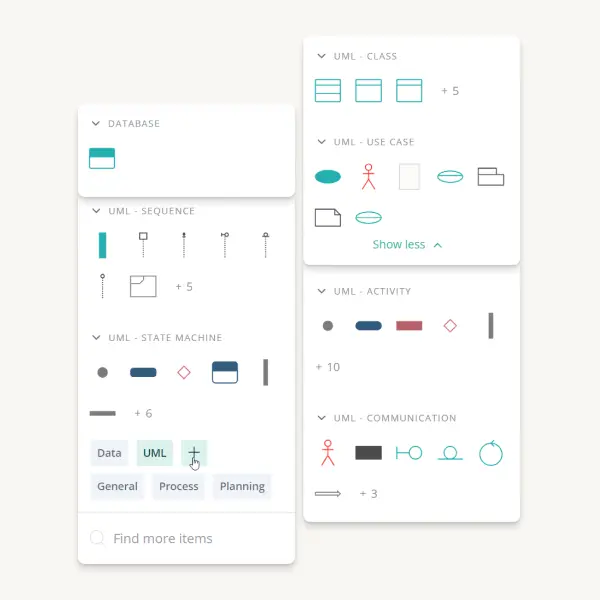
- Design UML class diagrams to design and document systems easily.
- Simple drag and drop interface to visualize how a system interacts.
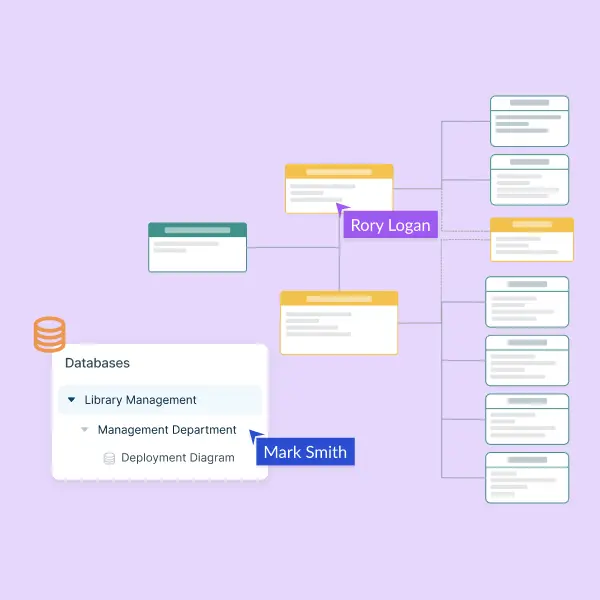
- Real-time collaboration and multi-cursor support for effective team collaboration
Class Diagram Templates
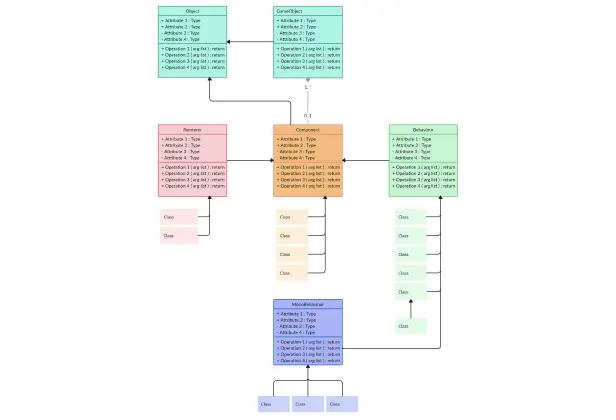
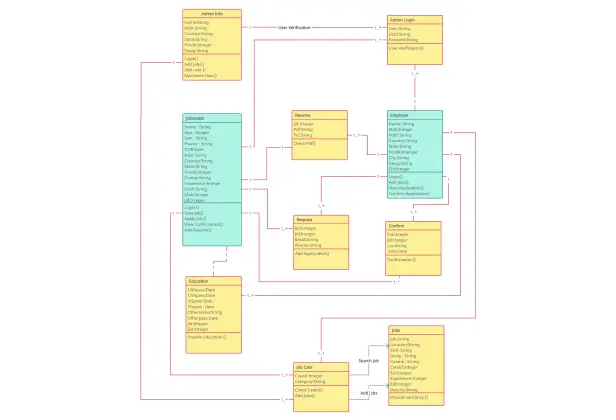
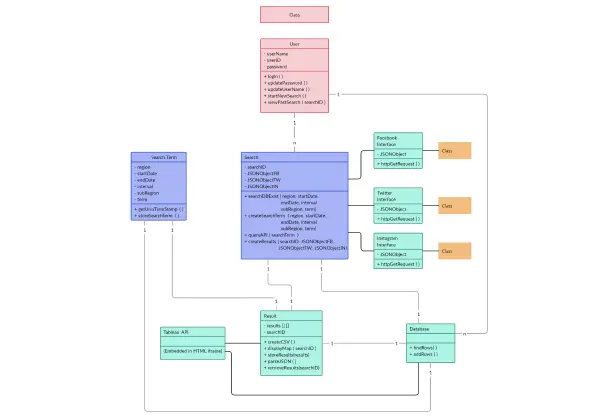
What Is a Class Diagram?
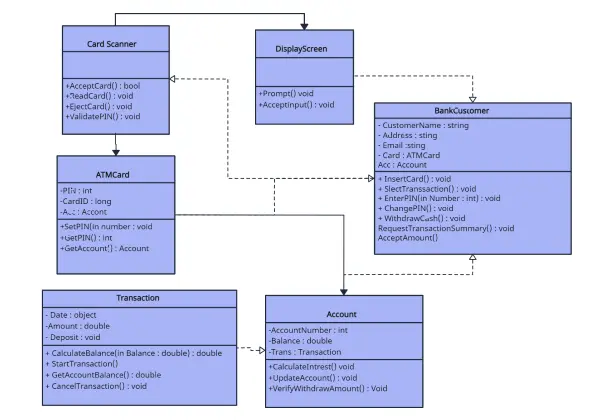
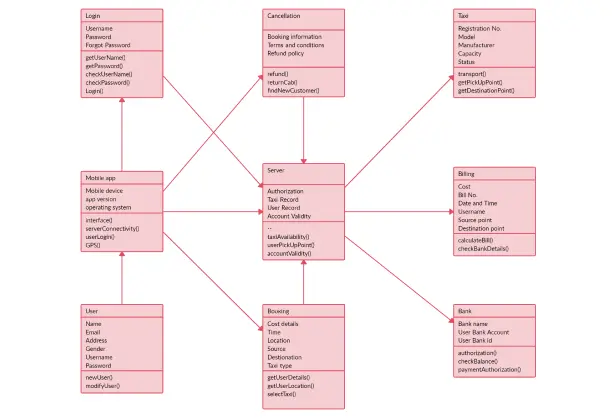
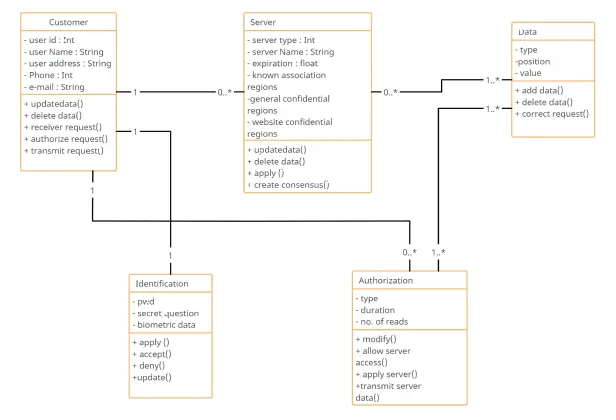
A class diagram is a static UML diagram type that describes the structure of a system by showing its classes, attributes, operations, and relationships among objects.
Class diagrams are used for visualizing, describing, and documenting different aspects of a system so that you can construct executable code for software applications.
Class Diagram Symbols and Notations
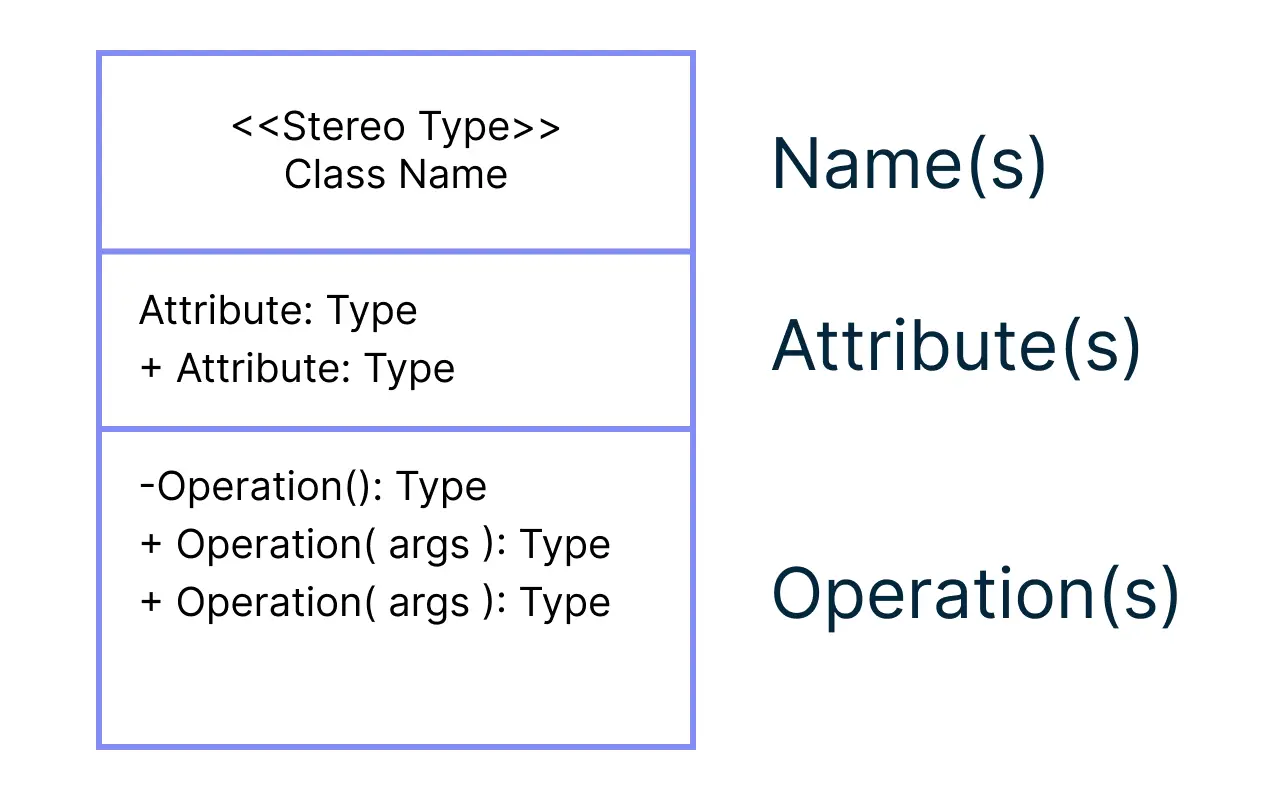
UML Class Notation
- Name: the first partition is to include the name of the class.
- Attributes: the second partition will include the attributes followed by the attribute type.
- Operations: the third partition is dedicated to operations, which shows the services the class provides.
Class Visibility
- Public attributes or operations: +
- Private attributes or operations: -
- Protected attributes or operations: #
Relationships Between Classes
See our guide to UML Class Diagram Relationships Explained with Examples to learn in detail about the relationships between classes.
- Parameter Directionality
Parameter directionality shows the direction in which data is passed between objects or methods and is used to indicate whether a parameter is an input parameter, an output parameter, or both. The following are used to denote the parameter directionality.
- In: is used to indicate that the parameter is an input parameter. This means that the parameter value is passed into the method or operation from the calling object.
- Out: is used to indicate that the parameter is an output parameter. This means that the parameter value is returned from the method or operation to the calling object.
- InOut: is used to indicate that the parameter is both an input and an output parameter. It means that the parameter value is passed into the method or operation from the calling object, and then updated or modified by the method, and returned back to the calling object.
How to Draw a Class Diagram on Creately with Your Team?
- Launch Creately
Sign in to Creately and open a new workspace. You can start from a blank canvas or explore the Creately class diagram template library to jump-start your model. The workspace will automatically load the UML class diagram creator tools and shape libraries.
- Add Classes and Customize Your Layout
Drag and drop class shapes from the UML library to the canvas. Rename each class, add attributes and methods, and arrange them using smart guides. Use sticky notes or the notes panel to capture discussions, requirements, or logic as you map your system.
- Define Relationships and Structure
Use the class diagram connectors to map associations, inheritance, aggregation, composition, and multiplicity. Creately’s automatic snapping and preset connector styles make it easy to create clean, readable relationships. Add links, data fields, or annotations if you need additional context.
- Refine With Templates, Styling, and Collaboration
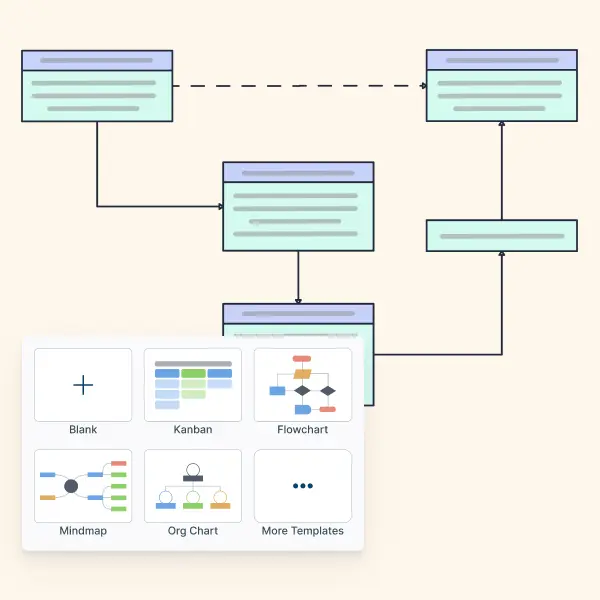
Switch between class diagram templates, apply styling, and structure your diagram with containers or groups for better clarity. Invite teammates to collaborate in real time—co-edit, comment, @mention, and use the built-in video or chat panel to align quickly. Creately works seamlessly for class diagram online teamwork.
- Review, Update, and Share
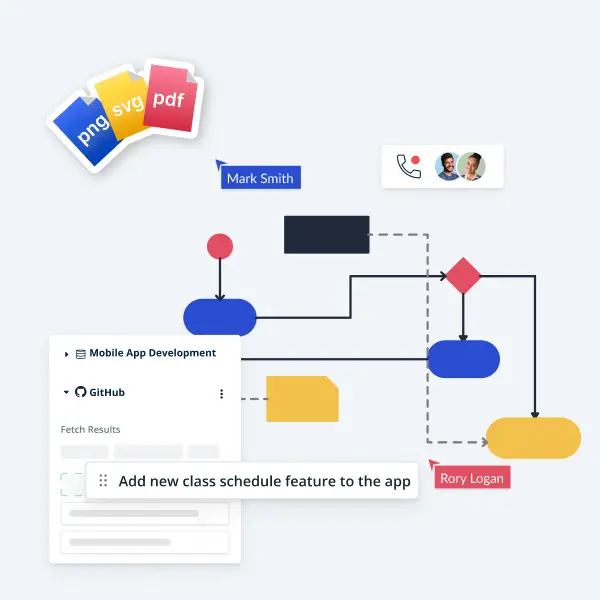
Once your class diagram is complete, review it with your team, resolve comments, and make refinements. Share it via link, embed it in documents, or export it as PNG, SVG, PDF, or JPEG. Your workspace stays synced, so you can continue improving the model anytime using Creately’s class diagram generator features.
Class Diagram Articles

FAQs About Class Diagrams
Why is Creately a better class diagram maker?
How do you share your class diagram?
How do you collaborate with colleagues using Creately?
Can I manage permissions for different collaborators?
Can I link documentation or external resources to my class diagram?
How do you draw an effective class diagram?
To draw an effective class diagram, follow these steps:
Understand the domain: Gather system requirements and identify the main entities that represent core concepts.
Start with primary classes: Add the most important classes first and map out their initial roles and responsibilities.
Define high-level relationships: Establish associations, inheritance, aggregation, and composition between the primary classes.
Expand with secondary classes: Add supporting classes, refine relationships, and include key attributes and methods.
Add notes and explanations: Use notes or annotations to clarify class behavior, constraints, or logic.
Apply UML conventions: Place parent classes above children, maintain consistent layout, and use standard UML symbols.
Improve clarity with styling: Use color coding, grouping, and alignment to make the class diagram easier to read and navigate.