Employee lists hide reporting relationships - Turn employee IDs and manager references into a visual hierarchy your team can review together.
Manual mapping leaves room for mistakes - Check column mappings and validation results before applying employee records to your chart.
An imported chart needs to stay useful - Keep employee details editable, share focused views, and plan reporting changes in scenarios.
CERTIFIED




CSV to Org Chart
Turn CSV Employee Data Into a Clear Org Chart
Convert structured employee records into a shared org chart with Creately Atlas. Review column mappings and import changes, check reporting relationships, and maintain employee data in an editable workspace. Evaluate the workflow for your HRIS exports, access requirements, and ongoing updates.
 Employee lists hide reporting relationships
Turn employee IDs and manager references into a visual hierarchy your team can review together.

 Manual mapping leaves room for mistakes
Check column mappings and validation results before applying employee records to your chart.
 An imported chart needs to stay useful
Keep employee details editable, share focused views, and plan reporting changes in scenarios.



 Diagramming Visual Collaboration Org Chart


Why Choose Creately for CSV to Org Charts
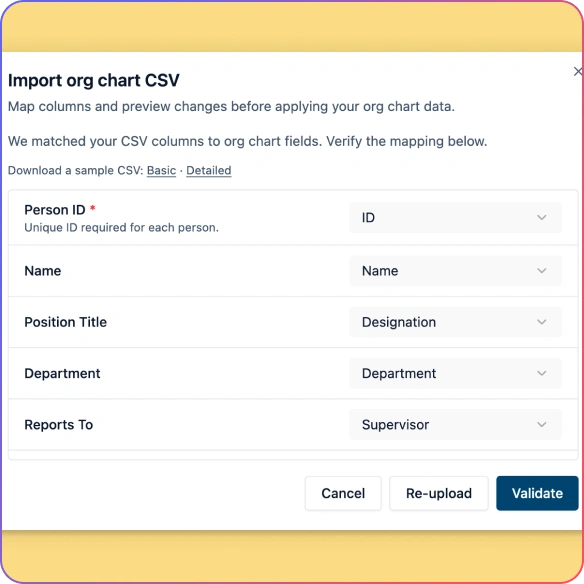
Check Your Employee Field Mappings
Match CSV columns to employee and reporting fields and review each mapping before importing.
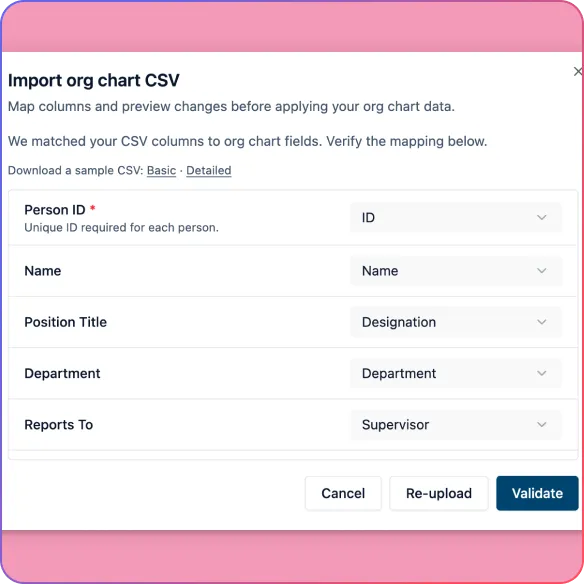
Catch Data Issues Before Import
Check missing IDs, unknown managers, reporting cycles, and empty rows before applying the import.
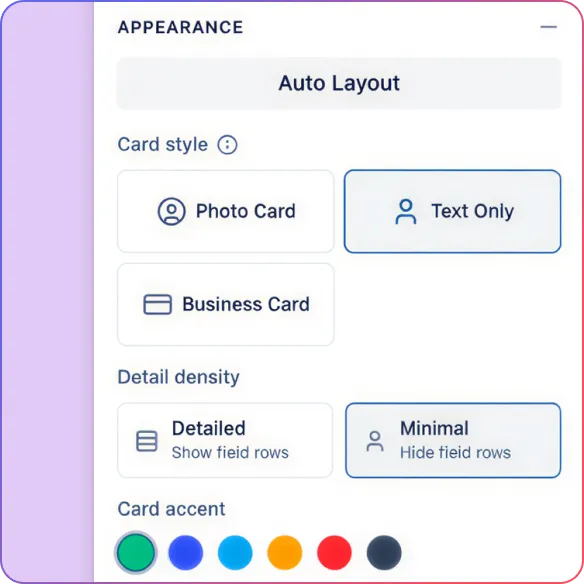
Build the Hierarchy from Your Records
Convert mapped employee records and manager references into an automatically arranged org chart.
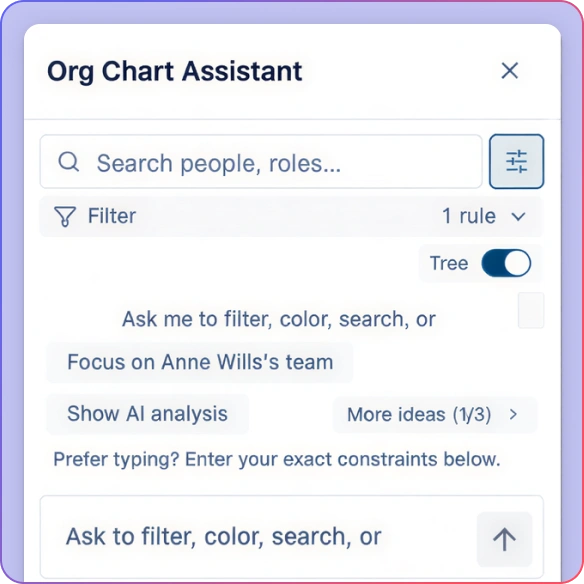
Review One Department at a Time
Generate department views after import and focus on the team you need to discuss.
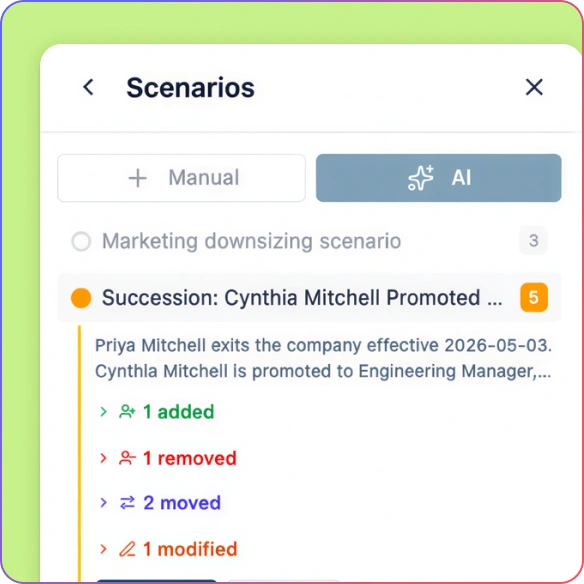
Plan Changes Beyond the First Import
Explore proposed reporting changes in scenarios before applying them to the live organization.
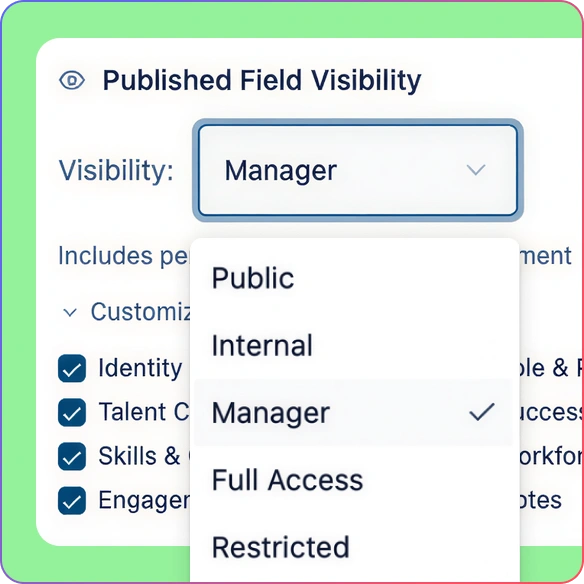
Share with the Right Access
Use viewer and editor permissions while field-level sensitivity controls continue to protect restricted information.
Turn CSV Records into an Editable Org Chart
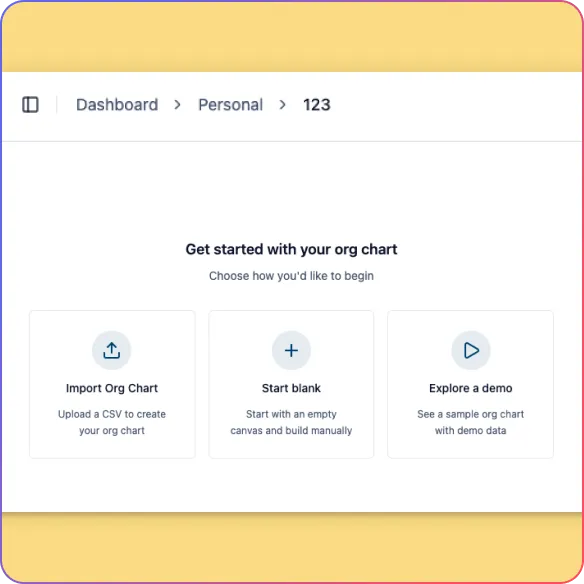
Turn CSV employee records from spreadsheets or HRIS exports into an editable org chart with Creately Atlas.
Review mappings for employee IDs, manager references, names, job titles, and departments. For AI-assisted mapping and analysis, explore the AI org chart tool.
Map additional columns to supported fields or include them as custom employee data.
Check missing IDs, unknown managers, reporting cycles, and empty rows before importing.
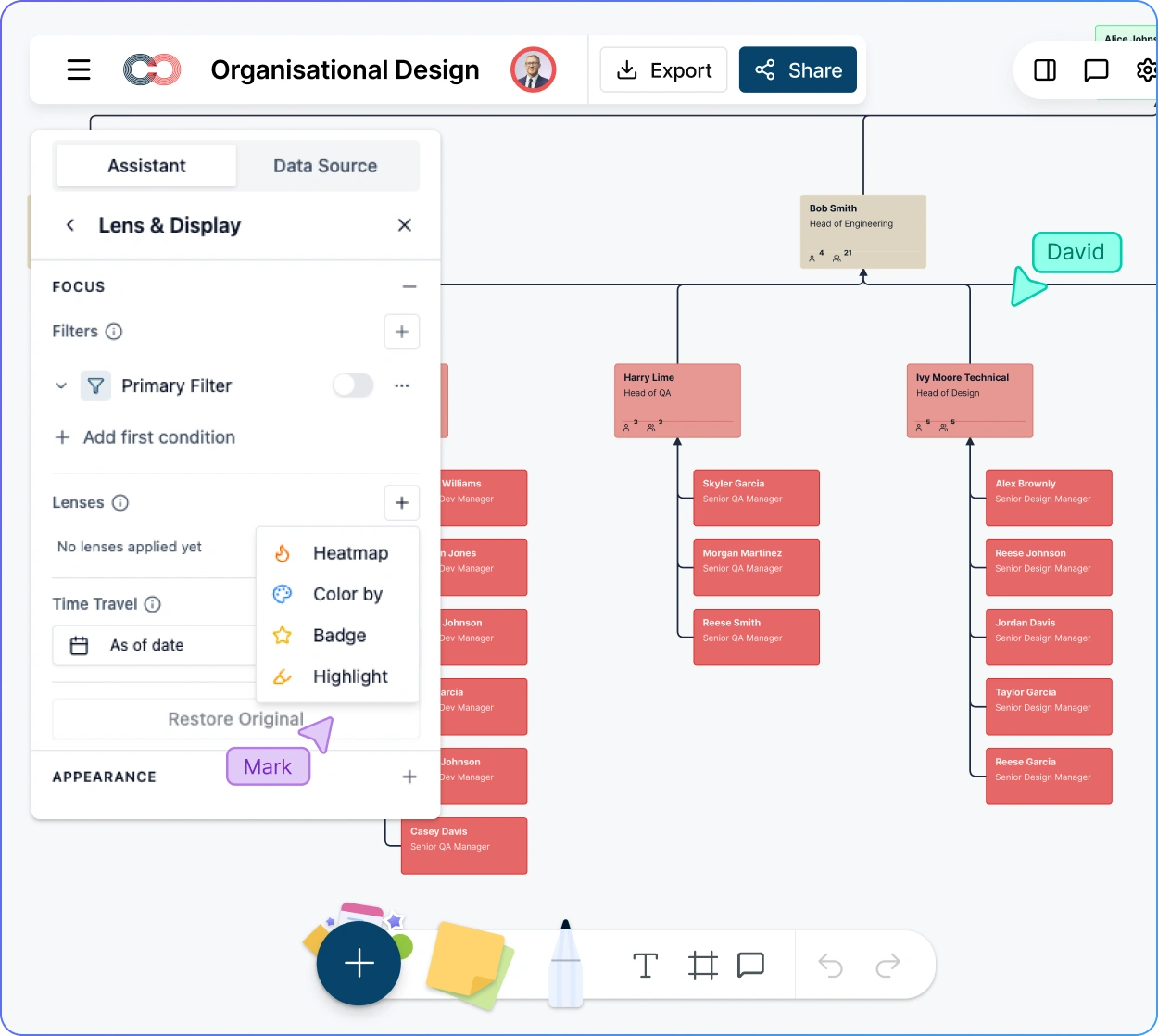
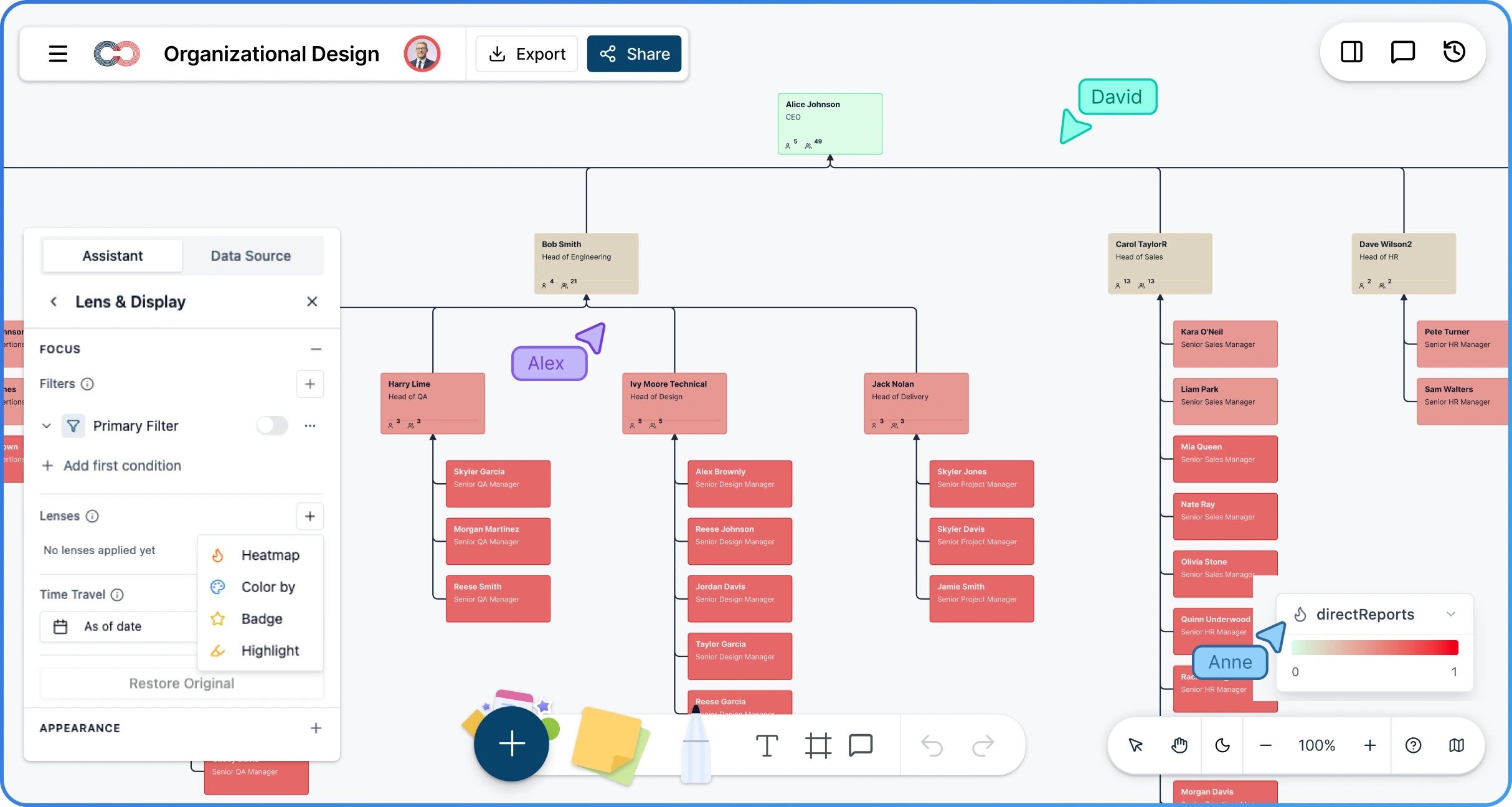
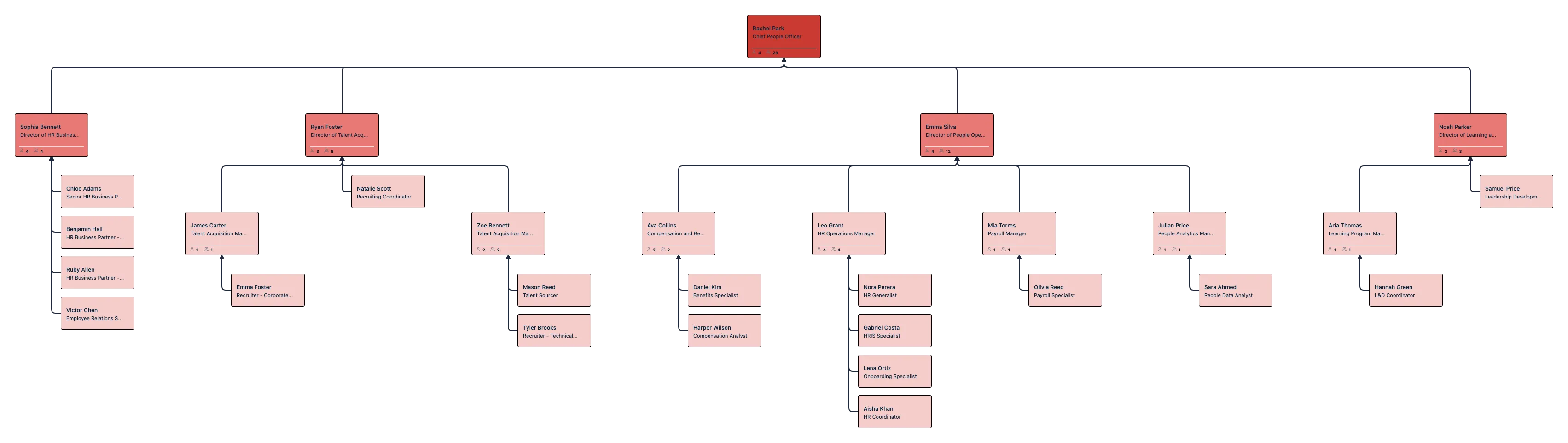
Use automatic layout to arrange the imported hierarchy, then verify a known manager and their direct reports.
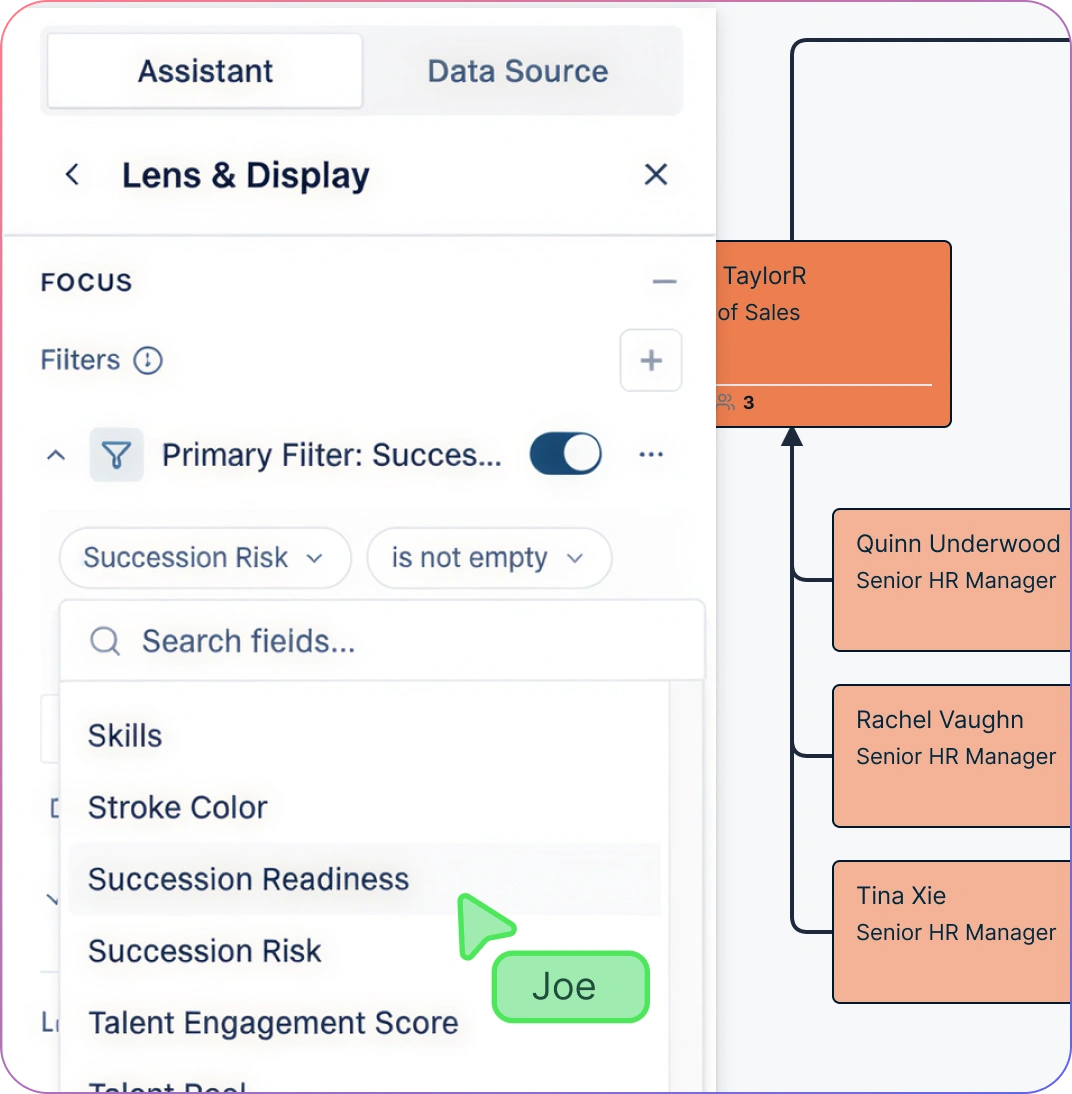
Check Changes and Explore Your Organization
Inspect created, updated, and deactivated record counts before applying an import to an existing chart.
Undo the entire import as one operation if the result is wrong, then correct the source file or mappings.
Find people by name, title, or department and focus on the team you need to review.
Generate department views after import, and use filters and color rules to explore available employee data.
Use org chart field packs for additional workforce or talent information, subject to the viewer’s access.
Share the Chart and Keep It Useful
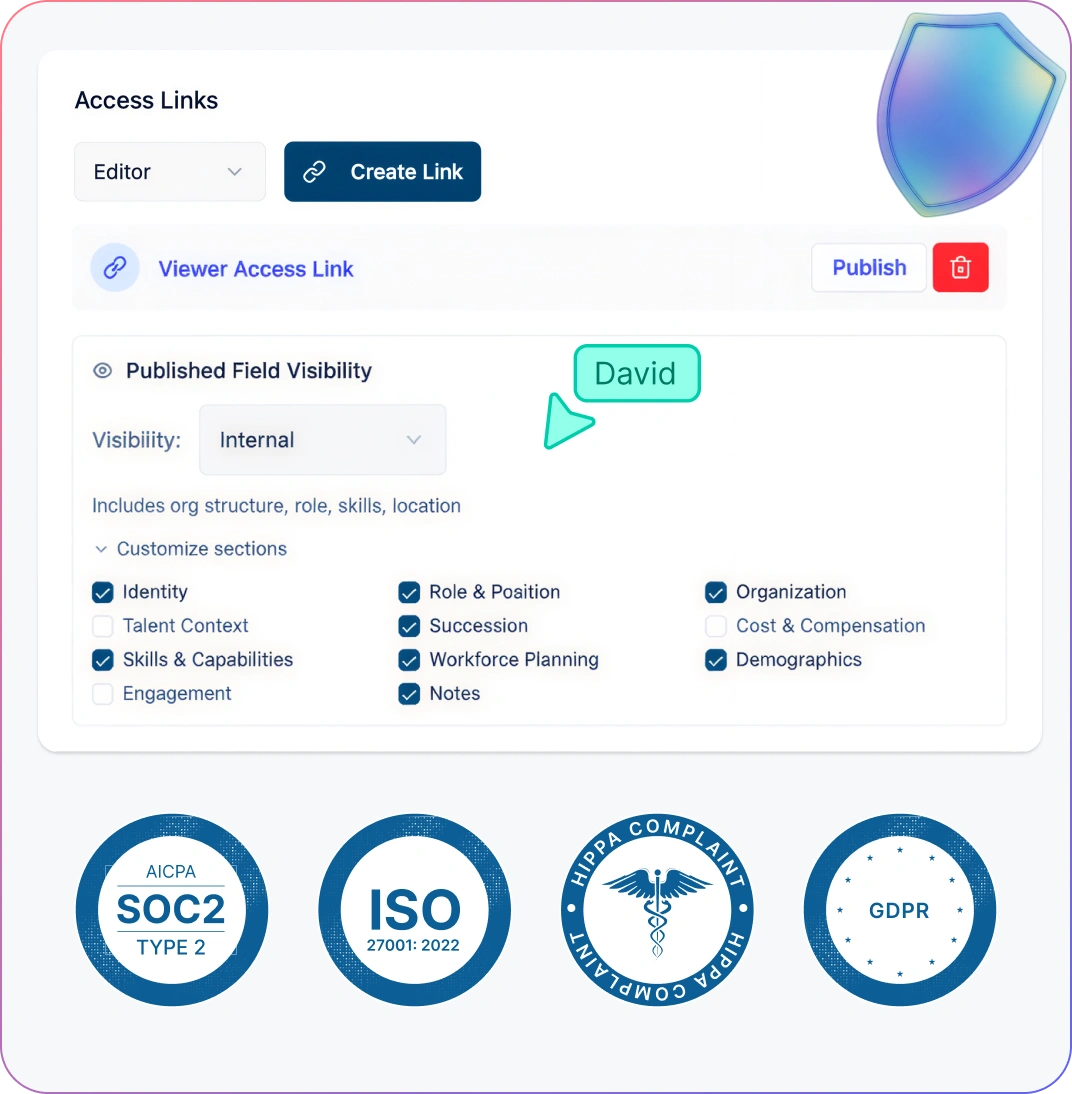
Review the chart together with comments, live cursors, and role-based permissions.
Keep field-level sensitivity controls in place when sharing links with different stakeholders.
Update employee details in Atlas or review a later CSV import; uploading a CSV does not create automatic source synchronization.
Explore proposed reporting changes through scenario planning before applying them to the live structure.
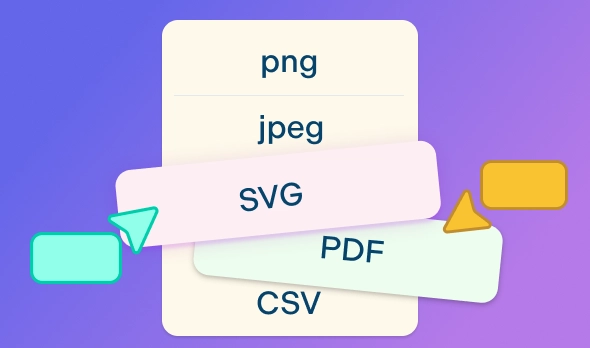
Export the chart as PNG, SVG, or PDF, or export org data as CSV for further analysis.
Evaluate the CSV Import Workflow
Prepare employee IDs, manager references, names, titles, and departments in your CSV. If needed, follow the Excel preparation guide.
Upload the file through Import from CSV and review the column mappings. See the CSV import tutorial for detailed instructions.
Resolve validation errors and check the preview counts for created, updated, and deactivated records.
Import the records and compare the automatically arranged reporting hierarchy with your source data.
Share the reviewed chart with appropriate access and agree how future updates will be maintained.

Use Cases
Employee Data from HRIS Exports
Bring a CSV export into Atlas to review reporting lines with HR and department leaders. Check the change preview on every subsequent import.
Department Structure Reviews
Use the imported hierarchy and focused department views to discuss managers, direct reports, and team responsibilities.
New Hire Onboarding
Give new colleagues a shared view of their team and reporting structure, with access appropriate to their role.
Workforce Planning
Use the reviewed chart as a starting point for headcount discussions and keep vacant positions visible when planning roles.
Restructuring Proposals
Explore proposed reporting changes in scenarios before applying them to the live organization.
Leadership Presentations
Export a reviewed visual as PNG, SVG, or PDF, and check the visible employee information before sharing the file.
FAQs About CSV to Org Chart
How much does CSV to org chart cost?
What data do I need to convert a CSV into an org chart?
Do I need a template before importing my CSV?
Will my org chart stay synchronized with the source spreadsheet or HRIS?
Can my team review the imported chart without seeing restricted employee data?
Can I export the org chart after importing a CSV?