A prompt such as “map our approval process” leaves the AI to guess who approves what, which requests need review, and where rejected requests go. Those missing details can change the meaning of the diagram.
Good AI diagramming prompts describe both the content and the connections. Name the diagram type, list the elements, explain how they relate, and state what the diagram should leave out. Then check the generated result against your source information.
This guide gives you a reusable prompt structure, examples for five diagram types, and practical ways to fix unclear outputs. For broader prompting advice beyond diagrams, see how to write AI prompts.
What Is an AI Diagramming Prompt?
An AI diagramming prompt is a written brief that tells an AI tool what to visualize and how the information fits together. It can describe a sequence, hierarchy, group of ideas, or system of connected components.
Compare these two requests:
| Vague request | More useful diagram brief |
|---|---|
| Make an onboarding diagram. | Create a flowchart for onboarding a new supplier, from application received to approved or rejected. Include document review, a missing-document loop, and a final approval decision. |
| Show our marketing ideas. | Create a mind map centered on a newsletter launch. Use Audience, Content, Distribution, and Measurement as the main branches. Group the supplied ideas under these branches. |
| Draw a system diagram. | Show a proposed web application with Browser, Web App, API, and Database. Connect Browser to Web App, Web App to API, and API to Database. Label it as a proposed design. |
Specificity gives you a result you can evaluate. You can check whether a named step is present, a branch reaches the right destination, or an extra component has been added without justification.
A Reusable Prompt Structure
Use this brief as a starting point. Replace the bracketed text with your own information.
Create a [diagram type] for [purpose and audience]. Include [required elements]. Connect them using [sequence, hierarchy, or labeled relationships]. Start at [boundary] and end at [boundary], where applicable. Show [decisions, exceptions, or groups]. Keep labels [length or style]. Exclude [out-of-scope details]. Use only the supplied facts; identify missing information rather than filling it in.
You do not need every field for every diagram. A mind map needs a central idea and branches; a process flow needs direction and branch destinations. Choose the structure that matches the question you want the diagram to answer.
How to Write an AI Diagramming Prompt
1. Choose the Diagram Type and Audience
Start with the relationship you need to show:
- Flowchart: the sequence of actions and decisions.
- Mind map: ideas grouped around a central topic.
- Org chart: reporting relationships between positions or people.
- Architecture diagram: components, boundaries, and connections within a system.
- Process map: how work moves through stages and between responsible teams.
State who will read it. An executive overview may need six high-level stages; an operational handover may need decision rules and exceptions. Avoid asking for both levels of detail in one crowded diagram.
2. List the Elements and Their Relationships
Supply the names that matter, then explain how to connect them. A list of departments alone does not tell the AI which department reports to which leader. A list of tasks does not identify tasks that run in parallel.
Write relationships directly:
- “The Support Lead reports to the Operations Director.”
- “After validation succeeds, send the request to Finance.”
- “If validation fails, return it to the requester.”
- “Group email and social posts under Distribution.”
For an existing process, use approved documentation or notes checked by its owner. If you want the AI to suggest a new process, call it a proposed workflow and review its assumptions separately.
3. Define Boundaries and Exceptions
Explain where the diagram starts, where it ends, and which cases it covers. “Customer support” is broad; “email support from ticket received to resolution confirmed” gives the diagram a workable boundary.
Include the exceptions that affect the logic: missing information, declined requests, failed validation, and escalation. For every decision, describe the outcome paths. “If rejected, return to Draft” is more precise than “include a rejection step.”
4. Request a Readable Level of Detail
Ask for short action labels, named groups, and a consistent direction where useful. Specify essential notation, such as decision diamonds in a flowchart, but review whether the tool applied it correctly.
Prioritize structure before appearance. Once the connections are correct, adjust spacing, colors, and layout in the editor. A styling request cannot compensate for an incorrect reporting line or missing decision branch.
5. Generate, Check, and Revise
Read the output as a diagram, not just as a collection of plausible labels. Trace each path from its start to its destination and compare it with your brief.
Revise one structural issue at a time. If your AI workflow supports follow-up instructions, describe exactly what should change and what should stay. Otherwise, amend the original prompt and generate again, or edit the diagram directly.
Try Creately’s AI flowchart generator with a bounded process you already understand, so you can judge the output against known steps.
AI Diagramming Prompt Examples You Can Adapt
The examples below are original, hypothetical briefs. They illustrate how to describe structure; they are not tested output guarantees. Supported diagram types and refinement options depend on the AI workflow you choose. Use an editable template when a specialized format needs manual construction.
Flowchart Prompt: Content Approval
Create a flowchart for a small team’s content approval process. Start at Draft submitted. Send the draft to the Editor for review. If changes are required, return it to the Writer for revision, then send it back to the Editor. If the Editor approves, send it to the Publisher for scheduling. End at Publication scheduled. Use a decision diamond for Editor approval, label its outcomes Approve and Revise, and keep action labels under eight words. Do not add legal review or social promotion.
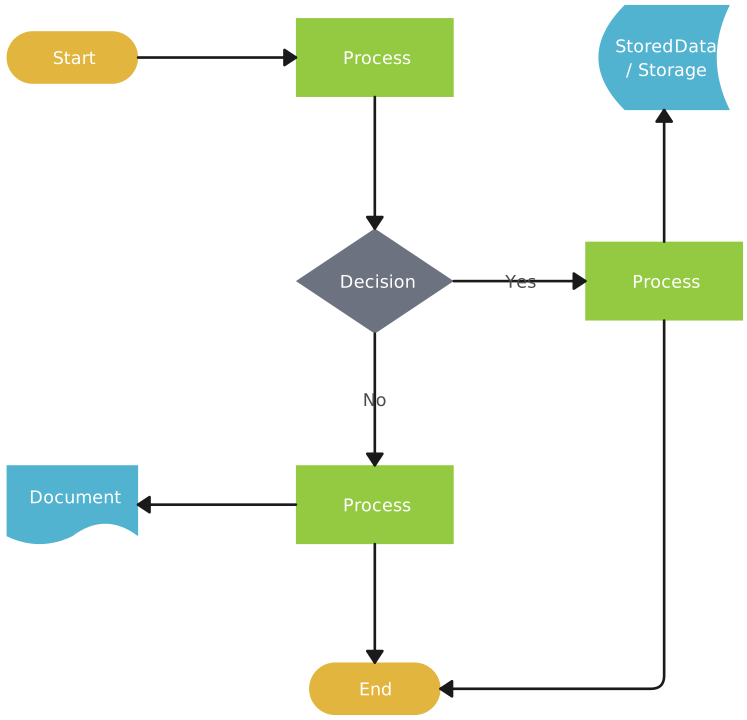
What to check: The revision path returns to review, approval leads to scheduling, and neither path stops at an unlabeled connector. Read the flowchart guide if you need help choosing symbols.
Start with this existing AI-enabled template. Its preview is a template reference, not the generated result of the example prompt.

Mind Map Prompt: Workshop Planning
Create a mind map centered on Customer Onboarding Workshop. Add four main branches: Participants, Activities, Materials, and Follow-up. Under Participants, add Customer Success, Product, and Support. Under Activities, add Current journey review, Friction mapping, and Prioritization. Under Materials, add Approved journey notes and Feedback summary. Under Follow-up, add Action owners and Review date. Use only these items and keep each label short.
What to check: Each item appears under its intended parent, the four main branches remain distinct, and no invented customer findings appear. Add new ideas in a separate brainstorming pass if you want suggestions beyond the supplied material.
Org Chart Prompt: A Hypothetical Team
Create a top-down org chart for a fictional service team. The Head of Service has two direct reports: Support Manager and Customer Success Manager. Two Support Specialists report to the Support Manager. A Customer Success Associate reports to the Customer Success Manager. Use role titles only, distinguish the two Support Specialist positions, and show solid connectors for direct reporting. Do not invent names, vacancies, or dotted-line relationships.
What to check: There are six positions, each non-root position has the specified manager, and the two specialists remain separate nodes.
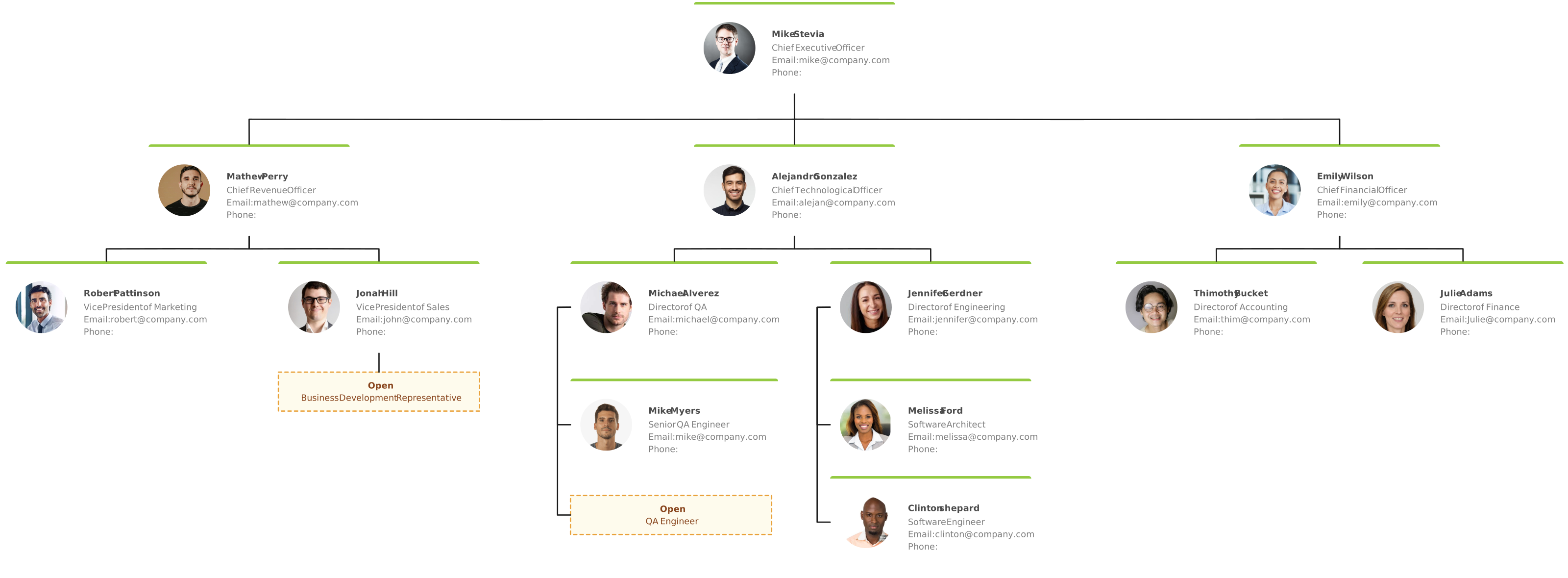
For a real employee directory, start with verified people and manager data rather than asking AI to infer the organization. Creately’s AI org chart workflow supports CSV mapping, validation, and preview for that data-led task.
Architecture Prompt: A Proposed Web Application
Create a high-level component diagram for a proposed web application. Include Browser, Web App, API Service, and Database. Connect Browser to Web App with HTTPS, Web App to API Service with API requests, and API Service to Database with Read/write. Put API Service and Database inside a Backend boundary. Title it Proposed application architecture. Do not add cloud providers, deployment regions, scaling policies, or security certifications.
What to check: Every connector has the specified direction and label, the backend boundary contains the right components, and the diagram makes no claims about deployed infrastructure.
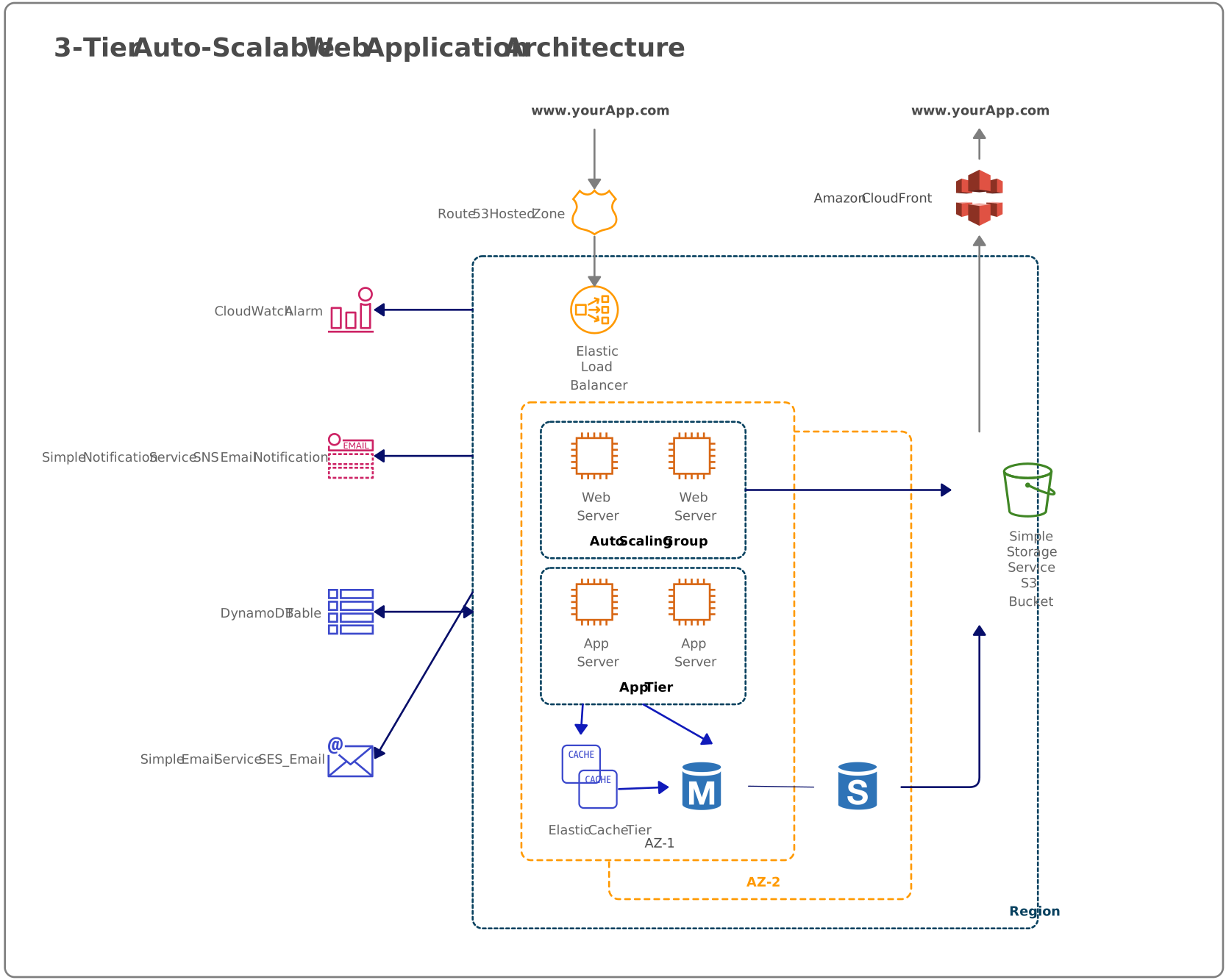
For this example, a high-level flow diagram can communicate the components and connections. If you need provider-specific icons or detailed deployment notation, use an AWS architecture template and validate the design with an architect. A generated design does not discover your environment or establish that it is secure.
Process Map Prompt: Purchase Requests and Handoffs
Create a process map for a proposed purchase request workflow with Requester, Manager, and Finance as responsibility groups. The Requester submits a request. The Manager checks the business justification. If it is declined, notify the Requester and end the process. If approved, Finance checks budget availability. If budget is unavailable, return the request to the Manager to revise the scope, then repeat the budget check. If budget is available, Finance records authorization and notifies the Requester. End at Purchase authorized. Do not include supplier selection, ordering, or payment.
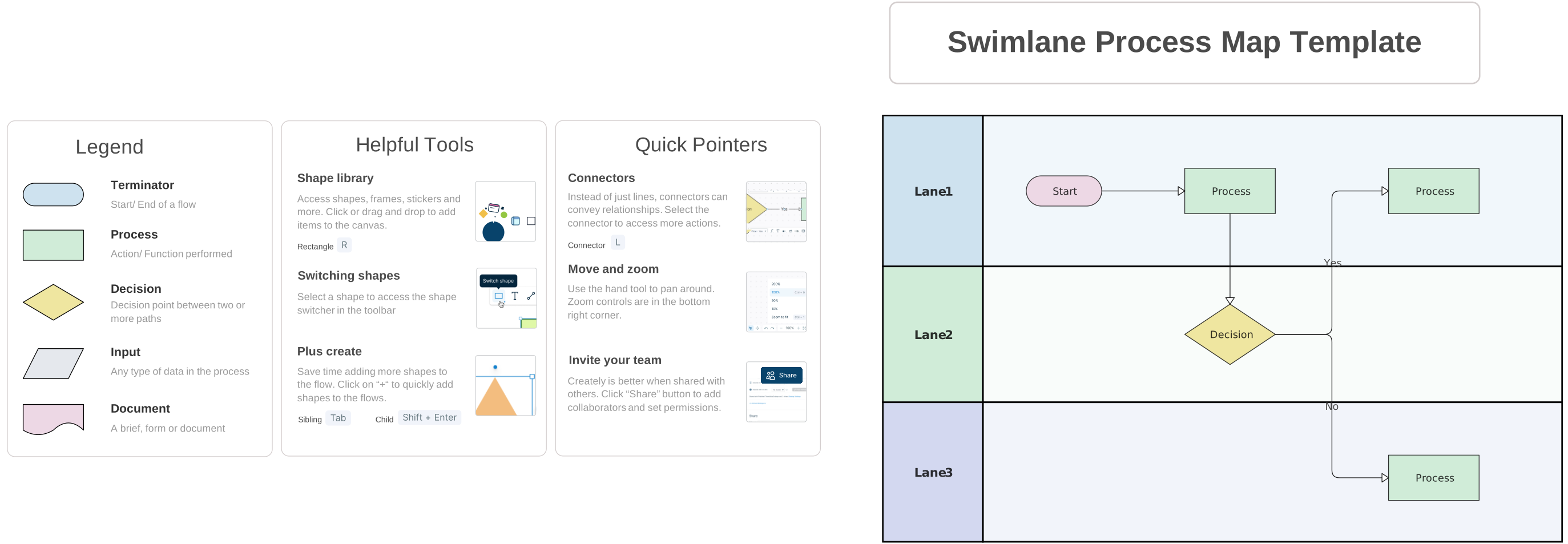
What to check: Each action has an owner, the budget loop returns to the correct group, and authorization is clearly separate from payment. Use lanes if supported by your selected workflow, or arrange the responsibility groups manually.
Learn more about process mapping when deciding how much detail to include in handoffs and exceptions.
How to Refine a Diagram Without Losing the Logic
“Make it better” leaves too much open. Name the defect, the required change, and the structure to preserve.
| Problem in the first draft | More useful revision instruction |
|---|---|
| A missing rejection path | Add a Decline path from Manager review to Notify requester, then End. Keep the approval path unchanged. |
| Too many steps | Group the validation tasks into one subprocess named Validate request. Preserve all approval decisions and outcomes. |
| A cluttered mind map | Keep the four main branches. Move detailed explanations into notes and retain short node labels. |
| Incorrect reporting lines | Connect both Support Specialists directly to Support Manager. Remove their connection to Customer Success Manager. |
| An invented component | Remove the Cache component and its connectors. Keep only the four components named in the original brief. |
When a correction is small and unambiguous, editing the shapes or connectors directly may be quicker than generating a new diagram. After any change, trace the affected relationships again.
Use Creately AI to Turn Your Brief into an Editable Starting Point
Creately’s AI flowchart workflow accepts text descriptions, while its AI mind map template supports prompt-based idea structures. Start with the framework suited to your brief rather than assuming one generator handles every specialized notation.
- Choose the framework. Open an AI-enabled flowchart or mind map template from Creately’s template library.
- Enter your brief. Include the elements and relationships you want represented. Keep supporting explanations separate from the labels that should appear in shapes.
- Review the structure. Compare decisions, connections, and groups with the source information before styling the diagram.
- Edit and collaborate. Adjust labels, shapes, connectors, and layout, then ask a teammate or subject-matter owner to review the result.
For a real org chart, use the verified-record workflow described above. For an architecture proposal, review the system boundaries and connections separately from whether the layout looks convincing.
Existing Templates to Get Started
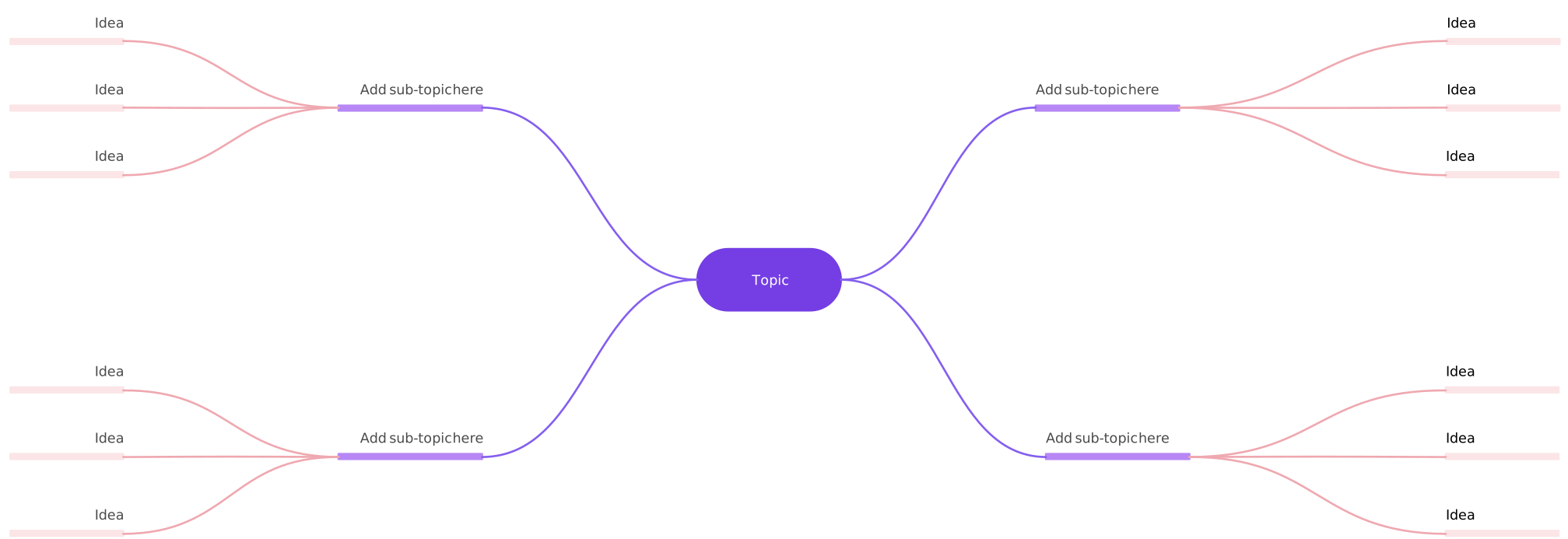
Start with the AI flowchart and mind map templates for prompt-based generation. Use the org chart, AWS architecture, and swimlane templates as editable references for reporting lines, system components, and team handoffs. The previews show existing templates rather than outputs from the example prompts above.


Check the Diagram Before You Share It
A polished layout can still carry the wrong meaning. Use this checklist alongside the source material:
- Content: Required elements are present, with no invented facts or roles.
- Connections: Arrows point in the right direction; each decision has labeled destinations.
- Boundaries: The diagram covers the intended process or system, without unrelated detail.
- Notation: Symbols and connector styles mean what the audience expects them to mean.
- Exceptions: Rework, rejection, and escalation paths reach sensible outcomes.
- Ownership: Reporting lines and responsibility groups have been checked by an appropriate reviewer.
- Status: Readers can distinguish a proposed design from an approved process or current-state record.
Save the final brief with your diagram’s supporting notes. When the process changes, it gives the next editor a record of the assumptions behind the structure.