Workbook rows hide the reporting structure - Use the employee IDs and manager references in your Excel data to build a hierarchy your team can review together.
Spreadsheet fields need a final check - Review AI-suggested column mappings and validation results before applying employee records to your chart.
A shared chart supports the next decision - Keep employee details editable, share focused views, and plan reporting changes in scenarios.
CERTIFIED




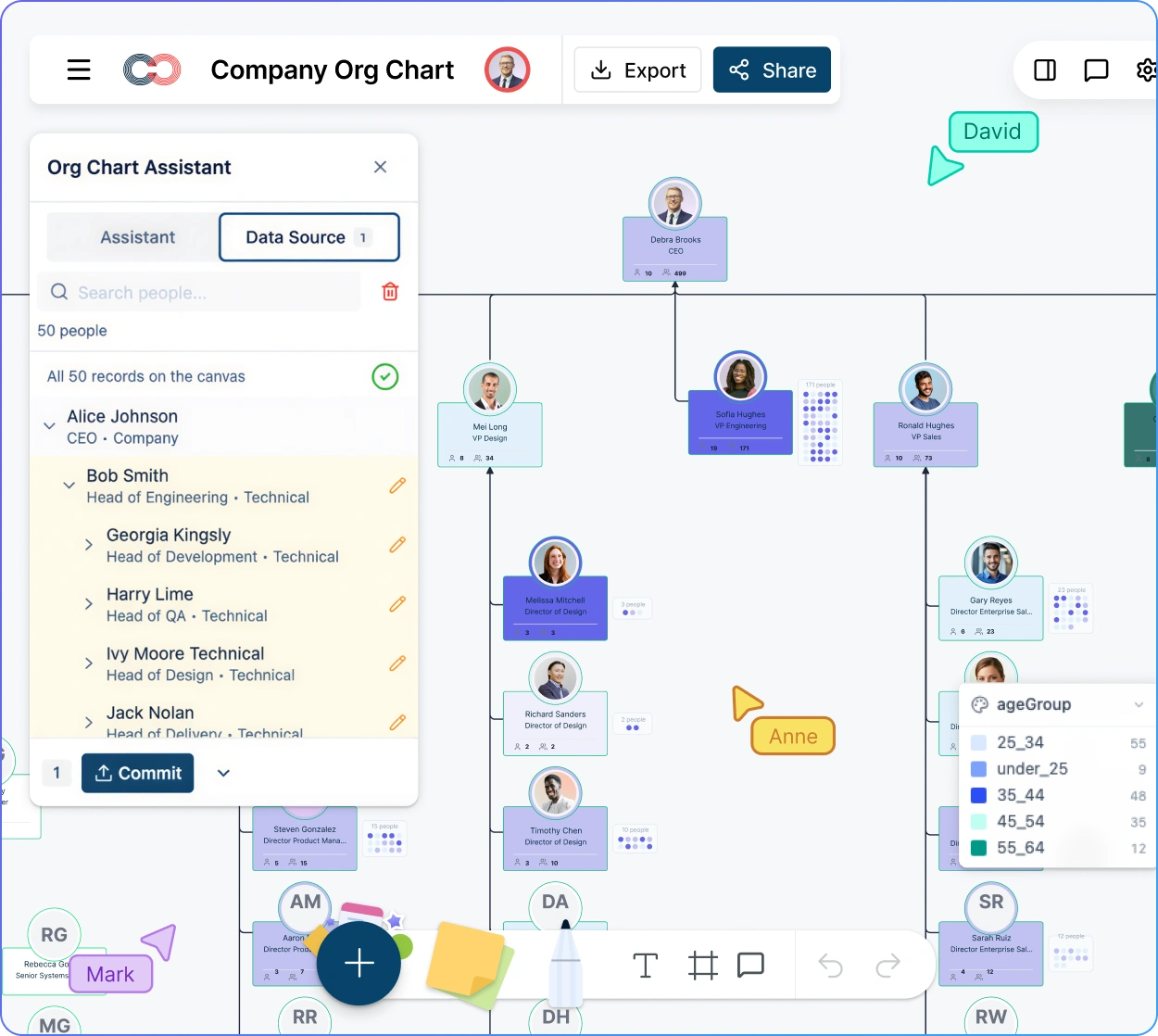
Excel to Org Chart
Turn Your Excel Employee List Into an Org Chart
Convert an Excel employee list into a managed org chart with Creately Atlas. Export the worksheet as CSV, check mappings and reporting relationships, and share an editable hierarchy. Evaluate the preparation, access controls, and update process your team needs.
 Workbook rows hide the reporting structure
Use the employee IDs and manager references in your Excel data to build a hierarchy your team can review together.

 Spreadsheet fields need a final check
Review AI-suggested column mappings and validation results before applying employee records to your chart.
 A shared chart supports the next decision
Keep employee details editable, share focused views, and plan reporting changes in scenarios.



 Diagramming Visual Collaboration Org Chart


Why Choose Creately for Your Excel Org Chart
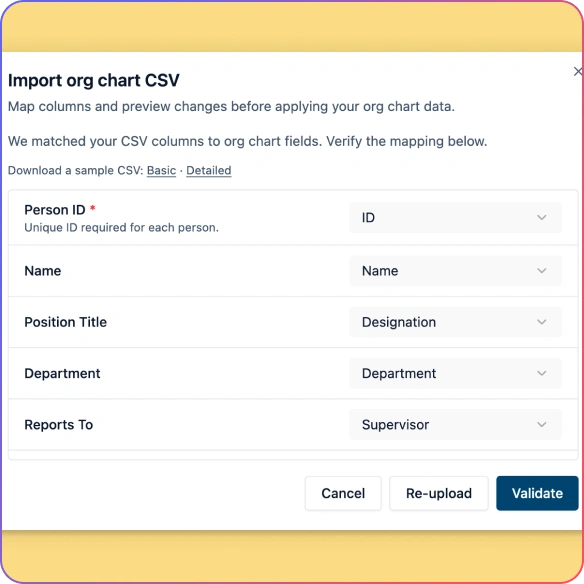
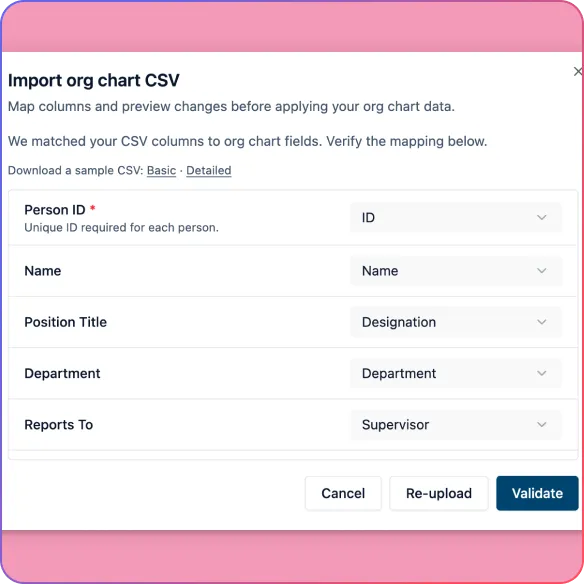
Review AI-Suggested Column Mappings
Match columns exported from Excel to employee and reporting fields with confidence-scored AI suggestions that you can review and adjust.
Catch Data Issues Before Import
Check missing IDs, unknown managers, reporting cycles, and empty rows before applying the import.
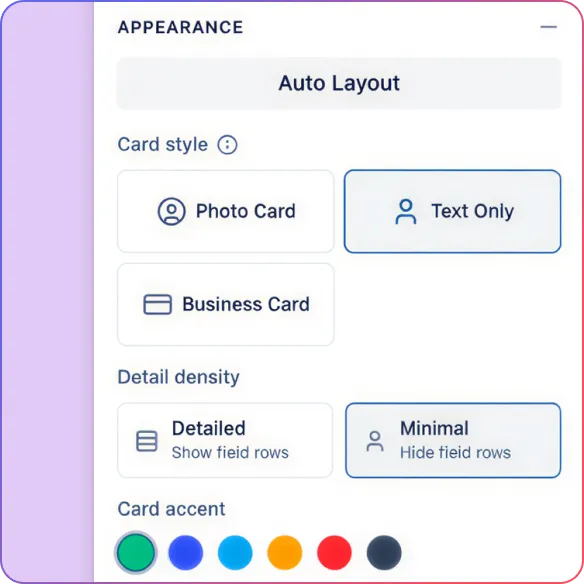
Build the Hierarchy from Your Records
Convert mapped employee records and manager references into an automatically arranged org chart.
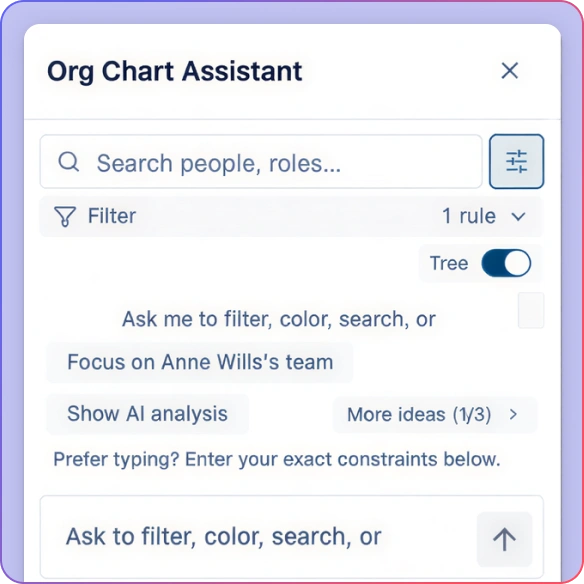
Review One Department at a Time
Generate department views after import and focus on the team you need to discuss.
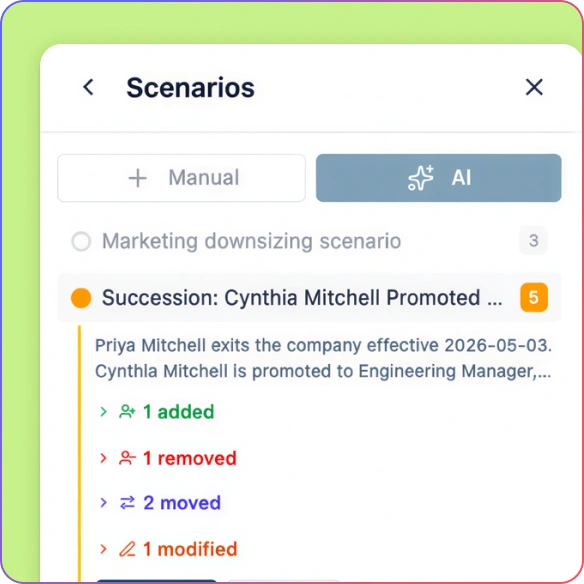
Plan Changes Beyond the First Import
Explore proposed reporting changes in scenarios before applying them to the live organization.
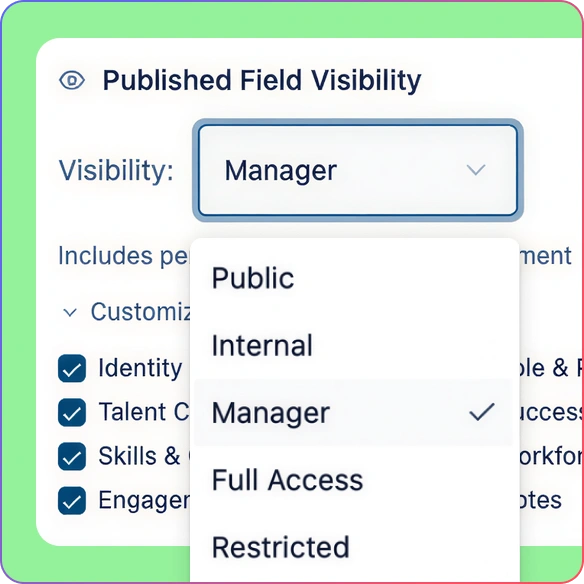
Share with the Right Access
Use viewer and editor permissions while field-level sensitivity controls continue to protect restricted information.
Build a Chart from Your Excel Employee Data
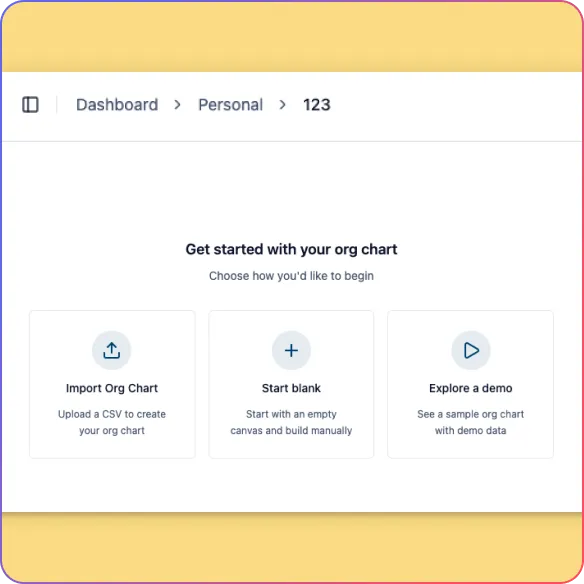
Turn Excel employee data exported as CSV into an editable org chart with Creately Atlas.
Review AI-suggested mappings for employee IDs, manager references, names, job titles, and departments.
Keep employee and manager IDs consistent, including any leading zeros, and check calculated values before exporting.
Check missing IDs, unknown managers, reporting cycles, and empty rows before importing.
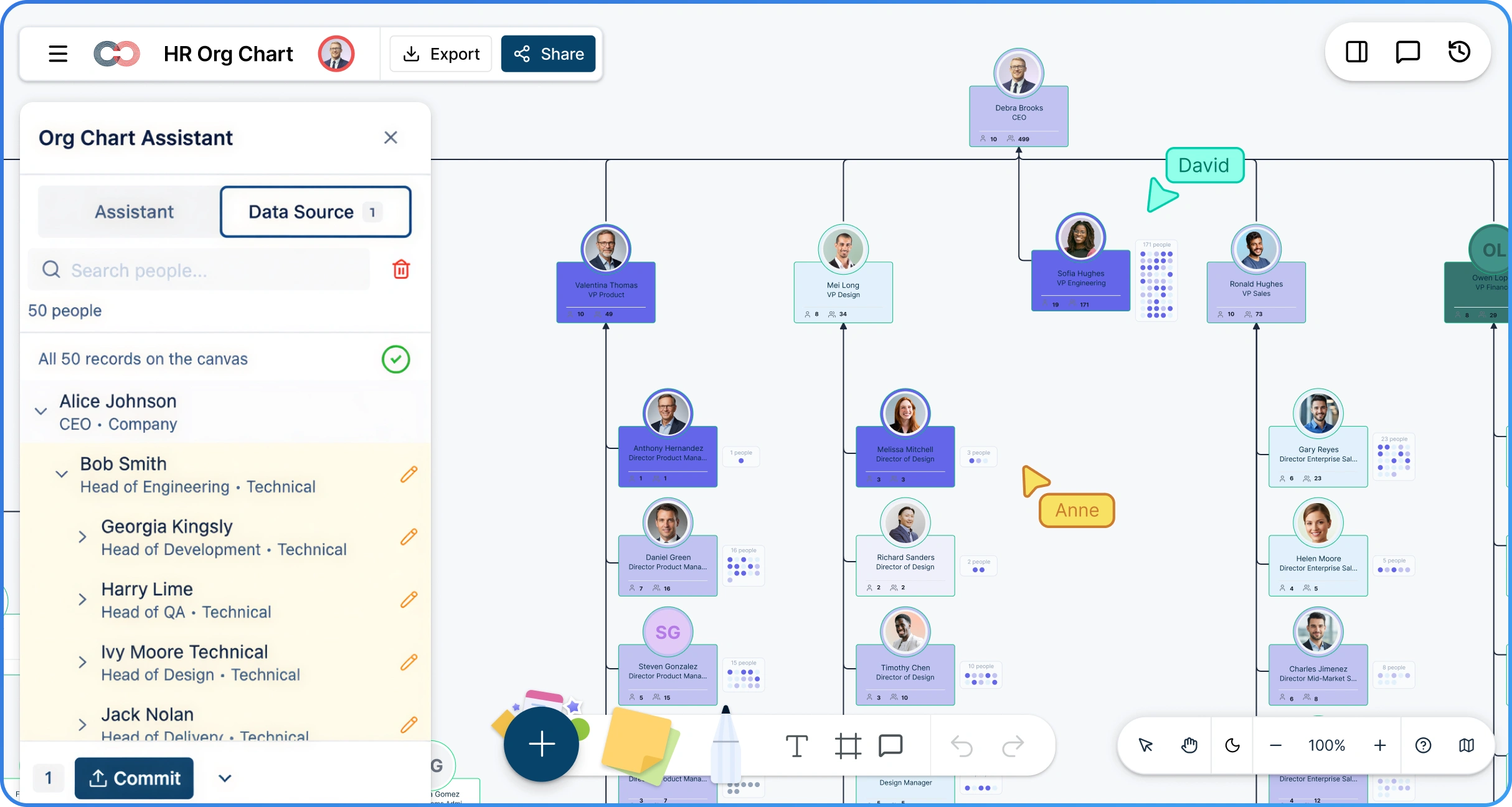
Build a clear reporting hierarchy with automatic layout.
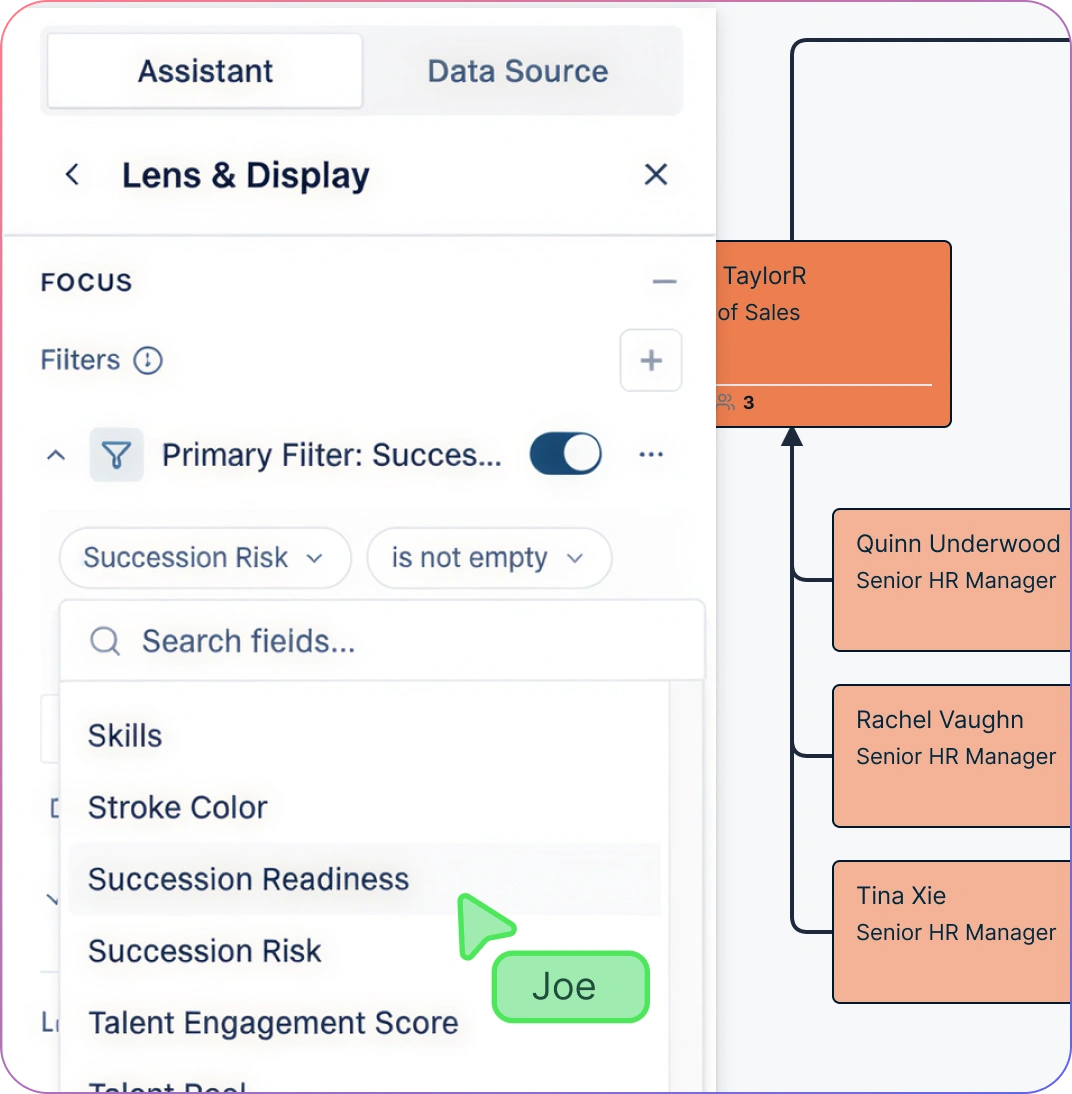
Review the Structure Behind Your Spreadsheet
Inspect created, updated, and deactivated record counts before applying an import to an existing chart.
Undo the entire import as one operation if the result is wrong, then correct the source file or mappings.
Find people by name, title, or department and focus on the team you need to review.
Generate department views after import, and use filters and color rules to explore available employee data.
Use org chart field packs for additional workforce or talent information, subject to the viewer’s access.
Keep Your Team Aligned After Import
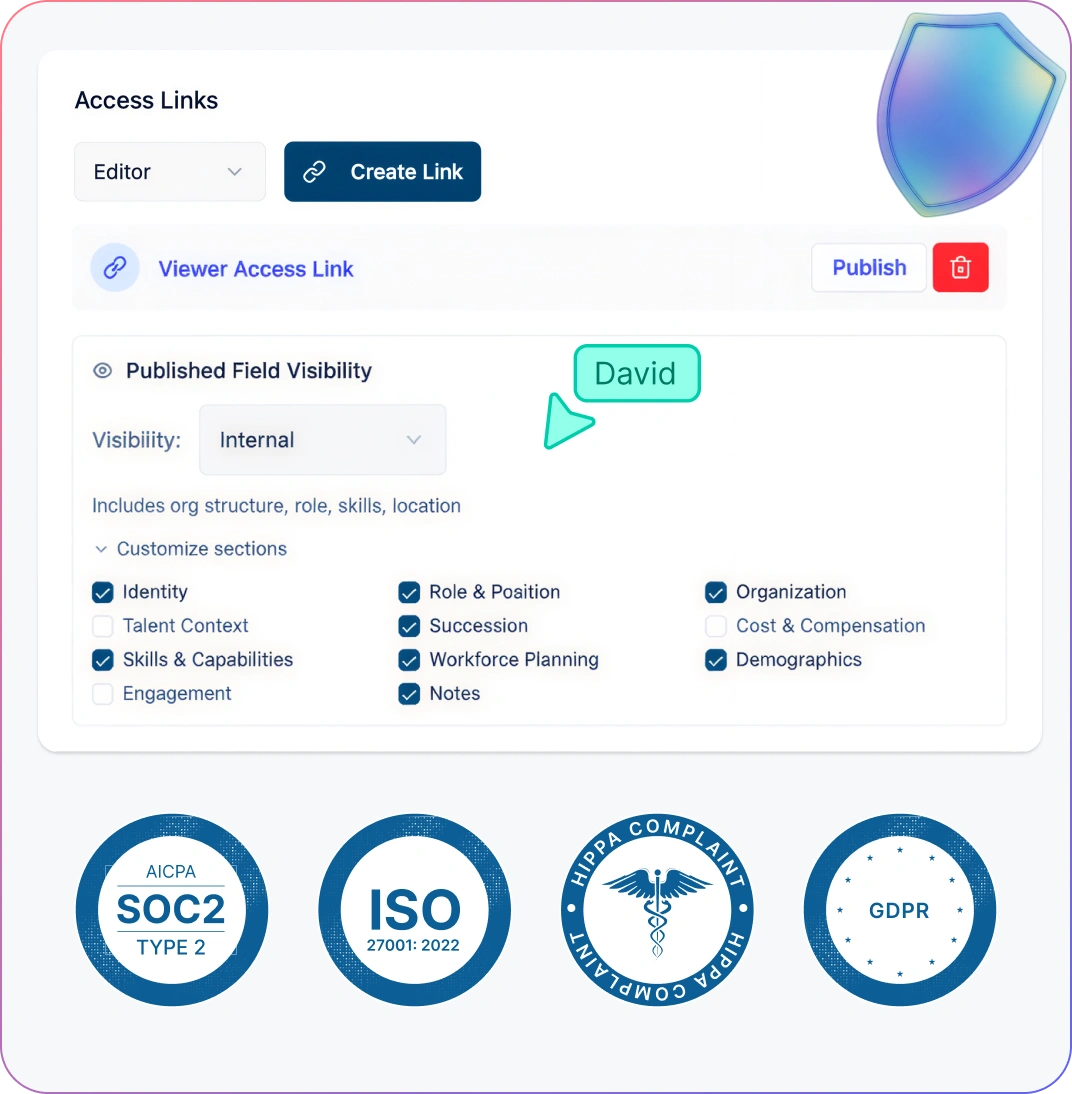
Review the chart together with comments, live cursors, and role-based permissions.
Keep field-level sensitivity controls in place when sharing links with different stakeholders.
Agree who maintains the employee records. Excel edits require a new CSV export and reviewed import, or a corresponding update in Atlas.
Explore proposed reporting changes through scenario planning before applying them to the live structure.
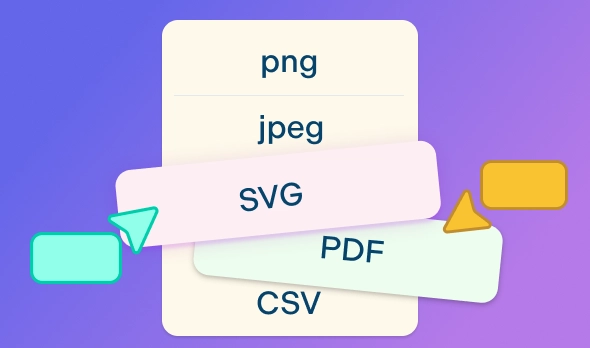
Export the chart as PNG, SVG, or PDF, or export org data as CSV for further analysis.
Evaluate the Excel Import Workflow
Prepare one Excel worksheet with employee IDs, manager references, names, job titles, and departments. Follow the Excel preparation and import guide for worksheet checks and a worked example.
Save your original workbook, then export the prepared worksheet as CSV. The export carries employee values, not Excel formatting or the other workbook tabs.
Choose Import from CSV in Atlas, upload the exported file, and review the AI-suggested column mappings.
Resolve validation errors and review created, updated, and deactivated record counts. Import the records and compare the resulting hierarchy with your worksheet.
Share the checked chart with appropriate access. Agree who will maintain future workbook exports and chart updates.
Org Chart Templates for Sharing Your Structure
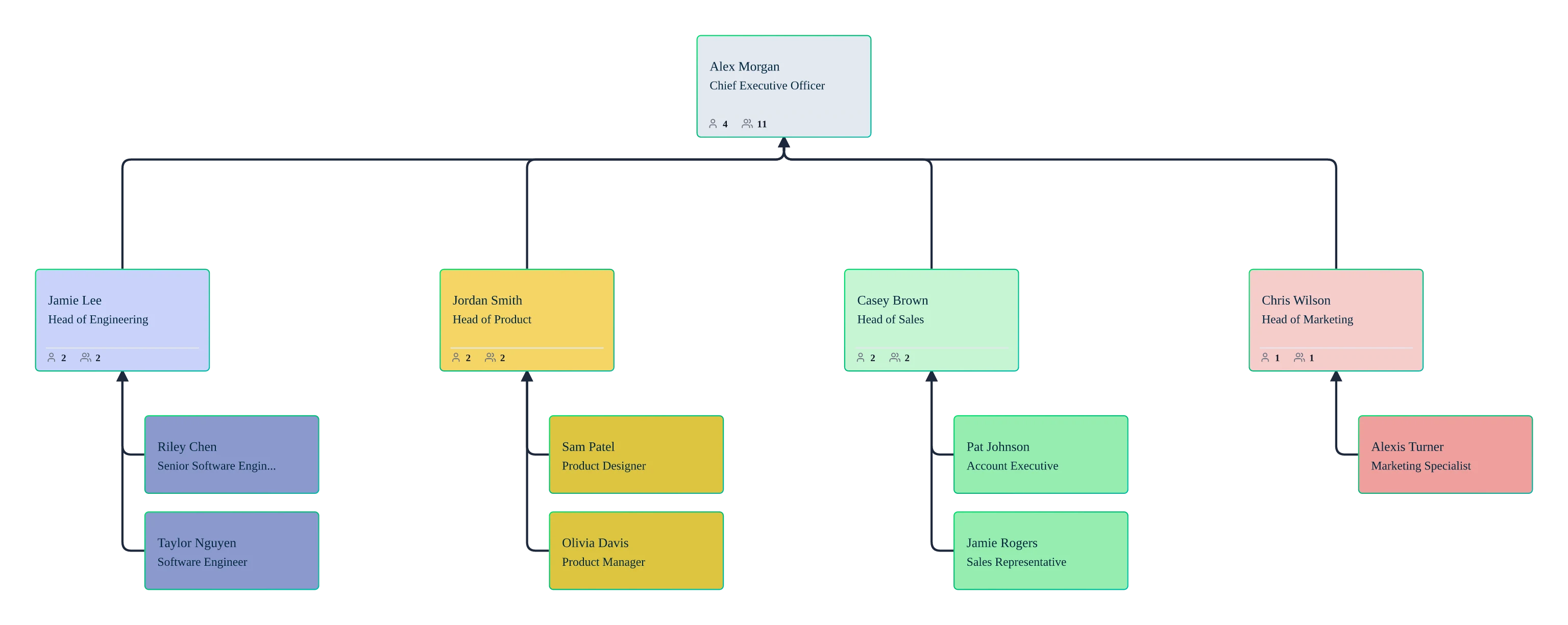
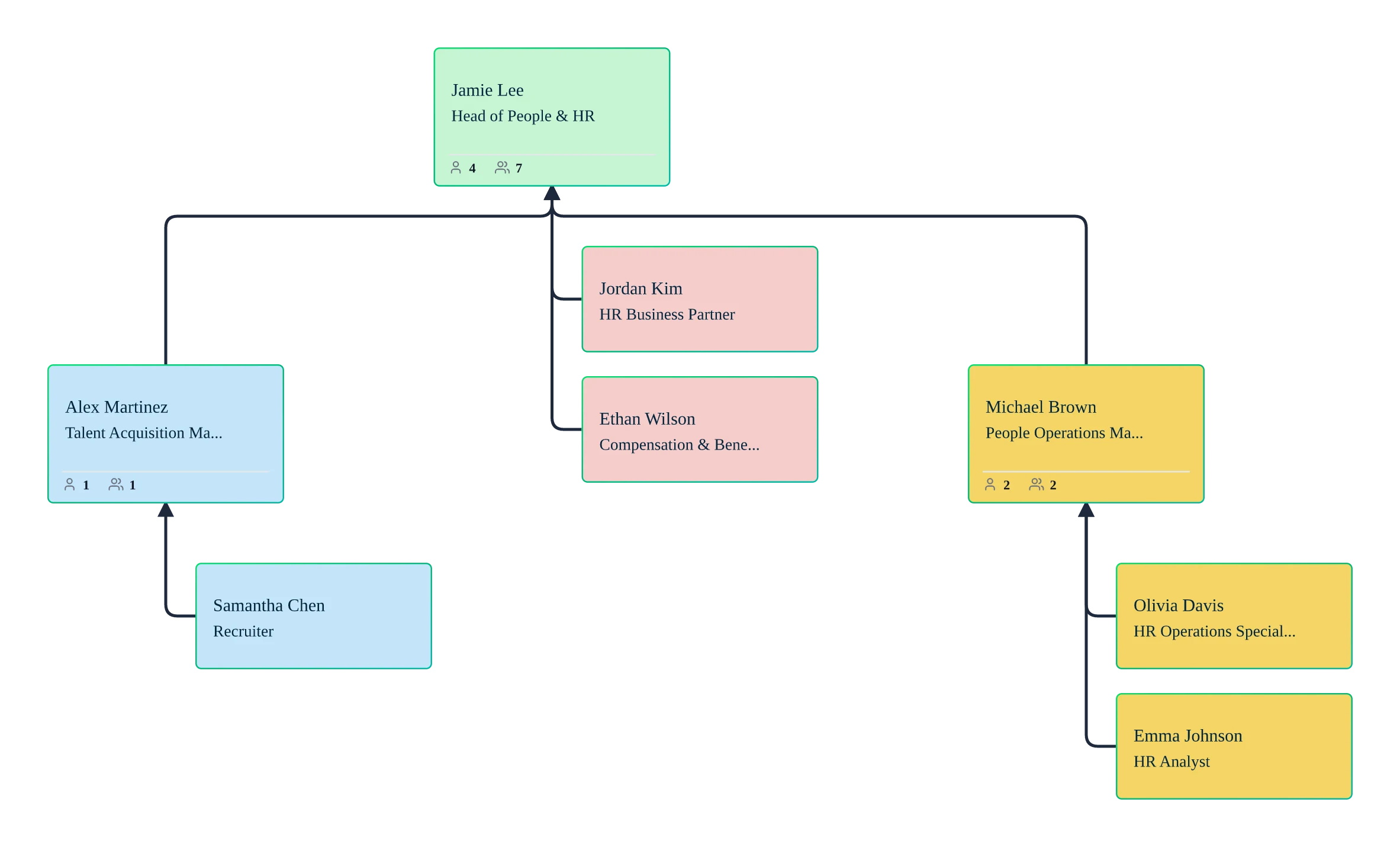
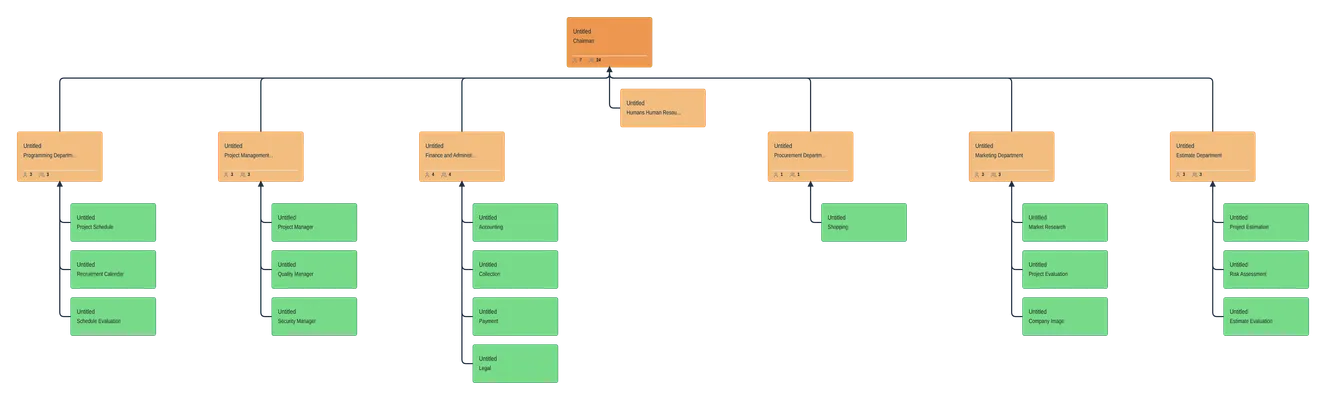
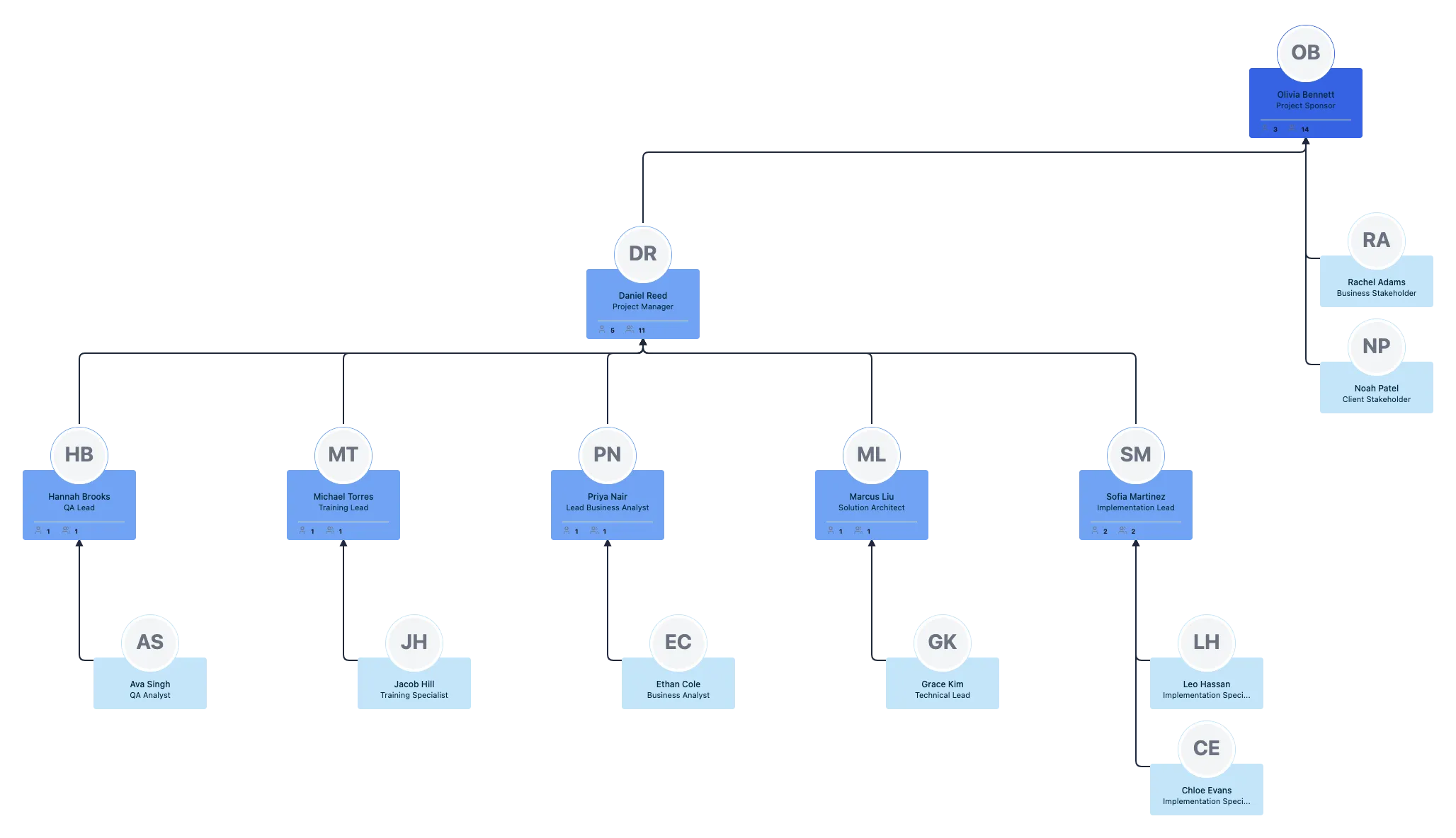
Use Cases
Employee Lists Maintained in Excel
Convert a prepared worksheet into a chart for HR and department leaders. Keep the original workbook and review the change preview when importing later exports.
Department Structure Reviews
Combine the intended department records in one export worksheet, then use department views in Atlas to discuss managers and direct reports.
New Hire Onboarding
Give new colleagues a shared view of their team and reporting structure, with access appropriate to their role.
Workforce Planning
Use the reviewed chart as a starting point for headcount discussions and keep vacant positions visible when planning roles.
Restructuring Proposals
Explore proposed reporting changes in scenarios before applying them to the live organization.
Leadership Presentations
Export a reviewed visual as PNG, SVG, or PDF, and check the visible employee information before sharing the file.
FAQs About Excel to Org Chart
Can I upload an Excel workbook directly to Atlas?
What columns does my Excel employee list need?
Can I use a workbook with a separate sheet for each department?
Will the chart update automatically when I edit Excel?
Will Excel formatting and formulas carry over to the chart?
How much does Excel to org chart cost?