Medical History Focus
Highlights medical history details alongside family health history.
Highlights medical history details alongside family health history.
Connects diagnoses, risks, and relevant medical notes across relatives.
Shows how health conditions or risks appear across family lines.
Leaves space for symptoms, screenings, and care notes.
Keeps parents, children, partners, and siblings easy to trace.
Supports quick review of conditions that may need follow-up.
Gives clinicians a clear visual for discussion and documentation.
Can be expanded as new relatives or health details are added.
Organize documented conditions and family relationships across three generations using this focused medical history genogram on Creately Clinical.
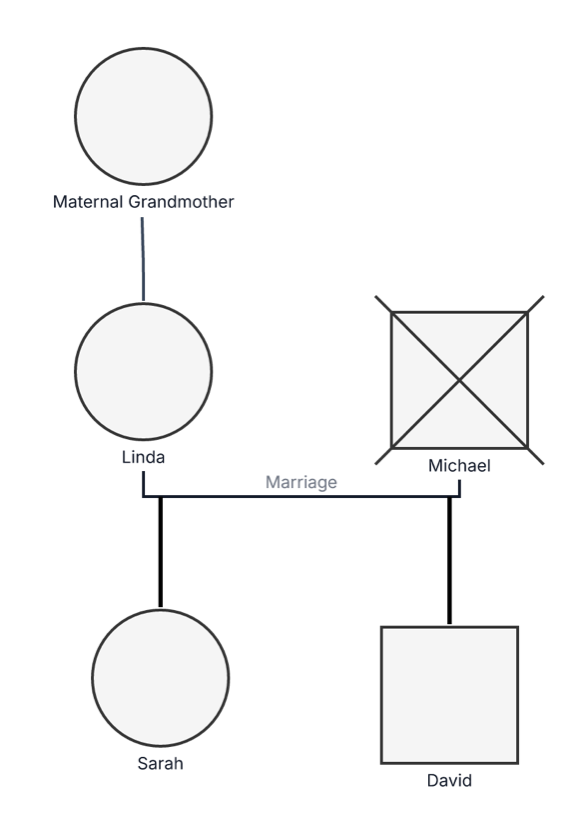
This medical history genogram offers a focused way to place documented health conditions alongside family relationships across three generational rows.
The example contains five people. It begins with the maternal grandmother, followed by Linda and Michael’s marriage, with Sarah and David positioned in the next row. Michael is marked deceased, keeping vital status visible alongside the condition information.
The legend lists hypertension, type 2 diabetes, heart disease, and breast cancer. Its displayed totals record three instances of hypertension and one instance each of type 2 diabetes, heart disease, and breast cancer. Colored ring segments allow more than one recorded condition to appear around a person’s standard genogram symbol.
Sarah and David extend the family into the third generational row, creating a compact example that users can quickly personalize with their own relatives and medical-history details.
This medical history genogram can help healthcare professionals, learners, and families organize a focused branch of family health information in one clear view.
Review documented conditions, onset, treatment, vital status, and information sources.
Prepare a concise family-health view for appointments, referrals, and shared review.
Practice combining standard family notation with several condition markers.
Create a compact health-history record to update and discuss with qualified professionals.
Use standard genogram shapes for the family structure and condition rings for the medical-history layer.
Male family member
Female family member
Deceased family member
Marriage or partner relationship
Parent–child relationship across generational rows
Hypertension, according to the legend
Type 2 diabetes, heart disease, or breast cancer as distinguished by the example’s marker definitions
More than one recorded condition for the same person
Use this example when a concise medical history view is more useful than a large extended-family diagram.
Begin with the person or household relevant to the review, then add parents, grandparents, siblings, partners, and children as needed.
Connect partners, parents, and children to create a family structure that is clear and easy to explore.
Record the condition, age or age of onset, current or historical status, treatment information, and source where those details support the purpose of the genogram.
Give each condition a distinct marker, review overlapping indicators for readability, and add dates or version notes when information changes.
Creately Clinical supports focused health-history mapping with structured medical fields, health views, collaborative review, and report-ready outputs.
Yes. Multiple ring segments can be applied to one person. Use clearly differentiated markers and supporting labels so each condition remains easy to identify.
Where relevant and available, record the condition name, age or age of onset, status, treatment, source, and date reviewed. Follow the organization’s documentation and privacy requirements.
No. It organizes reported or documented family information for review. Clinical interpretation, diagnosis, and risk assessment should follow the appropriate professional workflow.
The Medical & Genetic field pack can organize conditions, genetic information, medications, allergies, and related health details. Health-focused views, comments, collaboration, version history, and export options support structured review and ongoing updates.
Edit the genogram to personalize the family connections, add verified medical details, and create a clear health-history view for review and future updates.