Medical Focus
Highlights medical details alongside family health history.
Highlights medical details alongside family health history.
Connects diagnoses, risks, and relevant medical notes across relatives.
Shows how health conditions or risks appear across family lines.
Leaves space for symptoms, screenings, and care notes.
Keeps parents, children, partners, and siblings easy to trace.
Supports quick review of conditions that may need follow-up.
Gives clinicians a clear visual for discussion and documentation.
Can be expanded as new relatives or health details are added.
Visualize family medical history, documented conditions, ages, relationships, and pregnancy information using this editable medical genogram example on Creately Clinical.
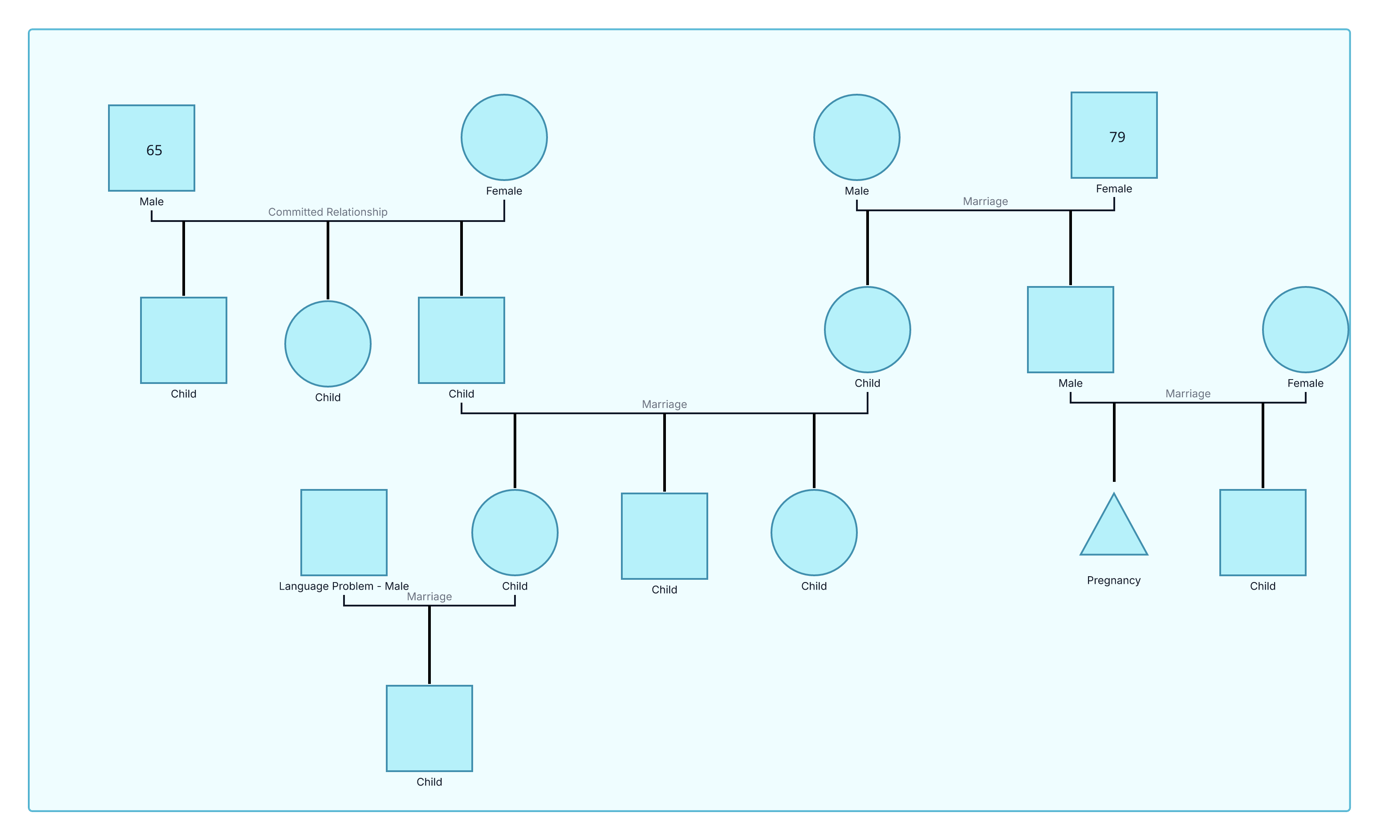
This medical genogram example combines a four-row family structure with ages, pregnancy information, and documented health indicators, giving users an editable starting point for organizing family medical history.
The example shows 16 people connected through one committed relationship and three marriages. Two older family members are labeled with ages 65 and 79, while a pregnancy is recorded in a younger branch. Another family member is labeled “Language Problem – Male,” demonstrating how a relevant observation can be placed beside the person it describes.
The legend summarizes four tracked indicators: diabetes, heart disease, obesity, and autism. Its displayed totals report nine diabetes markers, eight heart-disease markers, one obesity marker, and one autism marker. Some people carry more than one marker, allowing related information to remain visible without replacing the underlying family structure.
Use the example as a documentation aid rather than a diagnostic or risk-calculation tool. Verify conditions, terminology, dates, and sources before using the genogram in care planning or formal records.
This medical genogram example can help healthcare professionals, learners, and families organize family structure and verified health information in one clear view.
Start from a populated medical example for intake, history collection, referral, or pre-visit review.
Connect ages, pregnancy information, observations, and conditions with family relationships.
Review indicators across branches and add supporting clinical details.
Learn how family notation, health overlays, ages, and legends work together.
The family symbols establish structure, while labels and overlays add medical context.
Male family member
Female family member
Marriage or committed relationship
Parent–child relationship
Recorded age
Pregnancy, as labeled in the example
Medical indicator defined in the legend
Relevant observation, such as the language-problem annotation
Use this medical genogram when family structure and verified health information need to be reviewed together in one visual.
Add the central person or household, then include parents, grandparents, siblings, partners, children, and other relatives relevant to the review.
Connect partners and children with consistent lines. Label relationship types when that distinction is useful to the medical or care context.
Record conditions, age or age of onset, pregnancy information, relevant observations, treatment details, and sources according to the purpose of the genogram.
Use one consistent marker for each tracked condition, check that overlapping indicators remain readable, and update the legend whenever a new category is introduced.
Creately Clinical supports medical-genogram examples with structured health fields, health-focused views, collaboration, version history, and report-ready outputs.
A family tree primarily records lineage. A medical genogram adds health information, relevant dates or ages, and other structured details to the relationships between family members.
Yes. The example allows multiple indicators to appear on one person. Keep every marker visually distinct and define it in the legend so reviewers can interpret the diagram consistently.
Begin with confirmed family relationships and the health details most relevant to the purpose of the review. Add sources, dates, and status information where they help distinguish current, historical, reported, or unconfirmed information.
The Medical & Genetic field pack can organize conditions, genetic information, medications, allergies, and related health details. Health-focused views, comments, collaboration, version history, and export options help teams maintain and review the same genogram over time.
Edit the genogram to map the family, add verified health details, and create a clear medical genogram that is ready for collaborative review and future updates.