Free Flowchart Software for Visualizing and Improving Any Process

Create Professional Flowcharts Online, Faster

Create process flows, SOPs, decision trees, user flows, and swimlane diagrams from a template, a blank canvas, or an AI prompt. Creately combines Quick-Create, standard flowchart symbols, smart connectors, automatic layouts, and real-time collaboration in one online flowchart workspace.

Trust Badge
10M+ Users
1000+ Team
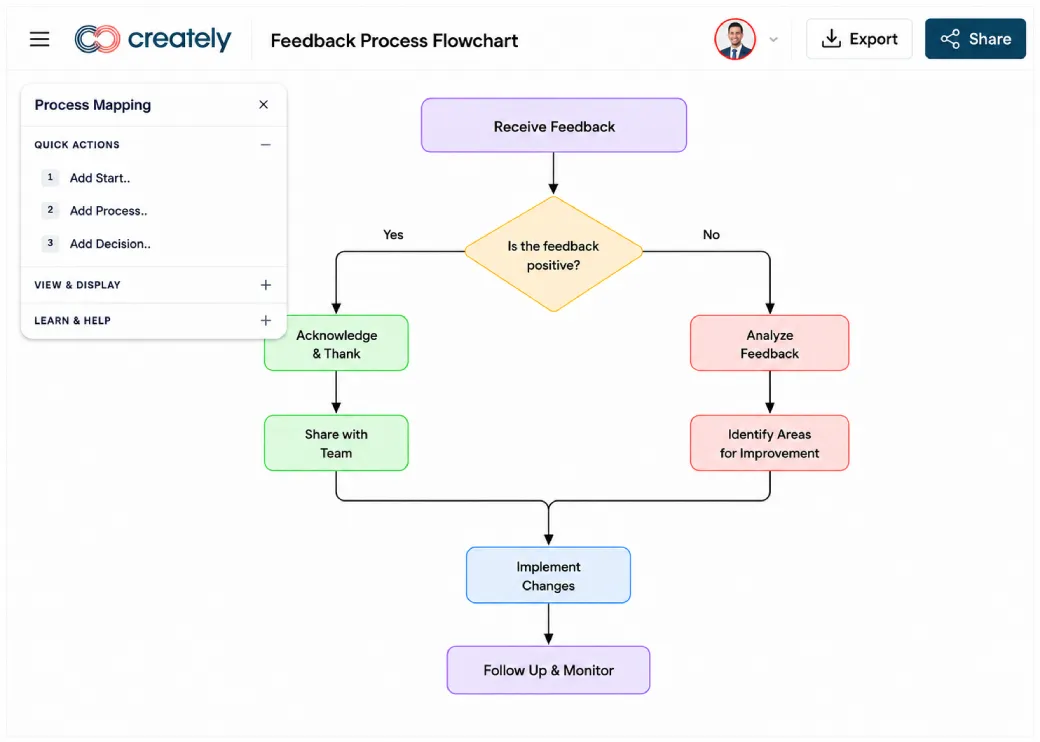
Creately flowchart software workspace for creating and editing a process flowchart

Build with Quick-Create

Build with Quick-Create

Keep complex flowcharts readable

Keep complex flowcharts readable

Start with a template or AI prompt

Start with a template or AI prompt
G2

What to Look for in Flowchart Software

Evaluate how quickly you can build and modify a flow, whether complex diagrams stay readable, and how teams review and maintain process documentation.
Feature
Add steps while building
Insert step mid-flow
Auto layout (readability)
Connector routing / cleanup
Maintain structure during edits
Speed of building flowcharts
Flowchart-specific UX
Templates for workflows
Collaboration (real-time)
Comments & feedback
Documentation attached to steps
Version control / history
Permissions & sharing
Integrations
Export options
Best use case
Creately
One-click Quick-Create adds step + connector instantly
Automatically reflows layout and connectors
Real-time auto layout as you build
Automatic routing with minimal overlaps
Structure preserved when adding/removing steps
Optimized for fast flowchart creation
Flowchart-first (logic-driven building)
Workflow-focused templates (SOPs, processes)
Multi-user editing + comments + async review
Contextual comments + resolution tracking
Add notes, owners, links, files per step
Built-in version history for flows
View / comment / edit roles
Slack, Teams, Google Drive, Jira
PDF, PNG, SVG, CSV, JPEG
Fast, structured, collaborative flowcharts
Lucidchart
Drag + connect manually
Requires manual repositioning
Available, but often manual trigger
Good, but requires adjustment
Can break in dense diagrams
Fast but more general-purpose
General diagramming tool
Large template library
Strong real-time collaboration
Comments + mentions
Robust data linking & custom shape data
Version history available
Advanced sharing controls
Strong integrations ecosystem
PDF, PNG, SVG
General diagramming + enterprise use
Miro
Drag + connect
Breaks layout in complex flows
Limited for flowcharts
Basic connectors
Breaks in complex flows
Slower for structured diagrams
Whiteboard-first
Whiteboard templates
Strong collaboration
Comments + sticky notes
Limited
Basic
Good sharing
Strong integrations
Image/PDF
Brainstorming + visual collaboration
Microsoft Visio
Drag + connect
Manual adjustment required
Available but not real-time
Advanced but manual-heavy
Requires manual fixing
Slower (desktop-oriented)
Technical diagramming-first
Limited modern templates
Limited (depends on setup)
Limited
Possible but complex
Depends on setup
Enterprise-level controls
Microsoft ecosystem
Extensive export formats
Technical / enterprise diagrams
diagrams.net (draw.io)
Drag + connect
Manual adjustment required
Limited
Basic
Requires manual fixing
Fast but basic
Basic diagramming
Community templates
Limited
Limited
Limited
Limited
Limited
Limited
PDF, PNG, SVG, VSDX, HTML, XML
Free, simple diagrams

Why Choose Creately’s Flowchart Software?

Build faster, edit without rework, and keep every diagram readable as it grows.

Build and Edit Flowcharts Without Rework

Add, insert, and change steps as the process develops without rebuilding the complete diagram.

  • Add a connected step using Quick-Create
  • Insert new steps within an existing flow
  • Switch shape types when the process logic changes
Creately flowchart software interface with flowchart shapes and workflow diagram
Keep Connections Organized

Keep Connections Organized

Maintain the process structure as you move shapes, expand branches, and refine the diagram.
  • Automatically route connectors as shapes move
  • Apply auto layout for consistent spacing and alignment
  • Rearrange branches while preserving the process structure
Document More Than the Diagram

Document More Than the Diagram

Keep the operational information people need attached to the relevant step, not in a separate document.
  • Add notes and supporting instructions to individual steps
  • Assign owners to clarify responsibility
  • Attach links, files, and reference material

Learn To Make a Flowchart With Creately In 2 Minutes

Create Flowcharts from Text with AI

Move from a written process to an editable flowchart without placing every shape manually. Describe the process, participants, steps, and decisions, then review and customize the generated first draft in Creately. Try the AI Flowchart Generator for processes that need a quick visual starting point.

Step 1: Describe the process

Include the participants, steps, decisions, and outcome you want to visualize.

Step 2: Generate and review the flow

Check the initial steps, decisions, and connections for missing or inaccurate details.

Step 3: Customize the diagram

Refine shapes, labels, colors, connectors, and layout to match the actual process.

Step 4: Collaborate and document

Invite teammates to review the logic, then add owners, notes, links, and files to make the flow useful after the workshop.

Why Teams Choose Creately For Flowcharts

Everything you need to collaborate, document, and govern flowcharts in one place.

Review, Refine, And Approve Flows—Together

Flowcharts often break at handoff, feedback gets scattered and versions multiply. Creately’s flowchart app keeps reviews, edits, and decisions in one shared workspace, so everyone works from the latest flowchart.

  • Comment exactly where change is needed
  • Resolve edits in-place—no duplicate files
  • Keep one up-to-date version for reviews
Collaboration + review
Creately flowchart software interface with flowchart shapes and workflow diagram
Integrations + documenting
Fit Flowcharts Into Your Existing Workflow

Fit Flowcharts Into Your Existing Workflow

Connect each step of the flowchart to the context people need to run the process—not just look at it.
  • Creately’s flowchart generator integrates with Slack, Teams, Google Drive, and Jira
  • Add notes, owners, links, and files per step
  • Turn flows into living process documentation
Security / controls (buyer-friendly)
Control Access As Flowcharts Move From Draft To Documentation

Control Access As Flowcharts Move From Draft To Documentation

As flowcharts become operational docs, you need predictable controls—who can view, comment, edit, and share.
  • Role-based sharing: view, comment, edit
  • Manage stakeholder access to the flowchart builder
  • Governance for team-wide documentation
What Our Customers Say About Our Flowcharts
It is the best tool for creating visual flowchart and workflows
It allows us to collaborate easily. It also, allows us to make notes and add the attachments to make the important notes of project.
Pavithra Jeeva A
It has been a satisfactory journey with Creately
What I liked about creately was the plethora of templates helping me to get my PRD s done. I used the sprint tasks flowchart the most
Sudarshan B
Designing Process Flow Diagrams
Easy to use the platform automatically saves your work in the cloud plus you can collaborate quickly with team members by sharing invites and linking the diagrams to PowerPoint decks.
Samwel M
Great tool for all your flowchart needs
Flow charts become a breeze with Creately; the item linking and customization options help make your flow charts look professional with very minimal effort required. I've found it very useful for mapping out OKRs, making a visual representation of our digital file structure, creating roadmaps for projects, etc
Sam V
Completely satisfied with preliminary features of creately
I am a student at this moment and I have mainly used creately for make diagrams, flowcharts, process flow maps, etc. The diagrams are really refined, the shapes are elegant. They have nice curves and look slim and professional. I love that about creately. Because I am currently a student, I work on limited features but as I get a job, I see myself using the other more advanced features of creately
Mayank S

What Is Flowchart Software?

Flowchart software is an application for creating, editing, collaborating on, and sharing visual representations of processes. Flowcharts use standardized shapes and directional connectors to show actions, decisions, inputs, outputs, and sequence. Online flowchart software helps teams review processes together, maintain documentation, and update diagrams as workflows change.

Use flowcharts for business processes, SOPs, software logic, user journeys, approvals, onboarding, troubleshooting, training, and cross-functional workflows.

Types of Flowcharts You Can Create

  • Process flowcharts
  • Swimlane flowcharts
  • Decision flowcharts
  • Workflow diagrams
  • User flows
  • System flowcharts
Creately flowchart software interface with flowchart shapes and workflow diagram

How to Create a Flowchart with Creately

Step 1: Define the purpose and boundaries

Identify what the flowchart needs to explain, where the process begins and ends, and who will use the finished diagram.

Step 2: Choose a template, blank canvas, or AI prompt

Select a relevant flowchart template, begin from scratch, or describe the process to generate an editable first draft with AI.

Step 3: Add steps and decisions

Use standard flowchart shapes for starts, ends, processes, decisions, inputs, and outputs. Label every step with a clear action or question.

Step 4: Connect and arrange the flow

Use Quick-Create and smart connectors to show direction. Apply automatic layout and spacing to keep the process readable.

Step 5: Add owners and supporting context

Attach notes, links, files, data, or ownership information to the relevant shapes so the flowchart functions as process documentation.

Step 6: Review the logic with your team

Invite process owners and stakeholders to comment, edit, test decision paths, and confirm that the flow reflects the real process.

Step 7: Share, embed, present, or export

Share a controlled link, present it from the workspace, or export it in the format required by stakeholders.

Frequently Asked Questions About Flowchart Software

Is Creately’s flowchart software free?

Creately offers a free plan for creating and collaborating on flowcharts. Review the current pricing page for the exact limits and features available in each plan.

Can Creately generate a flowchart from text?

Yes. Creately AI can turn a written process description into an editable flowchart. Review the generated sequence and decisions, then customize the shapes, connectors, text, and layout to match the actual process.

Can multiple people edit the same flowchart?

Yes. Team members can collaborate in the same workspace using live editing, cursors, comments, mentions, and sharing permissions.

What types of flowcharts can I create?

You can create process flowcharts, decision flows, swimlane diagrams, user flows, workflow diagrams, system flowcharts, SOPs, onboarding flows, and other diagrams that represent sequential activities and decisions.

Does Creately include standard flowchart symbols?

Yes. Creately includes a flowchart shape library for common elements such as start and end points, process steps, decisions, inputs and outputs, documents, and connectors.

Can I create a swimlane flowchart?

Yes. Use a swimlane template or build lanes for different roles, departments, teams, or systems. Place each process step in the appropriate lane to show ownership and handoffs.

Can I add notes, owners, links, and files to flowchart steps?

Yes. Supporting information can be connected to items on the canvas, helping teams use the flowchart as maintained process documentation.

Can I share or embed a flowchart?

You can share a flowchart through a controlled link and use available presentation or embedding options to make it accessible to stakeholders. Available controls may depend on the selected plan.

Which file formats can I export?

Creately supports common visual and document formats including PDF, PNG, SVG, and JPEG. Confirm plan-specific availability before selecting a workflow based on a particular export format.

What should I look for in flowchart software?

Consider ease of use, supported symbols, templates, AI generation, automatic layout, collaboration, version history, permissions, integrations, exports, and the ability to attach process documentation to individual steps.