Creately Integrations
Creately works with today’s most popular tools for team collaboration. Stay connected to the apps that you need with Creately integrations.
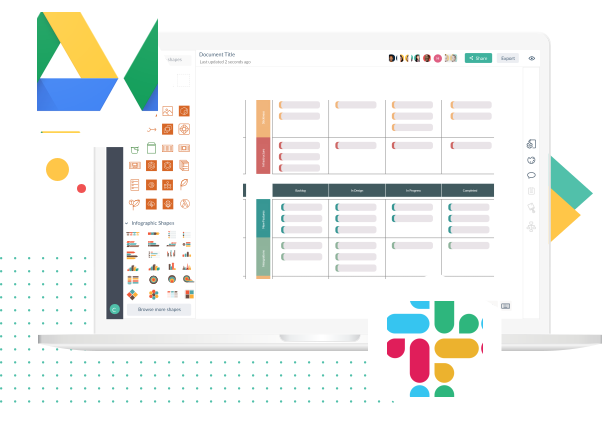
Creately for Google Drive

Collaborate on visualizing ideas and concepts seamlessly with our Google Drive integration.
- Manage Creately documents and folders from your Google Drive
- Add collaborators by simply sharing your Google Drive Creately files with peers
- Control edit or view rights to documents you create via Google Drive
Or Learn More
Creately for Slack

Get instant notifications on Creately documents your team is working on with our Slack integration.
- Create a new Creately document from a preferred Slack channel
- Review and reply to comments on your Creately documents right from Slack
- Give edit access to your team by simply sharing the diagram link in your channel
Or Learn More
Creately for Confluence

Add more visual context to your Confluence pages with Creately diagrams and visuals.
- A plugin that works natively inside your on-premise Confluence server
- Access to standard shape libraries and 1000s of templates for 50+ diagram types
- Advanced features and simplified UI to visualize anything with amazing speed
Or Learn More
Creately for Microsoft Teams

Experience visual collaboration like never before. Plan, analyze and execute all your work without leaving Microsoft Teams.
- Infinite smart canvas to plan and brainstorm visually
- Visual tools to create custom workflows to run projects
- Database capabilities to maintain visual knowledge hubs
- Keep all your work and teams in sync.
Or Learn More
Coming Soon

Connect the tools you love to Creately with Zapier. More than 1500 apps to find the solutions you are looking for faster.
Store and manage your Creately documents right from Microsoft OneDrive