The Creately Visual Collaboration Platform
Creately is a visual collaboration platform that makes it easier for your team to collaborate and work more efficiently together. Our infinite canvas serves as a central hub, where you can:
Advanced Diagramming and Whiteboarding
Effortlessly create stunning diagrams, flowcharts, mind maps, and more, all in one place. Whether you're brainstorming ideas, planning projects, or pitching a product, transform your thoughts into captivating visuals in minutes.
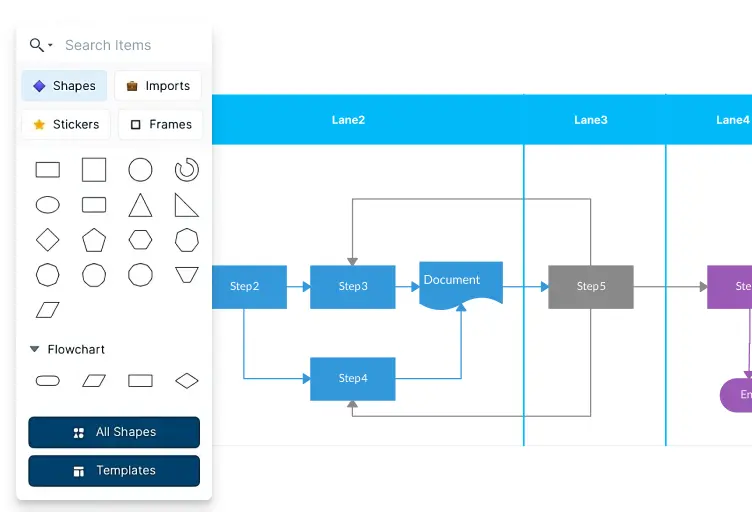
Professional diagramming
70 types of diagramming standards with 1000+ specially designed shapes and connectors to enable blazing fast diagramming.
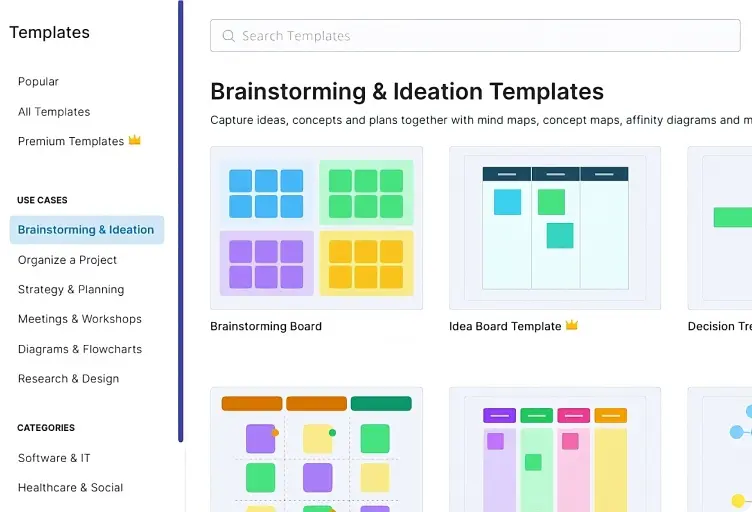
Ready-to-use templates
8000+ professional templates and 200,000+ examples spanning across industries to get a head start.
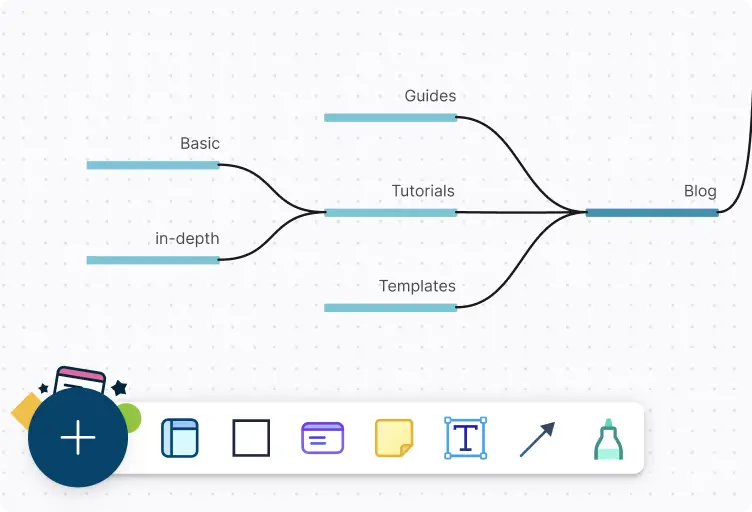
Keyboard shortcuts with PlusCreate
Nifty keyboard first drawing shortcuts with PlusCreate to do just about anything on your workspace without lifting a finger.
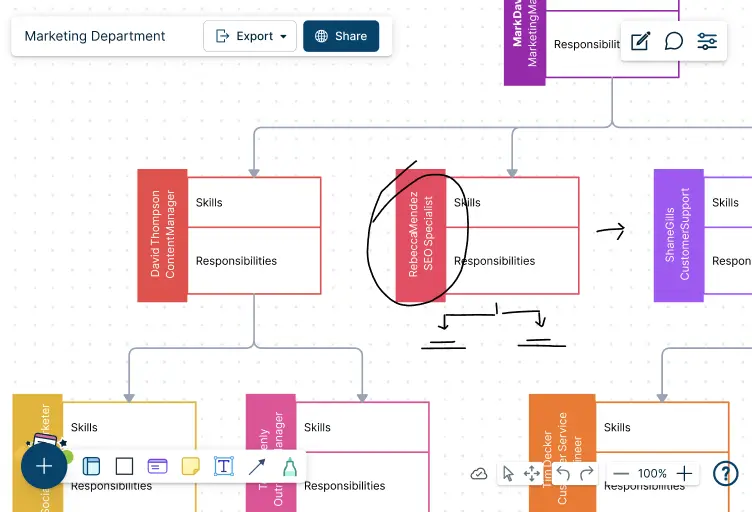
Hand drawing and markup support
Illustrate or make annotations easily with freehand drawing and format text without leaving the keyboard with markdown shortcuts.
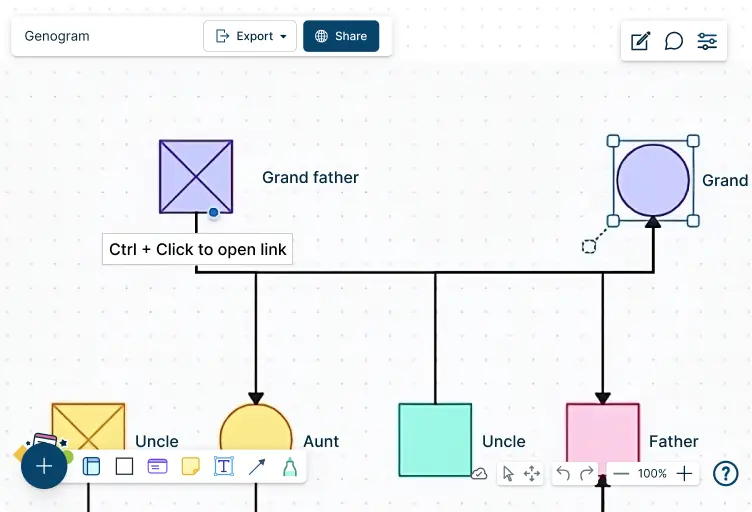
Links and connectors for navigational flows
Link between shapes to build navigational structures in and across workspaces
Unlimited Visual Collaboration
Bring your teams together to connect, collaborate, and innovate no matter where you are. Run more interactive brainstorming sessions, workshops and meetings with hybrid or remote teams with shared workspaces.
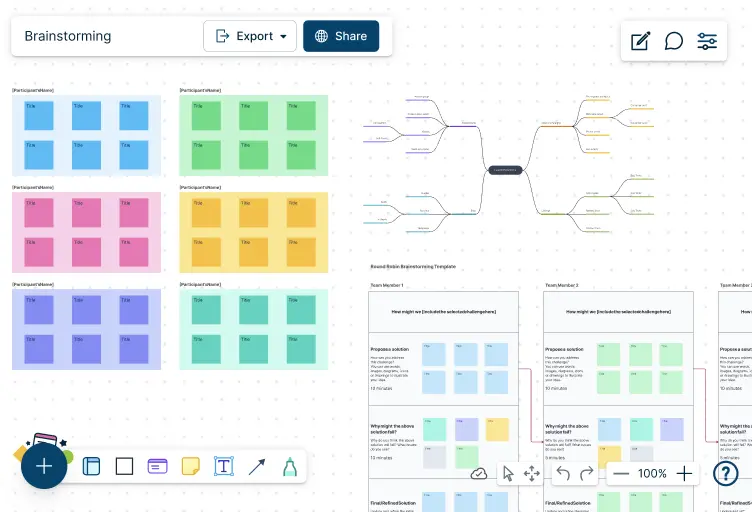
Infinite canvas
Visually create and organize any structure you imagine. Drag drop shapes or datasets, embed external content.
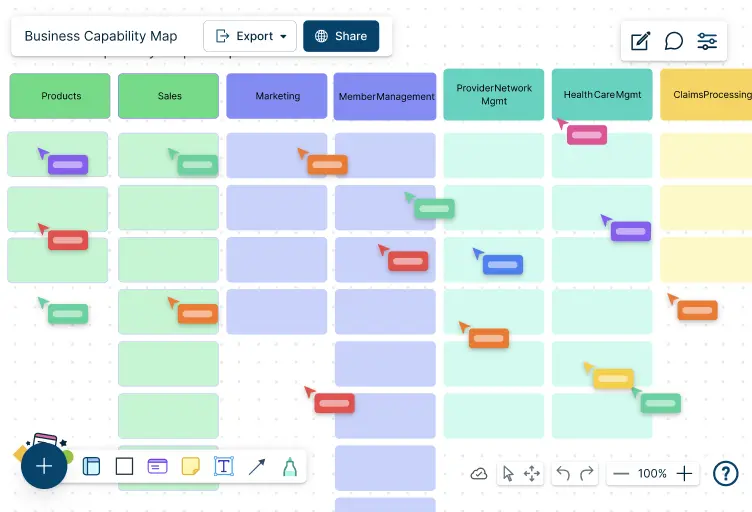
Real-time text cursors and mouse pointers
Get any number of participants on the same workspace and track their additions in real-time.
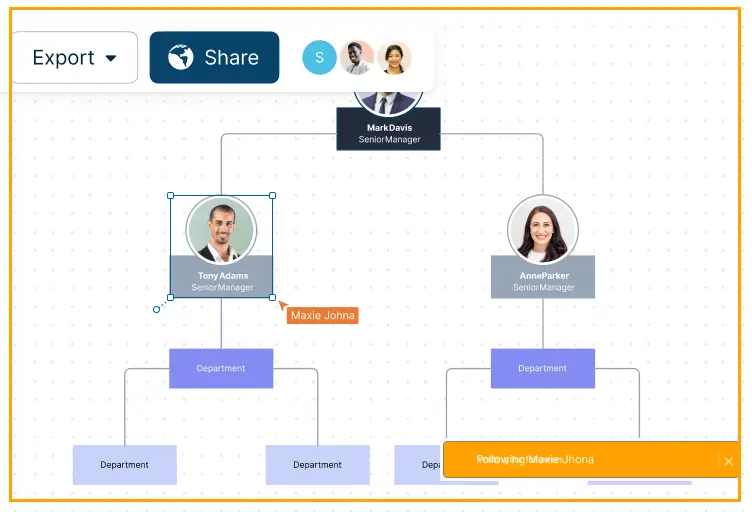
Spotlight / follow other collaborators
Click on anyone’s avatar in the header to follow them or on your avatar to spotlight yourself.
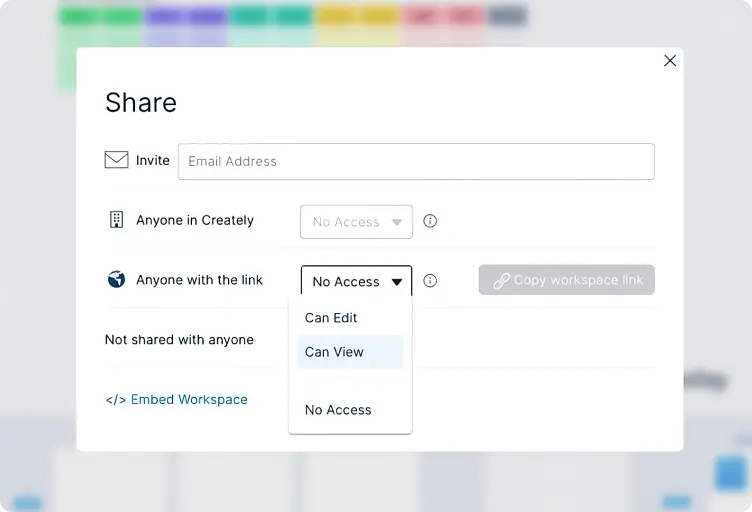
Advanced sharing permissions
Sharing controls at multiple levels of folders, workspaces. Role based permissions down to field level of items.
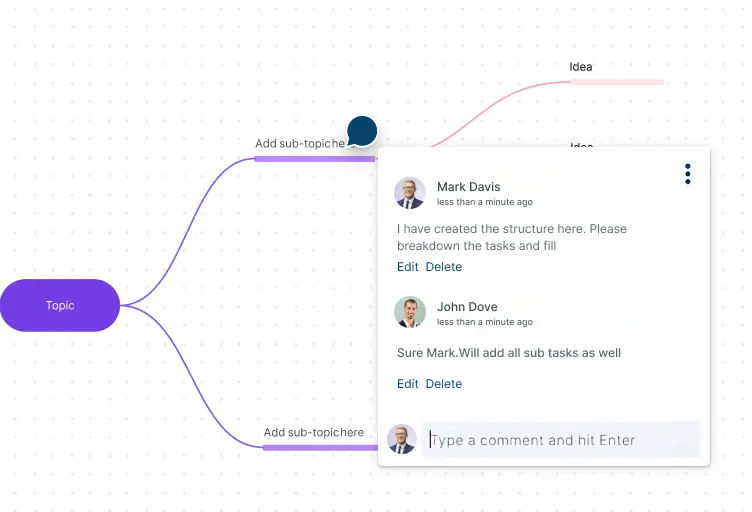
Comments and tasks
Comment on anything, with context. Full comment threads and discussions for async collaboration.
Use with Microsoft Teams / Slack / Zoom
Get your team together to brainstorm, plan, run projects, etc. on Creately with your favorite meeting platform.
A Central Location for All Your Data
Keep everything from meeting notes and resources to action plans and analytics in the same place.

2-way data linking
Drag drop 'items' from any data-source on to the canvas to visually interact with data.
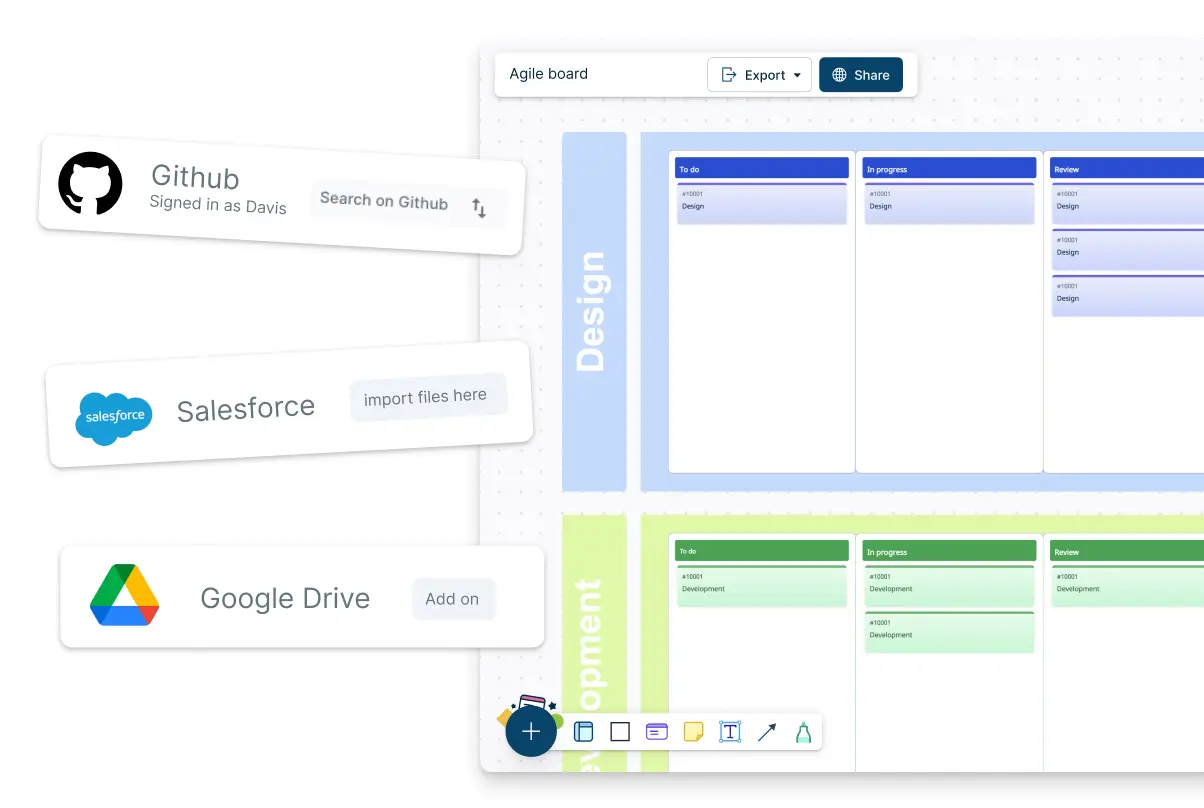

Arrange data
Organize items on Kanban boards, timelines and grids to visualize them meaningfully.

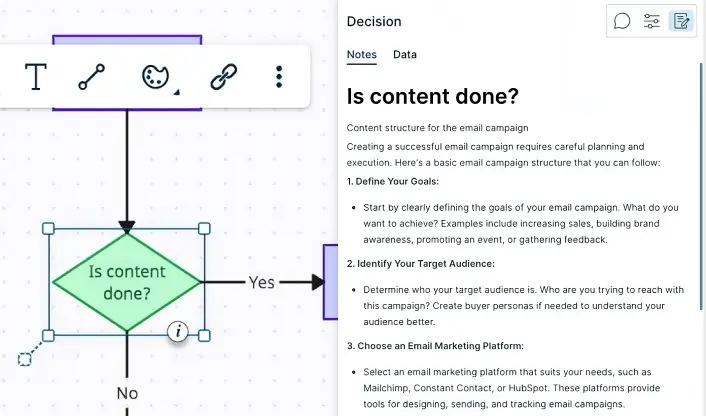
Per item docs
Powerful documentation capabilities with per-item notes with tables, attachments and more.

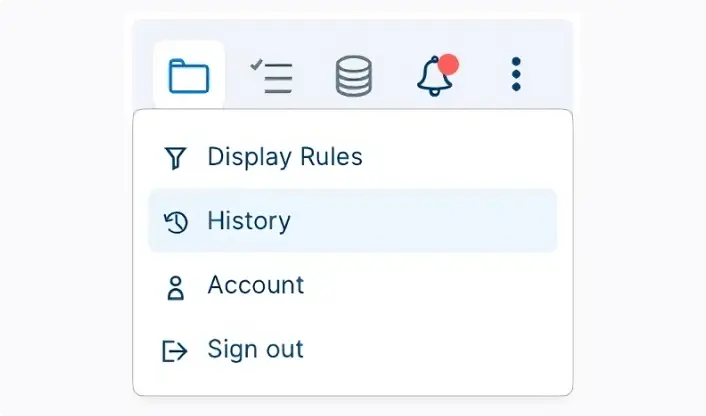
Full version history
Item level history of all changes. Per item status feed.

Multiple views
Visuals that are backed by databases, update once, reflect in multiple view type of workflows.
Easy Note Taking And Visual Thinking
Big picture to details, in context. Notes, attachments and custom data-fields for each item, two-way links and full-text search enable seamless knowledge capture and curation.
Visual Project Management & Execution Tools
Bring your projects to life with built-in project management tools. Kanban boards, multi-role workflows, visual prioritization tools to enable any kind of workflow for even items from 3rd party platforms.
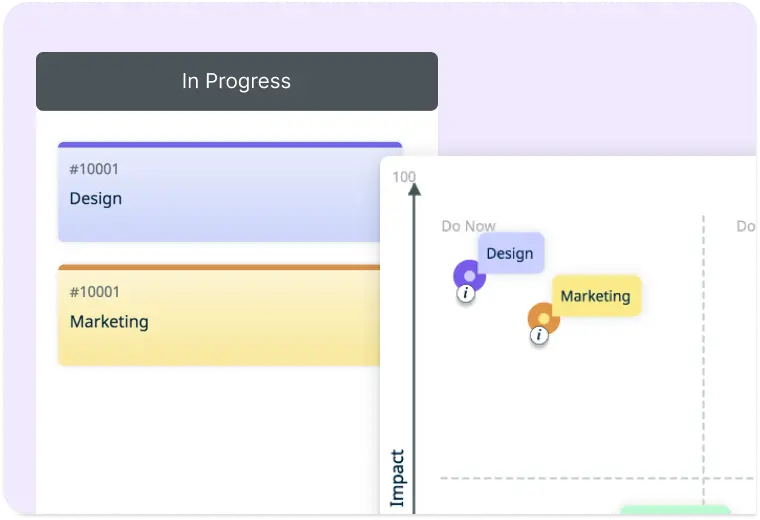
Advanced workflows
Create a central hub to track everything from planning to execution with multiple boards and timelines in the same workspace.
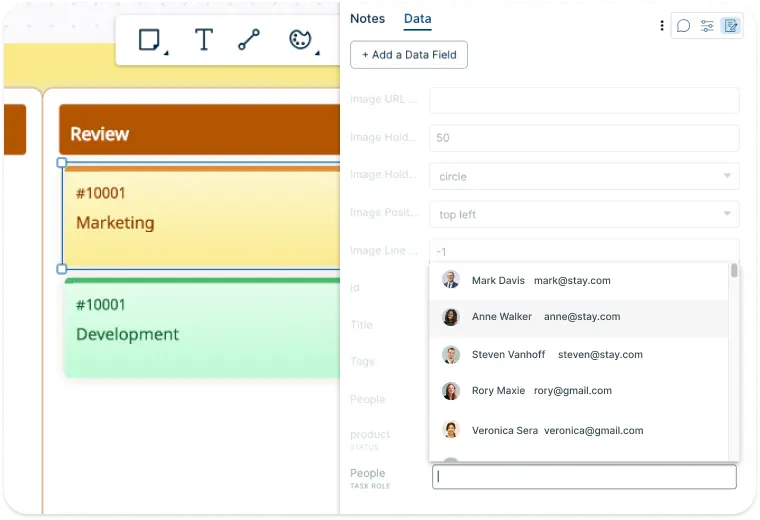
Tasks and multiple roles for any item
Create tasks from any item for anyone in the team. Add multiple roles per each item in any configuration.
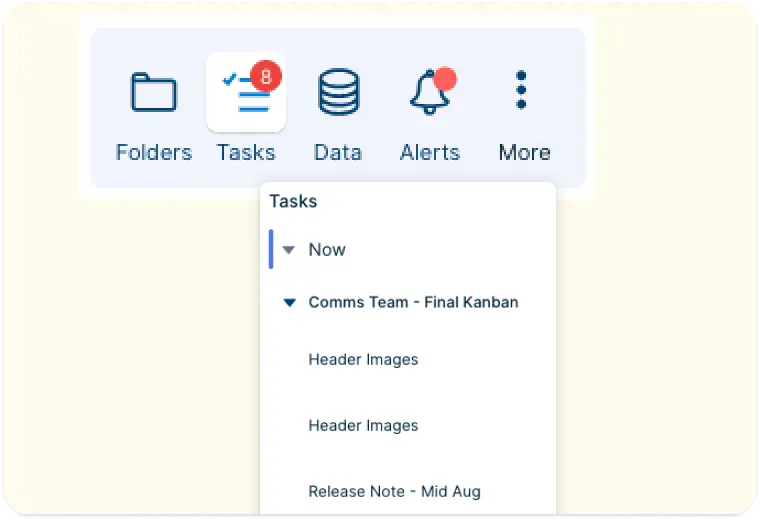
Simple ‘My Tasks’ view
Manage and keep track of all tasks assigned to you from one place.
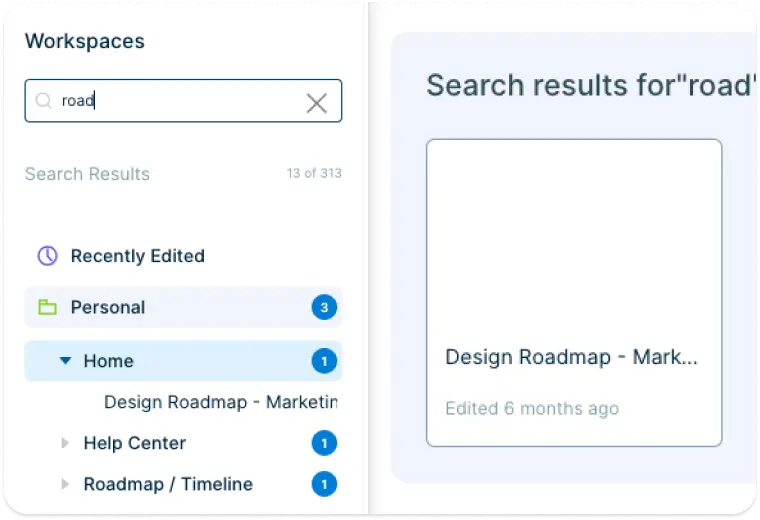
Full text search and indexes
Universal full text search, searches all content across all workspaces instantly. Visually navigate and see the search results.
Adapts to Your Enterprise

From SSO, SCIM to well-defined employee onboarding and offboarding workflows, Creately can scale to support diverse enterprise needs.
- SSO and SCIM via Azure AD, Okta, Google etc.
- Multiple admins and access levels
- Sharing permission management
- Full audit logs
- SOC 2 - Type II, ISO 27001
- Custom data residency